
Troubleshooting OfficeConnect
This article includes suggestions and workarounds. Content may not be accurate for all use cases or represent best practices for the latest release.
Question
I am on the IT team and OfficeConnect users often ask for assistance with start up errors and other behaviors when working in the product. Do you have any troubleshooting steps that would be helpful?
Answer
Install Prerequisites
Related issues: installation and update errors due to .NET, VSTO, or other security exceptions
- Download .NET 4.8 and Microsoft Visual Studio (VSTO) 2010 tools for Office Runtime.These programs require admin permissions on the machine
- Download OfficeConnect. See Product Downloads.
Checking Excel Add-ins
Related issues: add-in not loading properly when launching OfficeConnect Excel and other general errors
- Close OfficeConnect and Excel (if running)
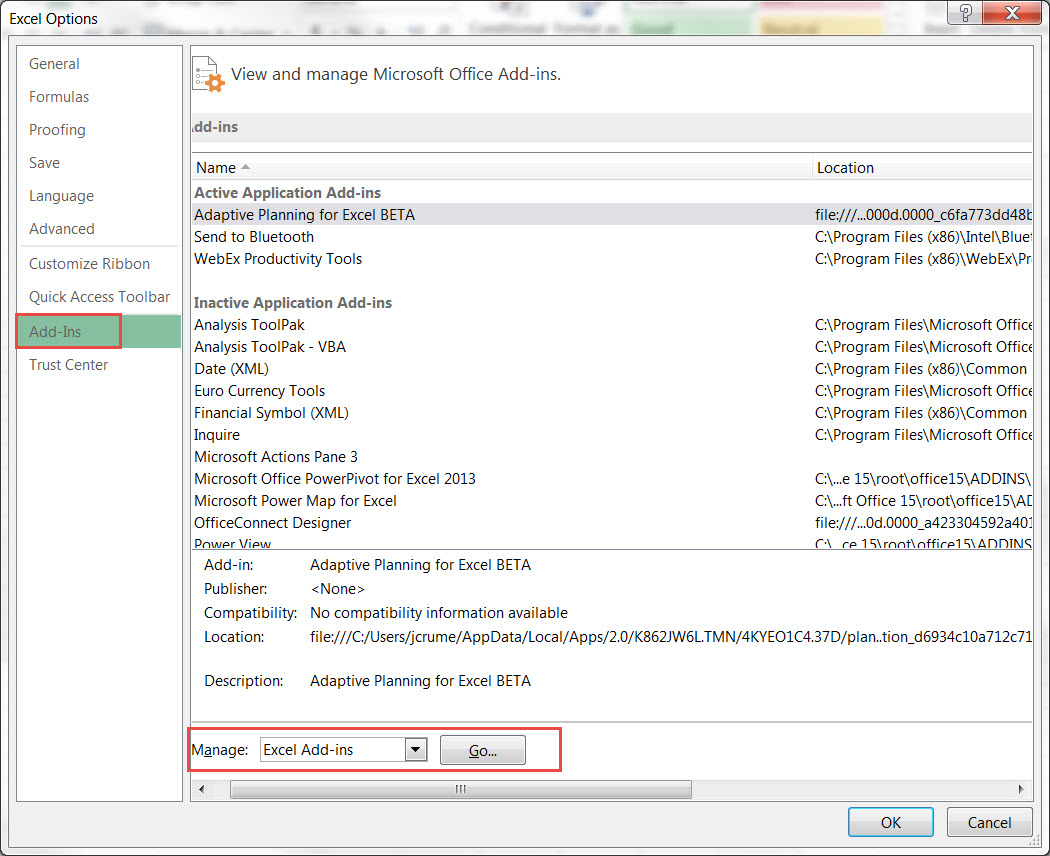
- Open Excel and go to File > Options > Add-Ins
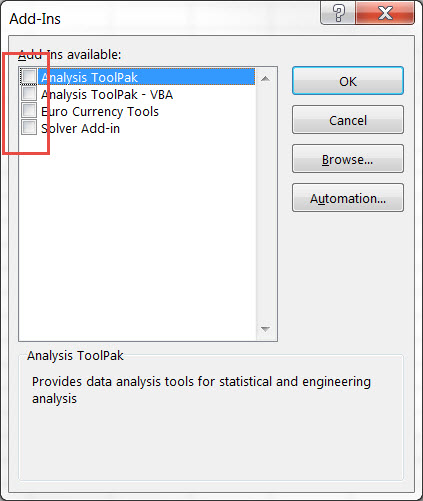
- Under "Manage" at the bottom, click "Go..." with Excel Add-ins selected
- If any are checked, uncheck them
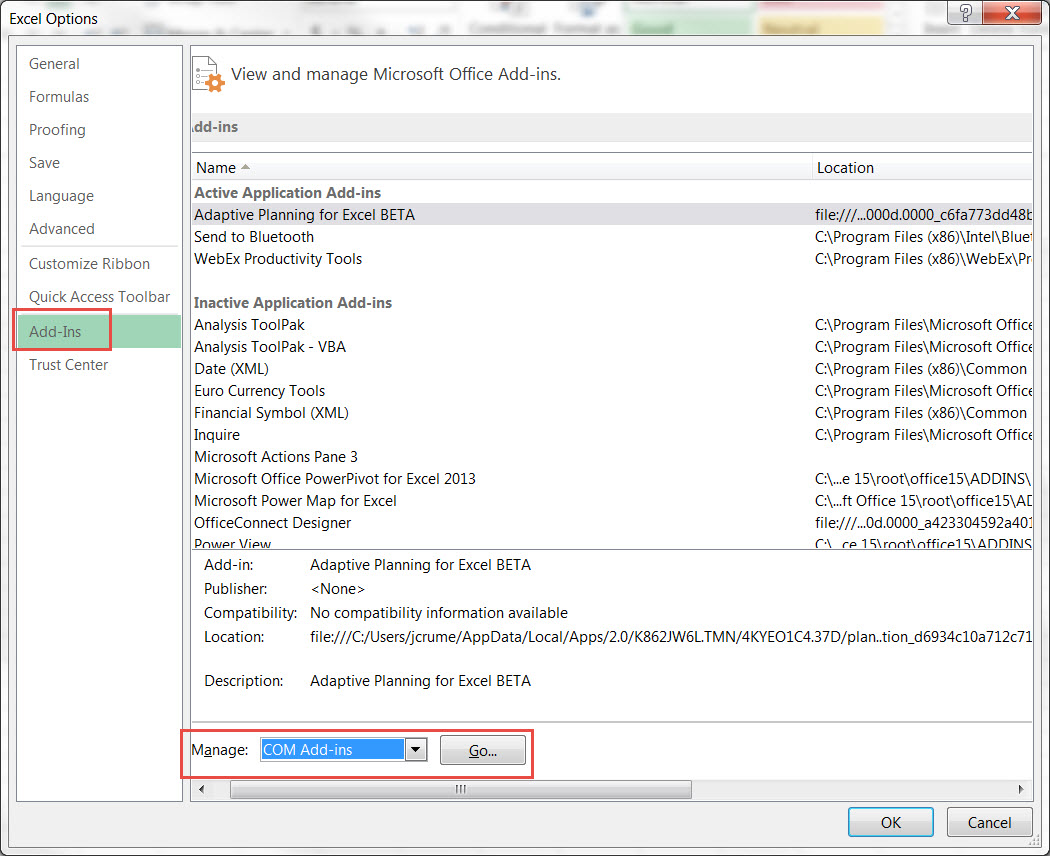
- Go back to File > Options > Add-Ins > change "Manage" to "COM Add-ins" > click "Go..."
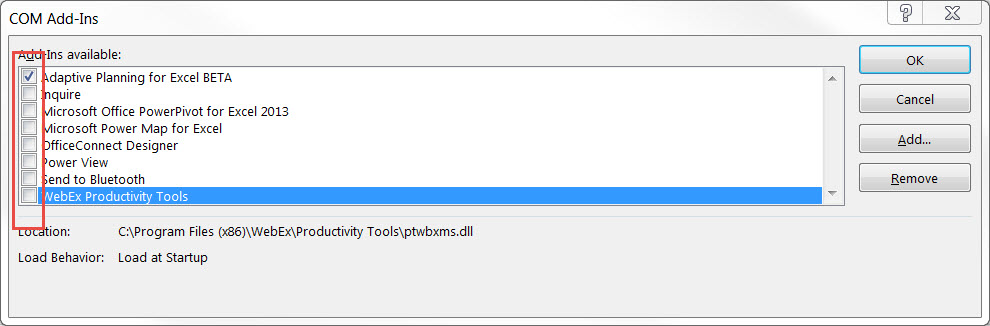
- Uncheck any add-ins if any are present (it should be fine to keep "Adaptive Planning for Excel" checked)
- Once all add-ins are unchecked you can close Excel
- Log in to OfficeConnect
- If the issue was not fixed, please see the next steps
Uninstalling/Re-installing
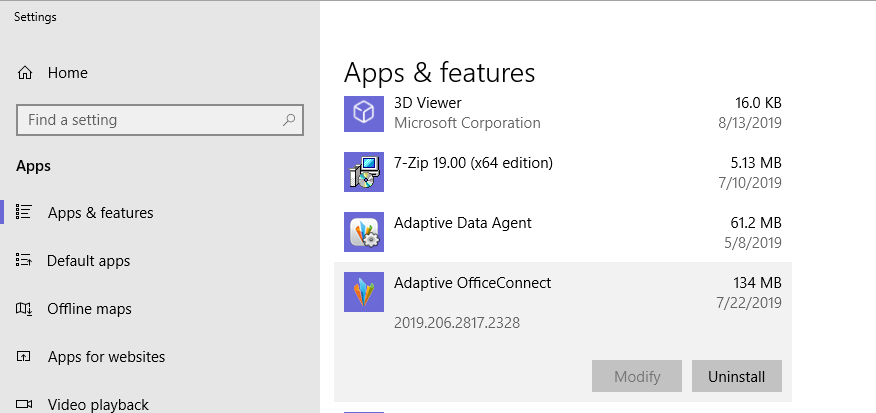
- Go to Start > Settings > Apps & Features
- Select OfficeConnect > Uninstall
- Re-install OfficeConnect. See Product Downloads.
- Log in to OfficeConnect
- If the issue was not fixed, please see the next steps
Repair Microsoft Office
- Go to Start > Settings > Apps & Features
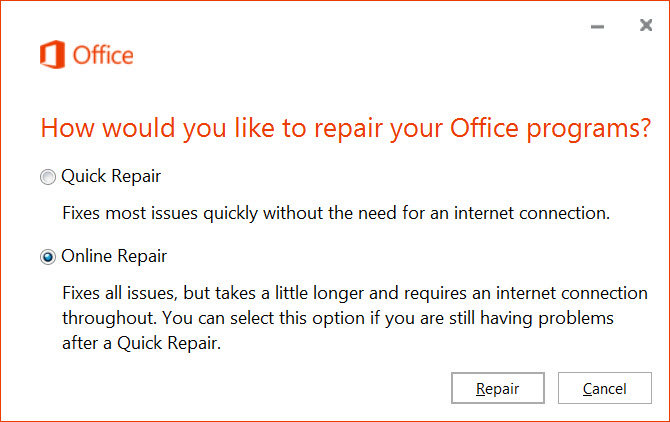
- Select Microsoft Office > Modify
- Choose the Online Repair option > Repair
- Log in to OfficeConnect
Disable Macros
Related issues: odd behaviors when opening saved files or closing OfficeConnect
- Close Excel and OfficeConnect if they are running
- Go to Start > Search > %appdata%\Microsoft\Excel > click Enter
- Open the XLSTART folder
- If there are files in the folder, go to the next step. If there no files in the folder, you can skip the remaining steps.
- Go back one folder (click "Alt+ Left" or click Excel in the folder path)
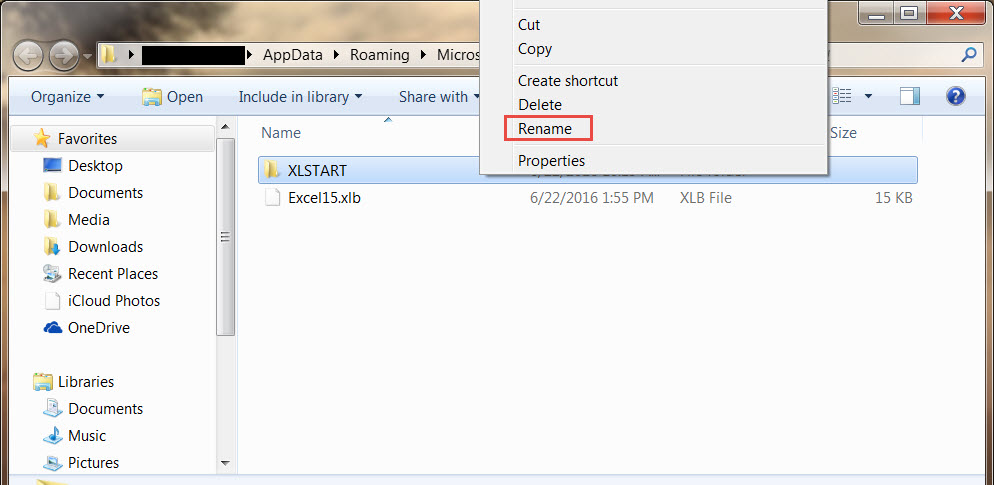
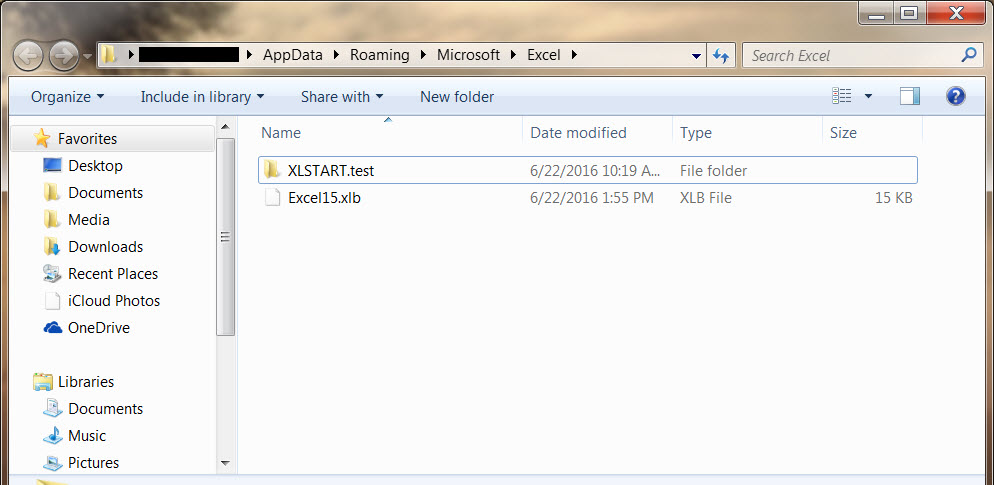
- Rename the XLSTART folder to something like XLSTART.test
- Log in to OfficeConnect and retry the previous action that resulted in an unexpected behavior
Information Gathering
If the troubleshooting steps above do not resolve the issue, please run the OfficeConnect troubleshooting tool and send the results to Support.
- The troubleshooting tool will gather information for errors and other information specific to your machine.
- Send the results to support by opening a case in Workday Customer Center.