
Move scripts from one On-Prem Data Connector to another
Question
How can I transfer scripts from one On-Prem Data Connector to another?
Answer
Sometimes you may find yourself in a position where you have created a new On-Prem Data Connector and you would like to transfer scripts that are associated with a previous On-Prem Data Connector to be associated with the newly created On-Prem Data Connector. You can transfer those scripts by following the steps below:
This is a fairly advanced process that should only be performed by an individual with working knowledge of the On-Prem Data Connector and the server where the On-Prem Data Connector Manager is installed.
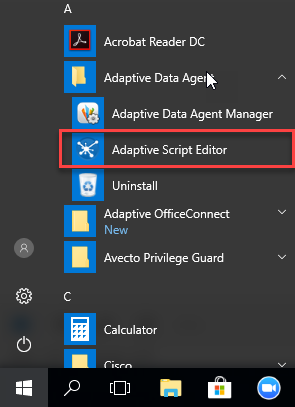
- Open theAdaptive Script Editor
- Enter your Adaptive credentials.
- Select your Adaptive instance code from theActive Tenantdropdown menu.
- Select the On-Prem Data Connector with the scripts you want to copy (OPDC 1) from theSelect Active OPDCmenu. This will download the scripts stored in this connector.
- Select the connector that you want to copy the scripts to (OPDC 2) from theSelect Active OPDCmenu.
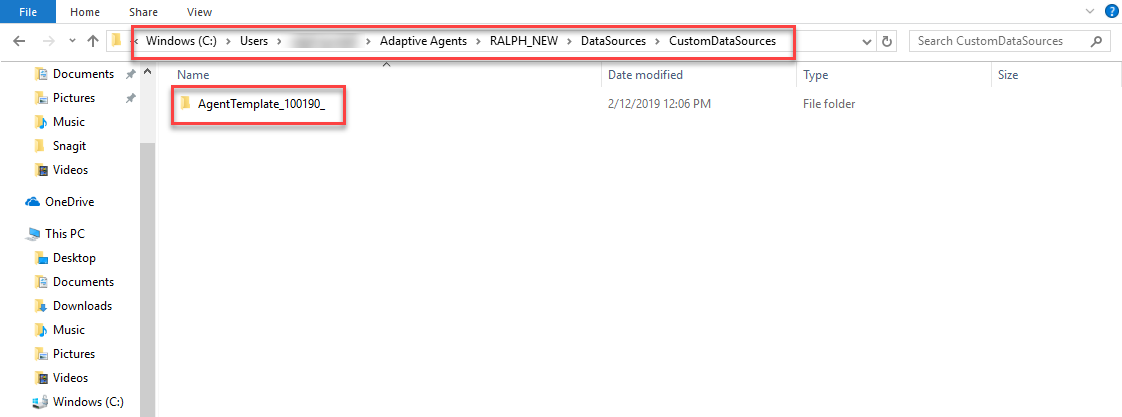
- Go toC:\Users\<user you are logged in as>\Adaptive Agents\<instance code>\DataSources\CustomDataSources
- In this location, there will be folders for every agent in the Adaptive instance that you accessed from the Adaptive Script Editor on that computer.
- Every folder will have a name likeAgentTemplate_XXXXX_, where XXXXX is an internal ID number for the OPDC. To find out which folder corresponds to each OPDC, open the folder (e.g.,) and then open theAgentTemplate_XXXXX_agent.config.xmlfile within. This XML file will have anode that shows the display name for this OPDC.<displayName>
- Go toand copy the scripts in this folder.C:\Users\<user you are logged in as>\Adaptive Agents\<instance code>\DataSources\CustomDataSources\<OPDC 1 ID>\Repository
- Go toand paste the scripts into this folder.C:\Users\<user you are logged in as>\Adaptive Agents\<instance code>\DataSources\CustomDataSources\<OPDC 2 ID>\Repository
- In the Adaptive Script Editor, clickPublish OPDC Changes.
- Log in to your Adaptive Insights instance and go toFor each scripted data sourceIntegration > Data Designer > Data Sources.,select the <new OPDC> as the OPDC and select the script to use as the entry point for the data source.