
Tasks
Overview
In this chapter, you will create tasks so that users can navigate to parts of your Workday Extend app. A task can be tied to a specific business object context, which means users access it via a business object's Related Actions menu. Or, a task can be context-free, which means users access it via Workday global search.
Objectives
By the end of this chapter, you will be able to:
- Create a context-free task.
- Add a context-free task to the Workday Home page.
- Create a task connected to a business object context.
Model Component Tasks
Tasks integrate your Workday Extend apps into the native Workday environment. Tasks are no longer tenant-specific. You can use App Builder to define them and port them between tenant environments.
Using App Builder, you can:
- Create context-free tasks.
- Create tasks in the context of your app's Extend business objects.
- Secure tasks using the Workday configurable security model.
Create a Task
You can either create tasks in App Builder with the visual wizard, or with JSON by toggling the code slider.
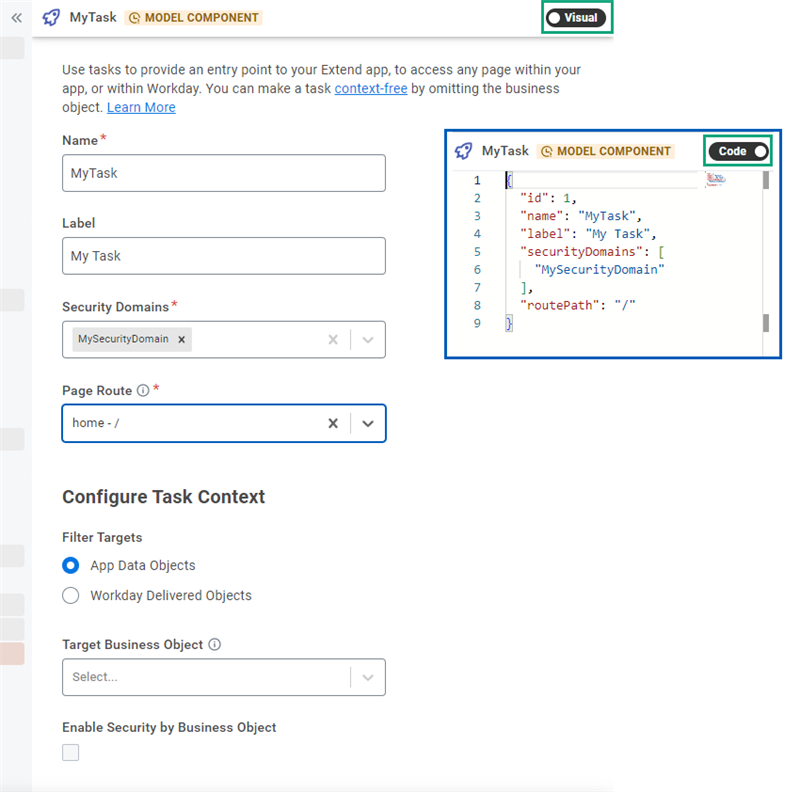
App Builder Task visual builder versus the code screen
Creating a Context-Free Task
Use App Builder to author context-free tasks. Users access context-free tasks using the global search.
Context-free tasks also enable the following entry points to your Extend app:
- Announcements
- Configurable Alerts
- Journeys
- Shortcuts
- To-dos
Omitting the business object allows your task to be context free.
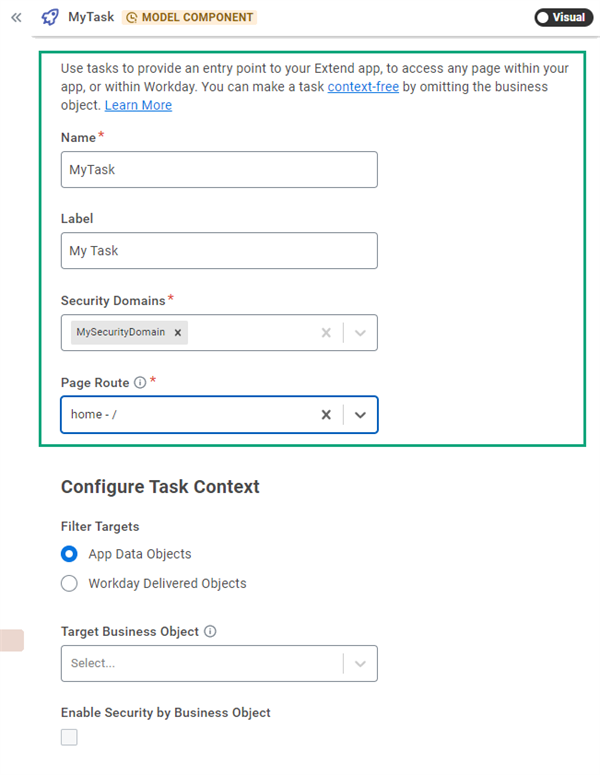
App Builder visual builder of context free task
Access Extend Apps in Workday
You can use context-free tasks to open Extend apps in the Workday application. Context-free tasks enable various entry points to Extend apps in Workday:
- Announcements on the Workday home page, or on any other Workday landing page
- Use the Configure Announcements task.
- Configurable alerts
- Use the Configure Alert task.
- Dashboards
- Use the Maintain Dashboards task.
- Journeys
- Landing pages
- Use the Create Custom Dashboard task to add your task to a custom dashboard.
- Quicklinks to open your Extend app URL from a custom worklet or dashboard
- Use the Maintain Quicklinks task.
- Shortcuts on the Quick Access menu on the top navigation bar
- Use Quick Access > My Shortcuts > Edit.
- To Dos
- Use the Maintain To Dos task.
Refer to the Developer Documentation for more details on how to set up each type of entry point.
Tasks with Business Object Context
You can author tasks in the context of:
- Workday Extend business objects of your app.
- Workday-delivered business objects that support the target attribute.
Note
: You can't use an attachment as the target business object of a task.Adding context to your task enables users to access the task as a related action from the business object.
You can apply contextual security to a task if:
- A Workday-delivered business object provides context for the task.
- A Workday-delivered target business object contextually secures the Workday Extend business object.
In this case, Workday also evaluates the processing user against each instance of the Workday-delivered business object.
Note
: When you apply contextual security to a task, the domain security policy for the task shouldn't contain any unconstrained security groups.