
Time Tracking Calculations
Overview
In this chapter, you will learn the purpose of time calculations in Workday Time Tracking and the key components to consider when configuring time calculations.
Objectives
By the end of this chapter, you will be able to:
- Configure several common types of time tracking calculations.
- Assign calculation priorities to specify the order of execution.
Time Calculations
Time Tracking uses template-based calculations to determine any applicable overtime, premiums, or other types of time requiring payment. These calculations are based on both the time the worker has entered in Time Tracking and worker attributes.
Time Tracking calculations generate categories of payable time by applying calculation tags to a worker's hours. Calculations take reported time and apply logic based on business requirements to create calculated time. These calculations can build on one another to manipulate time blocks to the desired result.
You will assign time calculations to time calculation groups, not directly to workers. Workers are eligible for time calculation groups and all the calculations within that group, based on the Time Tracking eligibility rules for that calculation group. In this way, eligibility for Time Tracking calculations is dynamic based on a worker's demographic data.
Note
: Time calculations are not meant to validate reported time or reported time attributes to ensure correct time entry and in accordance with business rules. There is a separate validation framework for those configurations.You can create 12 different types of time calculation templates:
|
|
|
Each of these different calculation types has similar characteristics:
Field | Definition |
|---|---|
Groups Tab | You assign calculations to groups for worker eligibility |
Criteria Section | Criteria identifies the conditions that must be met for the calculation to execute. |
Include Calculation Tags Grid | Use time calculation tags to identify the type of time to which the calculation applies. |
Results Section | Most calculations add and remove calculation tags to further identify the type of time to which the calculation applies. |
Time Day Based On Field | This field defines what Workday should consider as a day when determining when the criteria for the calculation has been met. |
Time Calculation Groups
In Workday, you assign time calculations to time calculation groups, not directly to workers. Time calculation groups are a collection of calculations that share the same worker eligibility requirements. Workers can qualify for more than one time calculation group.
Workers become eligible for a time calculation group and all calculations within that group, based on eligibility rules assigned to the time calculation group. You can base eligibility for a time calculation group, on any worker level data associated with that worker. When entering time, the worker must meet these eligibility requirements.
Standard Overtime Calculations
Define standard overtime calculations to tag work hours for overtime pay when reported hours exceed a specified daily, weekly, biweekly, configurable period, or shift-based threshold.
To create a standard overtime calculation, access the Create Time Calculation task, and select Standard Overtime Calculation.
The table below outlines the overtime period types:
Overtime Period Type | Details |
|---|---|
Daily | Follows the day breaker rule. Example: A worker enters a time block from 6:00 PM to 6:00 AM:
|
Weekly |
|
Biweekly | Applied over a set, repeating 14-day period as defined by a worker's work schedule calendar's biweekly period start date. |
Rolling 24 Hour Period |
|
Shift | Workday applies overtime according to the length of a shift, as defined on the time entry template. |
Configurable Period | Select to use a configurable time period. For example, fiscal rather than calendar months. You can configure this value on the work schedule calendar. |
Additional Criteria
Based on the period chosen, identify the hours thresholds at which the overtime rule applies. Identify the calculation tags that the calculation will add or remove.
In the Time Day Based On field, the options you have will depend on the type of calculation you are creating. Select one of the following:
- Calendar Date:Ignore the day breaker option and tag time blocks with the actual calendar date on which the worker performed the work.
- Calculated Date:Tag time blocks according to the day breaker option.
- Shift Date:The date with which Workday will associate the shift hours when crossing the day breaker.
Configuration
In the Groups tab, add the time calculation to a time calculation group to identify which workers are eligible for overtime pay. The overtime calculation will not execute until assigned a time calculation group. Also, you must assign the time calculation a priority using the Maintain Time Calculation Priorities task.
Workday applies overtime tags in the Add Tags field to hours associated with included calculation tags exceeding the threshold identified in the Replace Hours Greater than field.
You can refine the selection criteria using the Advanced options. The Advanced options provide greater control over how Workday selects time blocks and applies the results.
Option | Details |
|---|---|
Include Scheduled Hours | Select this checkbox for workers who use Time Tracking only to report exceptions to their scheduled hours. This option sums the scheduled and reported hours, then reviews if the hours exceed the overtime threshold. Note: The overtime threshold is the number in the Replace Hours Greater Than field in the Criteria section. Example: Assume that the weekly threshold is 40 hours, that a worker has 35 hours scheduled, and that they report an additional 6 hours. In this example, Workday determines that the worker has one hour of overtime. This option is useful for workers who only enter exceptions to their scheduled hours. This option also requires that workers have a work schedule assigned. |
Tag Time with Worktags First | Select this checkbox to control which time block to tag first after meeting the threshold. When Workday adds and removes calculation tags, it will give a higher priority to time blocks that have a worktag value assigned. Example: Workday tags time blocks that have a cost center override before time blocks without worktag values. If you do not select this option, Workday begins to add and remove time calculation tags after meeting the threshold. |
Do Not Modify | Used to control which time blocks Workday should not modify. When Workday adds and removes calculation tags, it will give lower priority to time blocks tagged with the calculation tags you select here. Example: The conditions are:
A worker has 35 hours of regular time and 8 hours of holiday time. Workday will add the overtime calculation tag to 3 of the regular hours, leaving the holiday hours unchanged. |
Note
: Workday delivers the Request Overtime feature that provides a way to request overtime in advance. This feature is entirely separate from the standard overtime calculation as it uses its own separate business process.Calculation Priorities
When a worker is subject to more than one time calculation, you must assign a priority to each calculation to specify the order of execution. Since time calculations build on one another, priority is important, as it determines the order in which calculations occur. Using priorities, you can create a series of related time calculations that build on each other. You can use the results of one calculation in another to support complex Time Tracking policies.
The general sequence of calculations processing is:
- Workday applies default calculation tags to the original time blocks based on the reported time entry code.
- The day breaker splits the time blocks (12 AM, unless otherwise indicated by the worker's work schedule calendar).
- Workday executes calculations for which the worker is eligible and the calculations add/remove worktags.
- Workday removes any temporary tags. The purpose of these tags is to influence other calculations. You do not need these tags in the final results for payroll or reporting purposes. So, Workday will automatically remove these tags.
Calculation Priorities
It is best to create small building block calculations, using priorities to sequence them. Rather than creating calculations with complex calculated fields using the time block conditional or time block create calculation.
In general:
- Double-time calculations before overtime calculations.
- Daily overtime calculations before weekly overtime calculations.
- Monthly overtime calculations last as other calculations cannot reference monthly overtime calculation tags.
- Calculations that produce results for other calculations before those other calculations.
Calculation Priority Order
- Calculations execute in alphanumeric order. For example, time calculations with the same priority execute in a random order as well as calculations that have no priority assigned to them.
- The lower the letter or number, the higher the priority of execution. For example, a time calculation with a priority of A executes before a time calculation with a priority of C. While a time calculation with a priority of 00010 executes before a time calculation with a priority of 00020.
- Priorities are alphanumeric. First 1 then 13, then 2, then 20. To avoid this problem, precede numbers with sufficient zeros to ensure they read correctly. This list with sufficient zeros added would read 0001, 0002, 0013, and 0020. In this sequence, all priorities have the same number of digits.
Tips for Assigning Priorities
- Leave gaps between priorities so that you can more easily change priorities when necessary. For example: 00010, 00020, 00030, etc.
- Consider using separate ranges for time calculations that apply to different groups of employees, such as workers in different countries. For example: USA0010 - USA0020 for the U.S and FRA0010 - FRA0020 for France
- The maximum length of priority value is 10 characters.
- Use the Maintain Time Calculation Priorities task to maintain priorities for all calculations. This task is also available from the Related Actions of the time calculation.
Note
: Save time calculations before you can assign a priority. For calculations without a priority, the default priority is zero. If two calculations share the same priority, they fire in random order.Consecutive Day Calculations
Consecutive day calculations add and remove time calculation tags from calculated time blocks occurring on or after a certain number of consecutive days of work.
Note
: The Consecutive Day calculation reviews multiple weeks (two weeks back and one week into the future) to account for workers who work across calendar weeks, if configured.Things to remember when creating a Consecutive Day Calculation:
- In the Criteria section:
- Enable the Allow Rolling Consecutive Day checkbox to calculate across calendar weeks, if required.
- Enable the Reset After Consecutive Day Found checkbox to reset consecutive day counting after Workday finds the first day of consecutive overtime.
- If there are multiple calculation tags in the same row, you must tag a time block with each calculation tag for Workday to include it in the calculation.
- After defining a consecutive day calculation and saving it, you must assign it a priority.
Options for Entering Time Off
In Workday, there are three options for entering time off:
Method of Entry | Configuration | Approval Routing | Time Off Plan Balance |
|---|---|---|---|
Time Tracking Select the time off from the Time Type prompt on the time entry calendar. Time off and worked time submission and approval occur as one event. | Select Enter through Time Tracking Only on the Create Time Off task. | Controlled by the Enter Time business process. | Time off reduces the time off plan balance after approval. It updates the pending balance when saved. |
Absence Management Access the Request Absence task (or Enter Absence task if entering time for another worker). | Select Enter through Time Off Only on the Create Time Off task. | Controlled by the Request Time Off business process. Workday creates a separate time off event when you select Submit. | Time off reduces the time off plan balance after approval. You will exclude time off plan balance from the pending balance if saved for later. |
Both Time Tracking and Absence
Management Select the time off as a Time Type on the time entry calendar or through the Request Absence/Enter Absence task. | Select Enter through Time Tracking or Time Off on the Create Time Off task. | Controlled by either the Enter Time business process or the Request Time Off business process, depending on where the user entered the time off. | Time off reduces the time off plan balance after approval. Visibility in the pending balance depends on which method the worker used to enter the time off. |
Note
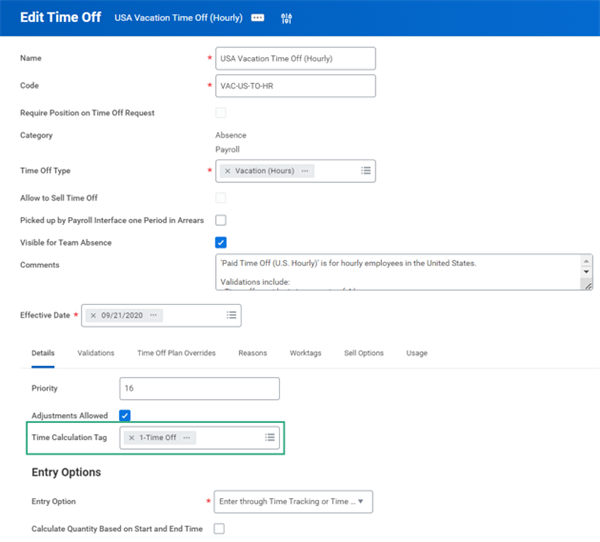
: Once approved, regardless of entry method, you must correct time offs using the Correct Absence task.As shown in the image below, you can add time calculation tags to time offs using the Time Calculation Tag field on the Details tab of the Edit Time Off task. Once a time off has a time calculation tag added, you can use the tag in totals and calculations.
Shift Differential Calculations
Shift differential calculations tag hours worked between a given start and end time for shift pay for in/out workers. This calculation allows for the addition of a premium time calculation tag for reported time that is within the start and end time, but not to any time outside of that period. In general, shift differential calculations will add a premium tag to these hours and will not remove a tag because the hours will map to an earning. Pay this earning in addition to the workers' regular hourly rate. For example, workers who work during the hours between 3pm to midnight receive a shift premium. If a worker checks in a 1pm and. check out at 5pm, the time block would show the following:
- 2 hours without the shift differential tag for 1pm-3pm.
- 2 hours with the shift differential tag for 3pm-5pm.
Important
: By default, a shift differential calculation does not account for the work shift assignment on the worker's profile or position or the day of the week. If you wish to consider either, use a time block conditional calculation.Note
: You can apply shift differentials through compensation plans to apply shift differential premiums for all worker hours, regardless of the actual work time entered by the worker. Before using this calculation, make sure that compensation plans do not already handle shift differentials.Minimum Daily Hours Calculations
Create minimum daily hours calculations to provide workers with a guaranteed minimum number of hours in a day. When a worker enters less than the minimum number of hours, the calculation creates a new calculated time block that makes up the difference.
Example
: You guaranteed workers a minimum of four callback hours. If a worker reports 3 hours of Callback time, Workday generates two calculated time blocks to meet the minimum daily hours requirement:- A 3-hour time block tagged Callback.
- A 1-hour time block tagged Callback Guaranteed to make up the difference.
Important
: Minimum daily hours calculations create new hours attached to the existing reported time block.By default, the calculation tag in the Include Calculation Tags field copies from the time block for which there is a guaranteed minimum. Then, the calculation tag is added to the time block generated to meet the minimum requirement. You can remove this calculation tag and replace it with another. Worktags also copy from the time block for which there is a minimum guarantee to the new calculated time block.
Minimum Rest Calculations
Create a minimum rest calculation to comply with minimum break and rest laws to pay workers a premium for hours worked without taking sufficient rest between their shifts.
Workday tags different hours within the same shift differently based on where they fall within the minimum rest hours. For example:
- You enter 8 in the Minimum Rest Hours field and Out in the Allowed Out Type field.
- A worker has an Out time of 12:00 PM on Monday, but comes back to work from 4:00-9:00 PM.
- Workday tags the worker's time block from 4:00-8:00 PM with the Minimum Rest calculation tag. This is because the hours are within the 8-hour threshold since the worker's previous Out time.
- Workday does not tag the 8:00-9:00 PM time block because it is outside the 8-hour threshold.
Note that a minimum rest calculation:
- Does not take time off blocks into account.
- Does not take day breaker and week breaker into account.
Schedule Deviation Calculations
Schedule deviation calculations compare a worker's scheduled hours to actual worked hours, making it easier to calculate time worked outside of a worker's work schedule calendar.
When configuring a schedule deviation calculation, you have the option to tag hours differently based on time worked:
- Before a worker's scheduled hours.
- After a worker's scheduled hours.
- Between multiple shifts.
- On an unscheduled day.
If all deviations from schedule should receive the same calculation tag, configure all four categories with the same tags. Alternatively, configure the four categories individually to address the different cases when the deviation occurs.
Example
: You might pay workers a premium on time worked when not on the schedule, between scheduled time, or on the weekend.Note
: Schedule deviation calculations apply only In/Out time blocks.Override Rate Calculations
Assign override rates to workers' time blocks based on the details of the work they are doing.
Example
: You might pay workers a different rate when they work for a particular cost center.You can define multiple override rates in one calculation, assigning a rate to each combination of worktag values.
When workers enter time blocks that match the worktag type and time calculation tag conditions that you specified, Workday applies the appropriate override rate to the time blocks.
Flextime Calculations
You have the option to configure flextime bands for workers following a flexible work arrangement. Flextime bands reference Core and Flex hours that you configure, rather than fixed start and end times. For these types of workers, the expectation is that workers are present at work during their Core hours. They can then complete the remainder of their scheduled hours for the day in the Flex Hours ranges.
For example, workers receive a schedule from 9:00 AM to 5:00 PM, an 8-hour work day.
- The Core hours for these workers are 10:00 AM to 2:00 PM, meaning these workers must work from 10:00 AM to 2:00 PM.
- The Flextime bands for these workers are:
- 7:00 AM to 10:00 AM (morning flex) and
- 2:00 PM to 6:00 PM (evening flex).
- Meaning these workers can choose to work their remaining hours sometime during the 7:00-10:00 AM or 2:00-6:00 PM time bands.
Work Schedule Calendar
First, configure flextime bands on the Flextime Bands tab of a work schedule calendar. Flextime bands can be used alone, or with calendar events, or patterns. When configuring flextime bands, you can set up multiple bands per category. And the categories you configure can have different start and end times on different days. Flextime bands:
- Cannot overlap.
- Cannot be greater than 24 hours.
- Apply to ad hoc schedules.
- Do not apply to worker-specific work schedule calendars assigned using the Assign Customer Work Schedule Calendar task.
- Are not visible on My Teams' Schedule or View My Schedule tasks.
Calculation
Next, using the Create Time Calculation task, create a Flextime Calculation. In the Include Calculation Tags field, select the calculation tags you want Workday to reference when running the calculation. In the Results section, add the Categories you created on the work schedule calendar. Then select the tags you want Workday to add to or remove from those categories when running the calculation. Finally, on the Groups tab, select the Time Calculation Groups you want Workday to include when running the calculation.
Workday will add the Morning Flex, Core, and Evening Flex calculation tags to any time blocks tagged with the Regular calculation tag that fall within the Morning Flex Core, and Evening Flex flextime band times configured on the work schedule calendar.
Minimum Weekly Hours Calculations
Minimum weekly hours calculations track the difference between the number of hours reported by workers and a specified weekly minimum.
Example
: If the weekly minimum is 40 hours, and a worker only reports 25 hours, the calculation creates a new time block for 15 hours. The time block represents the difference between the specified minimum and the number of hours actually reported (40 - 25 = 15). This difference can then pass to payroll as unpaid or nonwork hours.When creating a minimum weekly hours calculation, consider:
- Calculation tags from existing time blocks do not copy to the new calculated time blocks. Calculated time blocks generated by the minimum weekly hours calculation appear in the Hours/Units section of the time entry calendar. These hours appear on the last day of the week.
- Worktags from existing time blocks do not copy to new time blocks generated by the minimum weekly hours calculation.
Note
: There is no Remove Tags option because no calculation tags carry forward to the new time blocks.