
Core Concepts and Navigation
Overview
You can use multiple navigation tools and powerful search capabilities to easily navigate through Workday. In this chapter, you will review these tools and discuss the methods you can use to find tasks, reports, and business objects.
Additionally, you will learn about the core concepts of Workday, and the specific concepts involved in the Workday Student product area. This overview will help you understand how to perform transactions in Workday.
Keep in mind that the system secures all tasks and reports and requires you to be in the appropriate security group to access them. If you cannot view a task, a report, or the data described in this guide, it is because you do not have permission to view it. Security is configurable, so you will use configurations that are specific to the Workday training tenant for this class.
Objectives
By the end of this chapter, you will be able to:
- Sign in to a Workday tenant.
- Demonstrate navigation techniques.
- Describe Workday core concepts.
- Describe Workday Student core concepts.
Business Objects
Workday stores data as business objects (e.g., organizations, students, student prospects, positions) that are similar to database tables or worksheets in Excel. Just as a database table or worksheet has columns and rows, a Workday business object has fields and instances. Workday automatically links related business objects together.
Workday uses a very powerful, object-action model that drives navigation and reporting. When you view a page in Workday, most of the items on the screen are links, and have a Related Actions icon next to them. These features make Workday reports and viewable pages actionable.
Business Objects in Workday Student
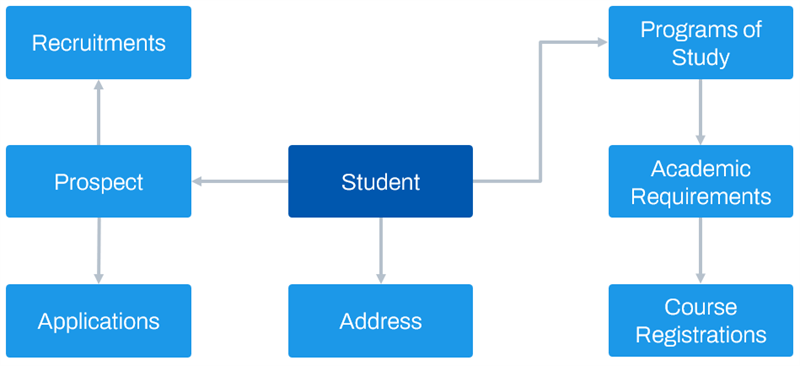
One example of business objects in Workday Student are the students themselves. Each student is an individual business object, and each is associated with a program of study. The program of study is associated with an academic unit. The academic unit is associated with academic levels, academic calendars, academic appointments, and so on. Each of these associations is another business object, with its own set of connectors in Workday.
The diagram below shows a visual representation of this model. The "student" is the object and the attached shapes are examples of other objects or groupings of objects that are related to the student.
Tenant Setup
A tenant is a unique instance of the Workday system. A tenant has data separated in a segregated database secured through password-controlled access. You can configure the tenant in many ways to meet your unique business needs. Workday performs most of the tasks that support and configure your tenant during your initial deployment. However, after deployment you may need to:
- Customize the Workday sign in page.
- Establish the default settings for a variety of data and information formats.
Workday provides several tasks for configuring specific areas of your tenant, as needed. You can access these tasks by navigating to the
Tenant Setup
report and selecting a tenant setup task specific to the changes needed. You can also select standalone Edit Tenant Setup
tasks to configure specific aspects of the system. Throughout this guide, there are references to these Edit Tenant Setup tasks to assist with various system configurations.Tenant Branding
Workday delivers branding capabilities by providing color options. These color options help you customize your tenant and add flexibility in the user interface. Access the
Configure Tenant Branding
task to enter a HEX color value. Workday automatically warns you if the color you select does not meet accessibility guidelines for color contrast. It is important to note that custom branding colors only apply to Desktop applications.Language and Terminology Considerations
The basic tenant language for Workday is English, but there are other terminology and translation configuration options available to you.
Synonyms
Customers can create synonyms within Workday. You can use synonyms as search criteria to find information in the system. This allows you to map your institution's terminology with Workday terminology and accurately find information within your tenant. You can maintain these synonyms in
Edit Tenant Setup - Search
.Resource
: You can find more information about tenant setup and tenant management on Workday Community.Basic Navigation
In Workday, there are multiple ways for you to complete the same task. To navigate the system, you need to be familiar with:
- The Home page
- The application header
- Home page sections, applications, and dashboards
- Icons
- Prompts
- Additional navigation features
Now, explore each of these topics in more detail.
The Home Page
When signing in to Workday, all users will arrive at the Workday Home page. This landing page provides users with easy access to applications, tasks, and reports all in one place. This page is tailored based on the user's role, access, and content permissions.
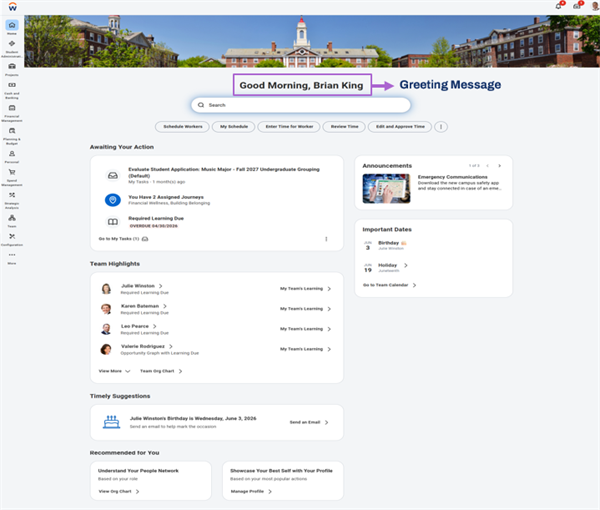
The Home page displays a personalized Greeting Message, as shown in the image below. This dynamic greeting message can rotate throughout the day, depending on the time users sign in.
Home is the primary and most often used landing page in Workday. However, there is also an optional landing page called Workbench, which is intended for technical users to do maintenance and configuration.
Application Header
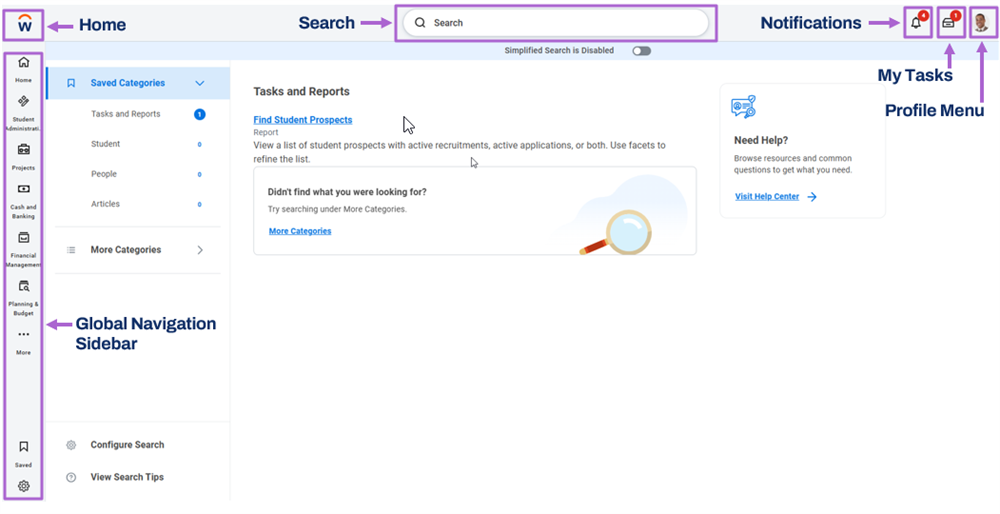
At the top of the Home page, the application header always displays while you navigate in Workday. The application header includes the Global Navigation Sidebar, the Home icon, the Search Bar, the Notifications icon, the My Tasks icon, and the Profile Menu icon.
Global Navigation Sidebar
The Global Navigation Sidebar intuitively enables you to navigate across the system and allows you to view and select applications. You can use the global navigation sidebar to consistently access tasks, reports, and applications, anywhere in Workday. You can manage applications and add, remove, and even reorder your applications.
Home (Workday Logo)
Selecting the Workday Logo will return you to the Workday-delivered Home landing page. You can also use the
Change Preferences
task to select a different preferred Home page.Search
Workday provides powerful search capabilities, allowing you to quickly access tasks, reports, business objects, and more. When you use the Search box in the application header to perform a search, Workday displays type-ahead results and saves your recent searches.
The search bar allows you to search for tasks, objects (such as workers, pre-hires, and organizations), and reports.
You can indicate a category to target your search to a specific area of interest. Doing so produces faster and more accurate results. You can set a preferred search category in your preferences that defaults when you sign in. If you manually select a different category, that category applies only for that search.
Search prefixes also allow you to narrow down your results to a specific type of search result. When using a search prefix, Workday searches all items of that type and returns all the results available to you. Examples of common search prefixes include "org:" for organizations and "bp:" for business processes. To find all search prefixes you can use, enter "?" in your Search box.
The system stores your recent searches, which helps you find results more quickly and easily. Workday displays additional details on search results, and saves your recent search queries. You can also clear recent searches. Additionally, Workday has 'type ahead' enhancements. These enhancements allow you to see additional information about your search result. For instance, if you search for an employee in Workday, you will also see their location and position in the search details.
Predictive Search
Predictive search suggestions return common matching results. This functionality give you the best matches for your search results with minimal typing. Using the Search box, enter at least three characters to display predictive suggestions. Workday processes each term or character string separately. So, if you enter two terms separated by a space, the system searches for objects containing both terms regardless of whether the terms are next to each other. Note that search suggestions and results are based on your security configuration, meaning you will only see results you can access.
Here are some Predictive Search best practices:
- Keep searches simple.
- Avoid general terms like "find," "edit," "maintain," or "create." Using a general term returns more results, making it harder to find what you are searching for.
- Search for multiple terms to narrow down your search.
Contextual Search
Workday enables you to use categories to search for specific items and filter results, reducing the number of out-of-context search results. Global search categories are not configurable. The following categories are available to users based on their security access:
- Tasks and Reports
- Learning
- Drive
- Knowledge Base Articles
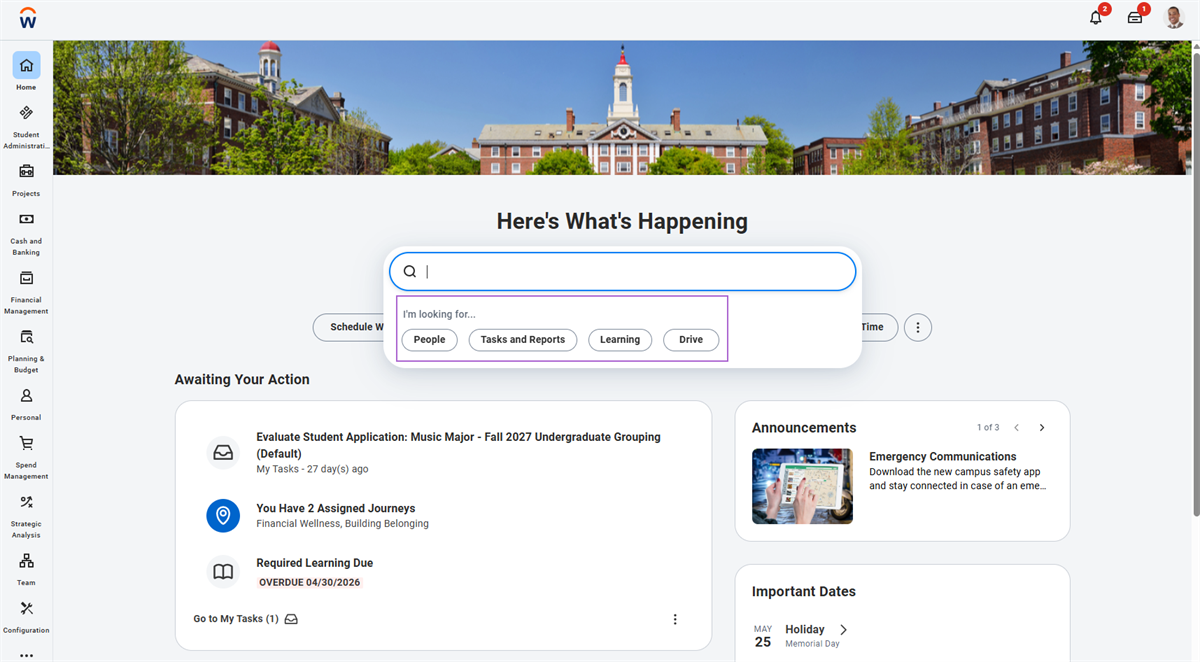
Select the category, and then enter your query in the search bar. For example, if you select the Tasks and Reports category, Tasks and Reports displays in the search bar. When you type your query, the system will show results filtered on the Tasks and Reports category.
Notifications
The Notification icon displays a badge count for your unread notifications and takes you to your Notifications page. Selecting the Notification icon will display reports you have run, processes that are complete, and documents that are available for review. When working with notifications, you can "Mark all as read" or refresh.
My Tasks
The My Tasks icon Displays a badge count for your incomplete tasks and takes you to your Inbox. My Tasks contains actionable items related to the user's role. My Tasks contains All Items, Saved Searches, Filters, and Archive tabs. The All Items tab is an activity stream that displays business process tasks, approvals, and to-dos that require an action. The Archive tab displays historical actions and business processes within the last 30 days.
My Tasks has both filter options and sorting capabilities. You can choose to edit your own filters using condition rules you configure. Under the Archive tab, you can refresh or view more processes. The standard filters located under the Filters tab are Favorites, Overdue, and Delegated to Me.
- Favorites: Items you starred as favorites.
- Overdue: Business process items past their due date.
- Delegated to Me: Business process tasks, approvals, and to-dos delegated to you for a period of time.
Bulk Approvals
The bulk approvals option allows you to approve multiple My Tasks items. It only appears if a user has at least one approval step awaiting review. Here you have the option to Bulk Approve items in your My Tasks inbox, refresh your My Tasks inbox, or begin delegations.
When you select this option, a Bulk Approve screen displays with approval items from your My Tasks inbox. You can select the Select All checkbox, or you can select individual items to approve in bulk.
Profile Menu
You can select your profile photo or name to view your profile. Here you can access all menus including your My Tasks and notifications, manage your user preferences, or sign out of your Workday session. Now, explore the Profile Menu standard screen elements and descriptions.
Standard Screen Element | Description |
|---|---|
View Profile | Provides quick access to your worker or student profile. |
My Account | Allows you to change your password and user account preferences, and view signon history. |
Workbench | Provides technical administrators and implementers easy access to all the tools needed to create and manage custom reports, calculated fields, analytic indicators, and other administrative tasks and reports. |
Sitemap | A list of the standard reports and tasks available to you, sorted by functional category. |
Favorites | Provides access to a configurable list of favorite business objects, reports, and tasks. You can also use favorites when searching in prompts. You can mark any item in Workday as a favorite by using the Favorite link, then selecting Add from an item's Related Actions icon. Marking items as favorite allows for easy access to frequently used items and reports. |
Drive | The single place in Workday to store, share, and collaborate on all of your Workday content within the security of Workday. It enables users to organize content into folders and quickly attach their Drive content to relevant points within your Workday transactions. |
My Reports | A virtual drive that can store your generated reports. When a new report is available, a notification displays in the header and in your My Tasks. You can also tag reports sent to My Reports to make them easier to locate. |
Documentation | Links users to the Administrator Guide section of Workday Community. Use this guide to obtain information on objects, system configurations, and procedures. |
Help | Directs your end users to your training and help documents. Use the Edit Tenant Setup - System task and enter your training and help website's URL in the 'Help' link field. To add other links, such as a link to your support center, create Quicklinks worklets and include them as required worklets on the Home page. |
Home Page Sections, Applications, and Dashboards
As a reminder, when signing in to Workday, all users will arrive at the Home landing page. You can configure your landing page to show multiple sections.
Home Page Sections
Home Page Sections are the different sections on the Home landing page. They provide access to various tasks and reports that are related to that application type. Sections provide users quick access to frequently referenced data and tasks common to a specific functional area.
For instance, in the following image there are multiple home page sections such as Awaiting Your Action, Team Highlights, Announcements, and Important Dates. You can also organize your sections in an order that works best for your particular role and responsibilities.
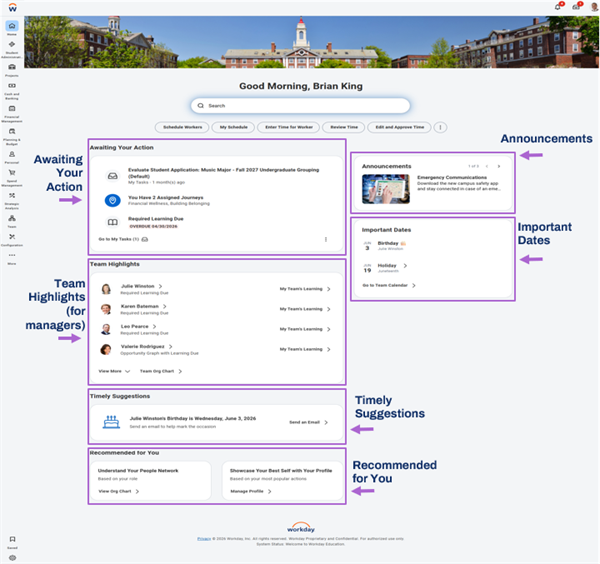
You can identify sections as required or optional on landing pages, based on the user's security groups. You cannot remove or rearrange required sections. However, you can add or remove optional sections. Security determines which applications are available.
Let's review each of the sections shown in the image above.
Awaiting Your Action
The Awaiting Your Action section displays up to four tasks that require immediate attention. This includes items from My Tasks and journey items or additional cards, if applicable. Note that if your organization has not enabled My Tasks and the user has no Journeys, this section won’t display.
Team Highlights
Team Highlights display information about team members. This information is specific to managers.
Timely Suggestions
The Timely Suggestions section displays up to three cards configured by your organization, with an option to view more cards. These cards display recommendations based on user activity.
Recommended for You
The Recommended for You section displays personalized content based on user behavior. This section displays the Manage Profile and View Org Chart cards, by default. You can personalize this section by adding one or more relevant cards, or removing this section by unpublishing the cards.
Announcements
The Announcements section displays important updates and notifications. This section displays three announcements by default. You can select View More Announcements to display additional items. When you select an announcement, a pop-up card appears where you can take additional actions. For example, you can open a link to a new browser or navigate to a task within Workday. Announcements can also display an embedded video.
Important Dates
The Important Dates section is designed to keep users informed about significant events, such as anniversaries and time-off dates.
Dashboards
You can include dashboards on your Home landing page. Workday provides preconfigured dashboards for distinct functional areas. In addition to using these dashboards, you also can create an unlimited number of custom dashboards. Each custom dashboard can display a set of custom reports that you can enable as applicatons. Workday allows you to have an unlimited number of types under Dashboard, but only six applications per type. You can use the
Maintain Dashboards
report to set up which dashboards you want to allow users to set up.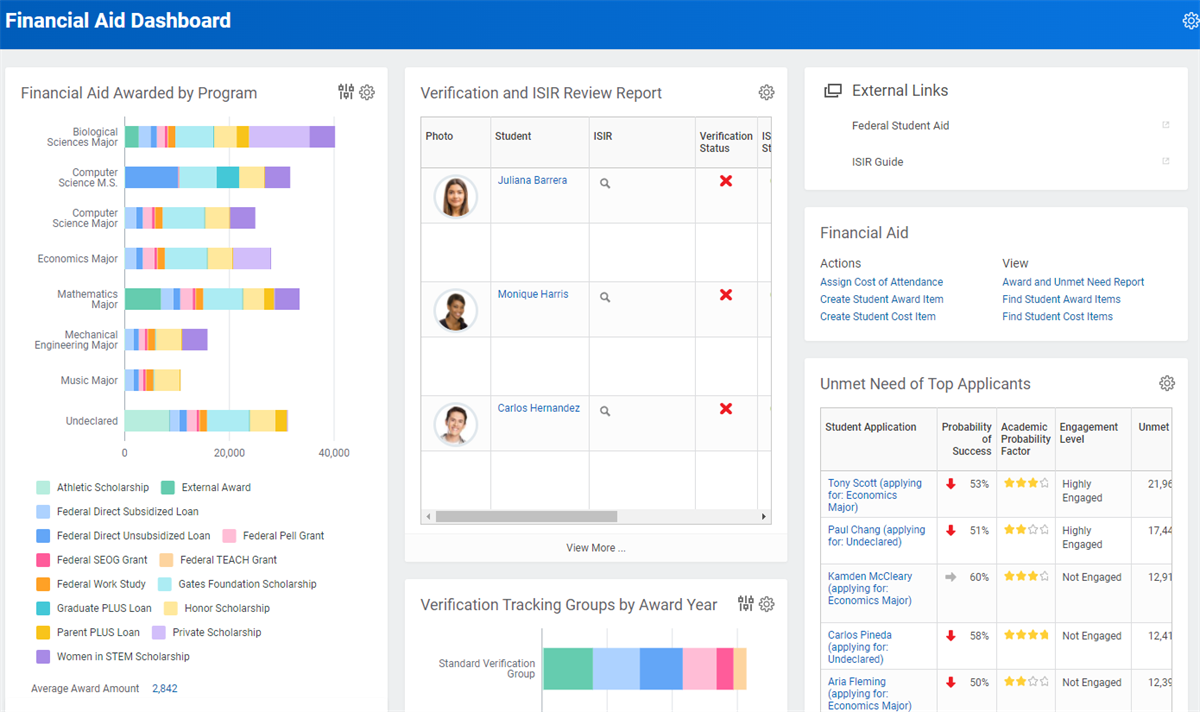
Academic Progress Dashboard
Students can add the
Academic Progress
dashboard to their Home page to track their academic progress quickly and easily. You can configure applications for the dashboard based on your institutional requirements. By configuring the information on the dashboard, you can help students easily access the information most important for their success and enhance their overall experience.Applications
Applications are the icons on the Home landing page, located in the Global Navigation Sidebar. They provide access to various tasks and reports that are related to that application type. Applications provide users quick access to frequently referenced data and tasks common to a specific functional area. For example, the Personal Information application contains tasks and reports such as Change Contact Information and View Worker Documents.
Student Example
The My Academics application is an example of a student application. This application is available to the Student-as-Self security group that every student is a member of. However, another example, the Advising & Records application, is only available to student records administrators.
Home Page Configuration
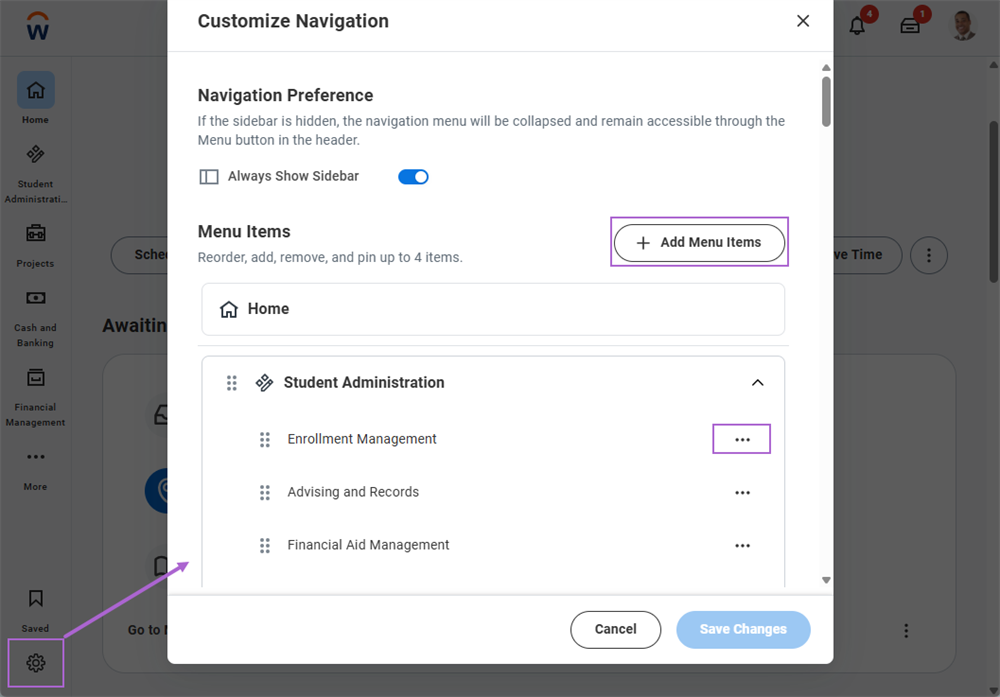
On the landing page, review the Global Navigation Sidebar to view the applications currently configured for your landing page. To customize your applications, select the Customize icon located in the Global Navigation Sidebar and then select Add Menu Item to add items your landing page. You can also remove any applications on this page. You can also specify the order in which you would like these applications to appear.
Icons
Now, let's explore some of the standard screen and task page icons in Workday.
Standard Screen Icons
The following icons are some of the standard screen icons you will encounter in Workday.
Icon | Description |
|---|---|

| Brings you back to your Home page. |

| Select your photo from the Home page to open the Profile menu. |

| Opens My Tasks, which includes both pending and archived tasks. |

| Opens your notifications. |

| Displays the Related Actions menu for an object (available only if the user has permission to perform additional actions on that object). |

| Opens the Related Actions menu for an object. |

| Allows you to add a filter to the report data displayed. |

| Select to view this page as a PDF file that you can print. You can restrict this option using the Export to PDF and Excel domain. |

| Select to view this page as an Excel file. You can restrict this option using the Export to PDF and Excel domain. |

| Indicates that you can view a report as a chart. |

| Returns to the previous page and allows you to rerun a report or task with new values. |

| An up or down arrow will appear in the column heading of a report if you have selected it to change the sort direction. |

| Appears in applications, worklets, and landing pages and acts as a menu or settings option. |

| Opens an associated business object instance. |

| Alerts you about system limitations based on the entered configuration. You may continue your process or configuration when an alert message displays. |

| Alerts you to a critical error. You must correct the error to move forward in a process or to save and enable your configuration. |
Task Page Icons
The following icons are some of the standard task page icons you will encounter in Workday.
Icon | Description |
|---|---|

| Indicates that you must enter a value for this field before saving or submitting the page. |

| Displays a list of available values sorted into folders (if applicable). |

| Opens a calendar to select a date. |

| Removes the current row from a grid. |

| Adds a row to a grid. |

| Accepts your changes. |

| Accepts your changes and moves to the next step in a business process. |

| Closes a confirmation screen. |
| Disregards all changes. |
| Saves the item in My Tasks until you take action. |

| Gives you additional choices, depending on the user and the business process. |
Prompts
Workday uses prompts to help users navigate in search fields. Prompts display all content available to that field, allowing you to navigate through levels to find information more easily. As you navigate through prompts, the top of the pane displays which level you are currently in, allowing you to return to a previous level. If the prompt only contains one folder or available level to choose, it defaults to open.
Single-Select Fields
If a field displays a prompt list icon, you must use one of the prompt values. In single-select fields, you can only select one value, and the prompt list will disappear once you choose a value.
Multi-Select Fields
If a field permits more than one value, the prompt list will stay open to allow you to choose as many values as necessary. The field expands as you enter additional values, and you can select the X to remove entries.
Additional Navigational Features
Now, explore some additional navigational features regularly used in the system.
Frequently Used Apps and Shortcuts
You can access your most frequently used applications and shortcuts anywhere within Workday. Workday displays a quick access icon in the header, that links to frequently used tasks and worklets. This icon contains two sections - My Shortcuts and My Most Used Apps. You can configure up to 10 custom shortcuts in the My Shortcuts section. The My Most Used Apps section displays your top three most used applications. This quick access enables you to quickly and conveniently switch between tasks without having to access the home page.
Frequently Used Related Actions
Workday identifies the Related Actions you use most. Once you take actions on a worker, the system begins to recognize the Related Actions you use. When you log back into Workday and access Related Actions, you will see a Frequently Used section with those Related Actions you use most frequently. This simplifies how you complete frequently used tasks and enables quick access to common actions related to workers.
Guided Tours
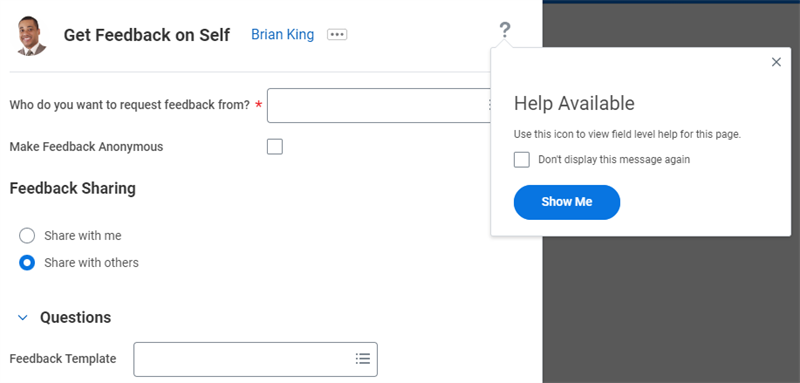
You can set up guided tours to help users complete tasks by displaying customized help text for selected fields. Guided tours display customized instructional text for selected fields as part of business processes. Unlike step help text, which appears at the top of the page, guided tours appear next to each respective field.
When you configure guided tours, a question mark icon displays on the task header to indicate that help text is available for fields on the current screen. If the user would like to expand and view the help text, they can select the question mark in the upper-right corner of the screen. Doing so causes descriptions to display on each configured field to help the user complete the information.
Configuring Guided Tours
Use the
Configure Guided Tours
task to add tenanted titles and text that you want to appear on specific fields within a selected business process. The Translate Guided Tours
task allows you to manually translate the guided tour title and text into any of the language translations that Workday supports.Actionable Reports
Workday uses a powerful object-action model that drives navigation and reporting. When you see objects in Workday, you can perform an action on them. When you view a page in Workday, many of the items on the screen are links. Many of those links have a Related Actions icon next to them. These features are what make reports and viewable pages actionable.
Student Example
One example of an actionable report is the
Find Academic Records
report. You can filter the report search results by various criteria, such as academic level, academic unit, and program of study. You can select a value for any filter category, known as a facet. Selecting a facet causes the Find Academic Records report to immediately update the resulting list of students and facet value counts.Workday displays search facets on the left side of the
Find Academic Records
report. Each facet category contains one or more facet values. Facet values correspond to specific values in your tenant. For example, the Academic Level facet would display facet values for each of your institution's defined academic levels.There is a number, called a facet value count, after each facet value that indicates how many students have that facet value. For example, if the College of Arts and Sciences academic unit has 20 students, the Academic Unit facet displays a College of Arts & Sciences (20) facet value count. These counts help you understand the student population that satisfies the current filter criteria.
By default, Workday does not select any facet values when you run a report. As you select facet values to narrow your search, Workday dynamically updates the facet value count numbers for other facet values. For each facet category, Workday displays the facet values with the most students. Select the More link to display additional facet values.
In addition to the facet filters, many reports include actionable functionality to let you make changes and initiate tasks directly from the report. For example, in the
Find Academic Records
report, you can add students to a cohort. To do so, you select the checkbox next to their name and then select the Add Academic Records to Cohort button. Then, you can select a student cohort to add the selected students. You will explore student cohorts later in this course; The Find Academic Records
report is just one example of the many actionable reports in Workday.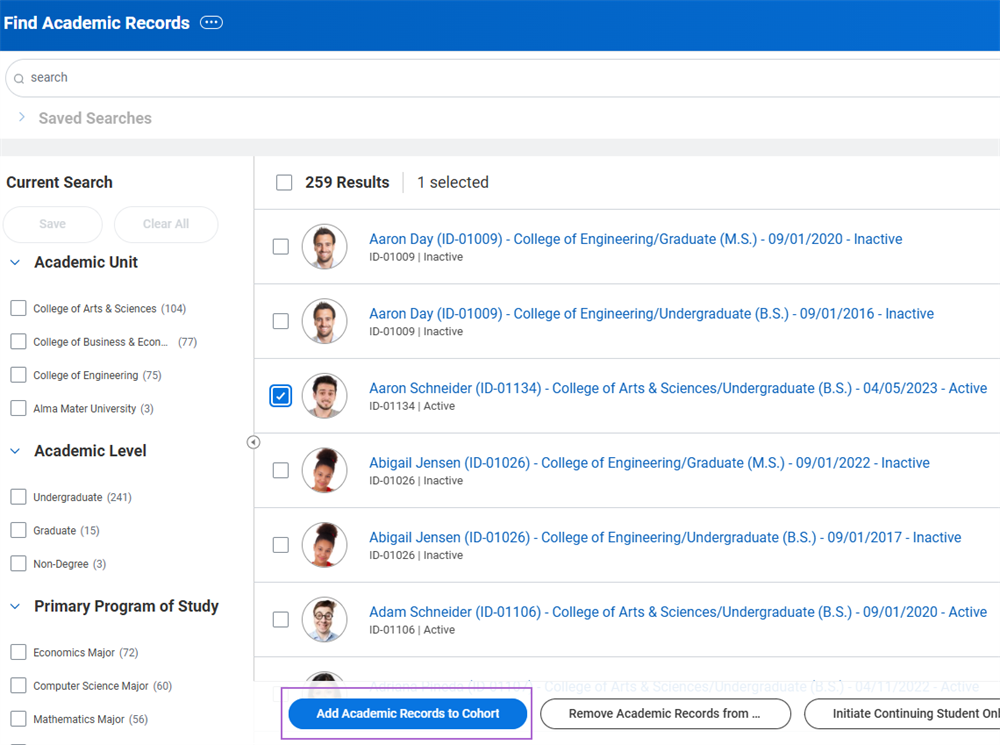
Workday Student Core Concepts
There are several key terms used throughout the Workday Student system. Before continuing, familiarize yourself with this terminology.
Supervisory Organizations
Supervisory organizations serve as the basis of Workday Human Capital Management (Workday HCM). This type of organization groups workers into a management hierarchy. Although not specific to Workday Student, you will notice supervisory organizations in your system. They are an important structure element when it comes to worker management. However, recognize that this kind of organization is different from academic units, which are the main academic structure of your institution.
Academic Units
Academic units serve as the basis of Workday Student. This organization type represents a school, college, university, or other unit of your institution. Academic units control most of the primary functions of your institution, such as recruiting and admitting students, or offering programs of study.
Academic units also hold academic appointments in Workday. It is important to note that although Workday houses academic appointments in academic units, supervisory organizations still control Workday HCM functions such as compensation and job profiles.
Program of Study
A program of study is an academic track that students can follow and complete to earn an educational credential that you define. Each program of study ties to an academic unit and academic level.
Security
Access to tenant data is based on a user's security group assignment. A security group is a collection of users or objects that relate to users. If you allow access to a securable item in a security policy, this grants access to the users in the security group.
Business Processes
A business process definition is a sequence of one or more tasks that accomplish a desired business objective. Business process definitions are comparable to a workflow.
Campus Engagement
Campus engagement refers to the system of managing and tracking your institution's interactions with current and prospective students.
Workday Student Functional Areas
Workday groups domains and security policies that are related to the same set of product features into functional areas. Workday Student contains several functional areas that you may work with in your institution. You can use the
Functional Areas
report in your tenant to find information about each functional area. This report also displays a list of the included security domains and business processes for each of these functional areas.In this course, you will explore the following functional areas of Workday Student:
Functional Area | Description |
|---|---|
Academic Foundation | Set up, manage, and report on: campus engagement, educational institutions, engagement conversations, programs of study, goal reports, student tags, education tests, educational institution course catalogs, student history, and match and merge. |
Student Recruiting | Organize personnel and resources to locate and attract key prospects. Deliver marketing messages and materials to draw prospects to the application process. Develop recruiting plans. Manage recruiters and regions. Execute on recruiting campaigns and events. Track the progress and effectiveness of recruiting initiatives. |
Admissions | Organize cohorts and application pools, collect and process applications, organize supporting documentation, manage application evaluations, specify reviewer criteria, evaluate applicant records, and render decisions on completed files. |
Academic Advising | Set up and manage your academic requirements. Assess and plan for the completion of requirements associated with a student's educational objective. |
Student Records | Set up and manage your curriculum, enrollment access, registration controls, academic record policies, grading, and student record data. |
Student Financials | Set up and manage your charge assignment process, waivers, student payments, sponsor contracts, disbursement to student accounts, and refunding processes. |
Financial Aid | Set up and manage: ISIR processing, cost of attendance, student awards, fiscal limits, packaging, satisfactory academic process, and COD integrations and processing. |
Campus Engagement | Manage, set up, and report on student communications, audiences, notes, and campus engagement. |
Student Core | Set up and manage student information including: accommodations, athletics, documents, international status, housing, military service, residency. Manage duplicate students. Provide third-party access for student information. |
Chapter 1 Tasks and Reports
Below are the commonly used tasks and reports for the topics covered in this chapter.
Tasks:
- Configure Guided Tours
- Configure Tenant Branding
- Edit Tenant Setup
- Translate Guided Tours
Reports:
- Find Academic Records
- Find Student Recruitments
- Find Students
- Functional Areas
- Maintain Dashboards
- Tenant Setup