
Item Management
Overview
Workday item management includes the purchase item and supplier item used to purchase goods and services. Purchase items serve as the master item in Workday. The purchase item stores crucial information used throughout Workday Spend Management to drive functionality and business processes. This includes identifying characteristics like item identifiers, descriptions, item image, item tags, and item groups. The purchase item also stores key processing information like:
- Spend category worktag.
- Default fulfillment source.
- Accounting treatment.
- Unit of measures and their usage.
- Lot and serial control.
- Substitute items.
Objectives
By the end of this chapter, you will be able to:
- Describe the purpose of the purchase and supplier item.
- Create and maintain purchase and supplier items.
- Create item tags and identifier types.
Item Approach for Workday Procure to Pay
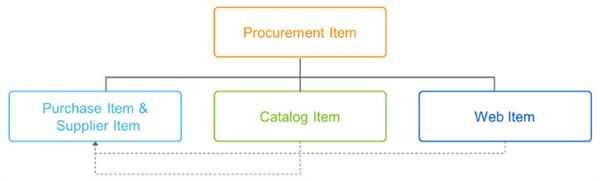
In Workday, an item master is a record for purchases from a supplier and items in inventory. It is typically a combination of a purchase and supplier item, or a purchase and catalog item.
The image below illustrates the concept of a unified procurement item by adding the ability to link catalog items and web and punchout items to internal purchase items. All items tie to the purchase item individually. The unified procurement item provides you with improved visibility into goods purchased for internal use.
Tip
: Workday recommends setting up the purchase item as a manufacturer item and setting catalog or supplier items as supplier-specific items.Purchase items are goods and services not necessarily associated with any supplier or supplier contract. You can link a purchase item to multiple supplier or catalog items.
Purchase item prices represent standard or common pricing of an item. If the item represents a manufacturer item, the purchase item price represents the manufacturer list price. Purchase item prices are for budgeting and approval purposes and do not represent a contractual agreement with a supplier.
Catalog items are associated with a supplier contract. You can search the catalog for them from your cart. When you select these items in a requisition, Workday automatically issues the PO to the supplier and bypasses the buyer requisition review. You can set up the supplier minimum order quantity for catalog and supplier items. This prevents supplier penalization for not meeting minimum order amounts or quantities on purchase orders. You can link a catalog item to a purchase item.
You can use the catalog item to support your more complex requirements that the supplier item cannot handle.
Example
: There is a requirement to store multiple catalog items (each representing a different unit of measure) for the same manufacturer item.The supplier item contains attributes specific to the supplier from which you have a contract to purchase items. This includes a supplier item identifier, price, ordering units of measure, manufacturer, and other supplier-specific details about the item. You can set up advance pricing rules for discounts and specials. On the supplier item, you can set up sourcing priorities among multiple suppliers for one purchase item.
Web items are supplier items for goods that you purchase using punchout to a supplier website or supplier network (marketplace) hosted outside of Workday. You can associate web items to purchase items. Workday automatically maps web items to purchase items in requisitions from a punchout supplier when these attributes match:
- UNSPSC (within the range specified for the spend category of the matching purchase item)
- Manufacturer Name
- Manufacturer Part ID
If you enable the spend category for stocking, you can specify the conversion factor between the ordering unit of measure (UOM) for the web item, as well as the base UOM.
The best practice for all items, whether stocked or not, is to define the fulfillment source of the purchase order. The inventory site sourcing rules combined with the item inventory site options should indicate to the system if an item is coming from stock or not. If no inventory sourcing rules exist, use of the fulfillment source on the item occurs. If there is no sourcing rule, it will default to a purchase order.
Set up all inventory items as purchase items. You can have a catalog item or web item that is not associated with a purchase item, but you can only source that item directly from a supplier.
Specify preferred purchase items to highlight in your catalog search during requisitions. This helps guide requesters to order your preferred items, helping you save on costs and helping requesters find the items that they need quickly.
Resource
: If inventory is in scope, you should enroll in the Inventory Management course.Determination for item pricing should go in the following order:
- Supplier Contract line
- Advance Pricing
- Supplier Information
- Purchase Item
Group purchase items to facilitate searching, item selection, and reporting. Items can belong to more than one purchase item group. For example, a laptop could belong to both the Office Supplies and Laptops and Desktops purchase item groups.
When creating an item assignment, you can assign it to item groups or a group it to an item.
Alternate Item Identifiers
Alternate item identifiers are a standard set of codes or values that trading partners (e.g., suppliers, buyers, or customers) use to identify trade items. Examples include:
- Manufacturer part number
- Global Trade Item Number (GTIN)
- Universal Product Code (UPC)
Item identifier types enable you to use standard industry nomenclature and part numbers on a purchase item. You can then enter the detail value associated with the item identifier type on the purchase item. This enables you to only configure alternate or universal item identifier types and values that are relevant to your business.
The alternate item identifiers functionality:
- Provides a flexible framework to define and capture alternate and universal item identifies, such as;
- Manufacturer or manufacturer part number
- On a purchase item
- Catalog item
- Web item
- Provides the ability to search for items using any configured alternate item identifier value from the search catalog UI when creating a requisition.
- Enables supplier catalog and web items to be automatically linked to purchase items during catalog loads and web item punchouts.
- Enhances procurement reporting by linking catalog and web items to a purchase item.
- Provides predefined universal item identifier values for the most commonly used item identifier types (not values).
You enable this functionality by creating item identifier types. When defining alternate item identifier types, keep in mind:
- They can be specific (SKU) or general (UNSPSC).
- More detailed item identifier types require more purchase items to track web and catalog item transactions.
- A purchase item used for inventory will normally be at a SKU or UPC level. This determines the alternate item identifier types for a spend category definition and, ultimately, is used on a purchase item.
- The alternate item identifier type gets assigned to a spend category.
- The alternate item identifier type and a value assign to the purchase item.
Once your analysis is complete, use the
Maintain Item Identifier Types
task to create the required values for spend categories and purchase items. Listed below are the fields used for configuration and their related descriptions.Note
: To use an alternate item identifier on a purchase item, add it to the spend category.Item Identifier Types | Description |
|---|---|
Name | Short name for the item identifier type. |
Description | Long name for the item identifier type. |
Universal Item Identifier | Select from the Workday-delivered list of item identifiers to enable linking of web items to purchase items during the punchout. |
For Item UOM | Define item identifiers that are unit of measure-specific identifiers, such as GTIN and UPN. |
Length | Set the maximum length of the item identifier value. Enter 0 to skip the validation when you enter item identifier values in the Create or Edit Purchase Item task. |
Allow Multiples | This option allows for multiple values for this type that you can add to an individual purchase item. |
Allow Multiples per UOM/Manufacturer | This option allows for multiple GTINs for the UOM and manufacturer combination that you specify on a single purchase item. |
Item Identifier Type Is Unique | Select to enforce the creation of unique item identifier values for the item identifier type in the Create Purchase Item task. You cannot duplicate values across purchase items using this type if selected. |
Use In Supplier Catalog Item Mapping | Select to automatically link catalog items to purchase items during catalog loads. This option is helpful to catalog administrators to quickly identify purchase items for supplier items during catalog loads. |
External | Select so that the identifier type is available to view on PDF versions of purchase orders, RFQs, and supplier contracts. |
In Use | Usage of the item identifier type on a spend category and, potentially, a purchase item. |
Inactive | Select to inactivate the identifier type. You cannot select it for use on a spend category or purchase item. |
Item tags are more item identifiers that you can define and use on a purchase item, catalog item, or web item. Unlike item identifier types, these customer-defined item attributes are based on their needs and are then attached to an item.
Example
: Item tags could have values such as or similar to Radioactive, Refrigerated, or Latex-Free.Item Tags | Description |
|---|---|
Name | Short name for the item tag. |
Description | Long name for the item tag. |
Universal Item Identifier | Associate item tags with Workday-delivered list of item identifiers. Enables the linking of web items to purchase items during punchout. |
Inactive | Select to inactivate the identifier type so it can no longer be selected for use on a spend category or purchase item. |
Commodity Codes
You can create commodity codes that group similar types of goods and services. Define your own structure or use an industry-based standard taxonomy such as the National Institute of Governmental Purchasing Commodity Services Code (NIGP) or the United Nations Standard Products and Services Code (UNSPSC).
Access the
Maintain Commodity Code Types
task to create and edit commodity codes. Workday recommends that you use standard commodity code structures for data integrity and integration with third-party systems. For example, UNSPSC codes are eight-digit values (with an optional two more digits) of a four-level hierarchy (with an optional fifth level). Segment, Family, Class, and Commodity are the four-primary levels with two 00 decimal digits to enable eight-digit codes for each level. To create a UNSPSC-type code, you must create four levels with a level length of two. Then, Workday automatically associates the code to the parent code and creates the parent code if it does not already exist.You can directly associate commodity codes to procurement items on these tasks:
- Create Purchase Item
- Edit Purchase Item
- Catalog Load Request
- Maintain External (Extrinsic) Cart Details
Multiple Ordering Units of Measure
You can maintain multiple ordering UOMs on catalog items and purchase items. You can also enable catalog item maintenance on your purchase item tasks to unify item maintenance work on the
Edit Tenant Setup - Financials
task.When you select an item on a procurement transaction, Workday populates UOMs associated with the item on UOM prompts. Workday also populates pricing information based on the UOM you select.
For purchase items, you can associate ordering UOMs with the purchase item or supplier information for the purchase item.
When you select purchase items with supplier information on a procurement transaction, Workday populates UOMs from these tabs on purchase item tasks:
- Supplier Information: When the document has matching supplier information.
- Item Overview: When the document does not have matching supplier information or when you create a consignment document type.
You can manage ordering UOMs by:
- Associating them to a price, conversion factor, usage, and lead time.
- Configuring default ordering UOMs.
- Configuring default issuing UOMs.
- Configuring default stocking UOMs.
- Configuring the default unit of use for UOMs.
Transaction | Description | Example |
|---|---|---|
Requisitions | Configure your company procurement options to allow workers to select a different UOM on a requisition. | Test tubes are available in cases and boxes with different prices. You can request test tubes in a case or a box, or any of the enabled units of measure:
|
Sourcing | You can source an item in an alternate UOM based on your purchasing needs. Workday adjusts the unit price based on the UOM selected. | A requester can request for 5 boxes (5 boxes = 1 case). Source one case instead of five boxes as a cheaper option. |
Receiving | You can receive a catalog item against a purchase order line in a different UOM than the ordering UOM. You can also receive a different UOM than the ordering UOM when you have a purchase item with supplier information. | You create a requisition for four cases of jumbo test tubes, then you autosource the requisition to a purchase order with Supplier ABC. You then receive a partial shipment of 200 sets. |
Invoicing | The UOM on supplier invoice lines enables you to reconcile invoices with the quantities of items you actually ordered and received. When you create an invoice line, you can verify that the UOM matches the UOM specified in the purchase order or receipt. For catalog items and purchase items with supplier information, you can select a different UOM from the UOM on the purchase order or receipt. Workday displays an invoice price variance on your accounting entry for inventory items when you meet these criteria:
| You order two cases (each case contains five boxes) of a supplier item. The supplier can partially fulfill the order and ship five boxes. You can invoice the UOM as a case or box (or any valid alternate ordering units of measure), ensuring that the matching rules still apply. Workday updates the unit cost to reflect the invoiced UOM. |
Just in Time (JIT) Units of Measure
You can configure just-in-time UOMs to enable items for just-in-time replenishment. When you create a just-in-time requisition and select an item, Workday populates just-in-time UOMs on UOM prompts.
If you change a UOM, Workday populates the correct price.
When you select purchase items with supplier information, just-in-time UOMs only populate from the purchase item when the document has matching supplier information.
Packaging String
Packaging strings provide visibility into the different UOMs and their conversion factors. Workday automates packaging string data when you enter a packaging string in the supported format. You can display packaging strings on these transactions:
- Inventory
- Procurement
- Supplier accounts
Example
: Case/10 Box/200 Each means one case contains 10 boxes, and one box contains 200 items.Configuring a Purchase Item
This table represents some of the key fields on a purchase item.
Option | Description |
|---|---|
Spend Category | Spend categories on purchase items require the Procurement spend category usage. The spend category determines the accounting treatment for all supplier items associated with this category. |
Item Status | The Restricted from Purchasing status filters out items from these transactions:
This status option is only available once the item is created. |
Preferred | Select to set the purchase item as preferred during requisitions. On the Requisition worklet, the item will have the preferred icon. You can sort by preference in the worklet. |
Classification | Select Goods or Services to classify purchase items as either goods or services. Use this for tax reporting and tax defaulting rules. |
Commodity Code | Select a standard product taxonomy code. Example: UNSPSC or NIGP |
Currency | Enter the currency of the purchase item price. When you add a purchase item to a supplier invoice or invoice adjustment line, Workday converts the item unit price to the transaction currency. |
Packaging String | Packaging strings provide better visibility to the different units of measure and their conversion factors for the item. |
Populate UOMs | Workday populates the Units of Measure table when you enter values in the Packaging String field in the supported format. Example: Case/10 Box/200 each |
Default Ordering Price | When you update this price, you also update all pricing in the Units of Measure grid based on the conversion factor. |
Default as Service Request | Select to specify this item as a service item (only for Procurement). When you use the requisition workbench, you can access this item using the Search Catalog option. You can use service items for both goods and service lines in procurement documents. |
Default Tax Applicability from Spend Category | Displays when you define spend categories with a default tax applicability. |
Default Tax Applicability | Select the tax applicability code to associate with this item on procurement lines. The Default Tax Applicability overrides the Default Tax Applicability from Spend Category value on procurement lines. Define tax applicability codes using the Maintain Tax Applicability task. |
Worktags | Set up related worktags for this object using the related worktag types that you configure on the Maintain Related Worktag Usage task. Workday automatically populates transactions with the values in the Default Worktag column when you select the object on the transaction.Workday also populates the worktags of the transaction with the related spend category and its worktags. When a related worktag from the purchase item and spend category are the same type, the value from the purchase item takes precedence because it is more specific. |
Comments | You can use this field to add and update comments about item changes as different workers interact with it. You can also view comments made on purchase items in the following areas:
|
Requesting Entities | Select the requesting entities that you wish to limit the purchase item to. Once selected, only those entities can requisition the item. |
Restricted Purchase Item Lists | Select the existing purchase item list to add the item to. Workday restricts the requisitioning on the item to the requesting entities selected on that list. |
As you complete the Units of Measure table, consider:
Option | Description |
|---|---|
Usage | You can select these usages for a UOM:
|
Default for Ordering | Select the UOM that you want to populate on procurement transactions, when the purchase item does not have a valid ordering UOM on the Supplier Information tab. |
Default for Issuing | Select the UOM that you want to populate on inventory transactions when the purchase item does not have a default issue UOM for the inventory site. You can select a default issue UOM on the Inventory Site Options tab. |
Default for Stocking | Select the UOM that you want to populate on inventory transactions when the purchase item does not have a default stocking UOM for the inventory site. You can select a default stocking UOM on the Inventory Site Options tab. |
Default for Unit of Use | Select the UOM that you want to populate on inventory transactions when the purchase item does not have a default unit of use UOM for the inventory site. You can select a default unit of UOM use on the Inventory Site Options tab. |
Allow Decimal Stocking Quantities | Select to allow decimal stocking quantities for the base UOM. This enables more precision in the UOM for the item. Accepting decimal quantities in UOMs determines the reserve quantity in base UOM during the reservation process. The reserve quantity is a whole number if the corresponding stocking UOM on the stock request is a whole number. Workday automatically converts existing stocking UOMs to accept decimal stocking quantities. |
On the Alternate Item Identifiers tab, configure values for alternate item identifier types which:
- Establish a link between your internal purchase items and manufacturer information.
- Enable you to search for the purchase item in Item prompts using the alternate item identifier.
Example: Item Identifier Type = Manufacturer Part Number; Value = 9302-37WD.
Workday displays this tab when you configure item identifier types and assign them to spend categories associated to the purchase item.
As you complete the Supplier tab, consider:
Option | Description |
|---|---|
Catalog Item | If you enable catalog item maintenance on purchase items, Workday leaves all fields editable and syncs changes made to catalog items with supplier catalogs. |
Sourcing Priority | Rank your suppliers for sourcing items by setting these sourcing priorities:
Rank suppliers for purchase items by priority to enable buyers to use primary suppliers when creating requisitions, and switch to secondary suppliers when required. When you do not want to display supplier information as separate procurement options on the Search Catalog task, enter 0 for each supplier entry. Then, use the Maintain Requisition Sourcing Rules task to populate suppliers on orders. |
Preferred Supplier Contracts | Workday populates preferred supplier contracts on valid spend transactions while using the contract to track company spend. |
Lead Time | To calculate the due date for order fulfillment on purchase orders, Workday combines this lead time value with the date that you add this item on the purchase order. |
Apply Purchase Item Updates | Workday displays this button on the Edit Purchase Item task.Select this button to apply updates made on the Units of Measure table on the Item Overview tab onto the Ordering Pricing tab. When you update purchase items, Workday:
|
Calculate Price based on Conversion Factor | Select to enable linear price calculations. in which you pay a fixed price for the base unit of an item, regardless of the UOM and quantity on purchase.) With linear price calculation: Enter a price for only the default UOM on the Ordering Pricing and Just in Time tables. Workday calculates the price for the rest of the UOMs. Do not create the same price rule for different UOMs on the Advanced Pricing table. Workday populates pricing from the Advanced Pricing table for alternate UOMs on procurement transactions. |
Ordering Pricing | Enter the ordering UOMs you want to populate on procurement documents with matching supplier information. |
Just in Time | Enter the UOMs the supplier accepts for just-in-time procurement. Workday populates just-in-time UOMs on just-in-time procurement documents with matching supplier information. |
Advanced Pricing | Set up price rules with a start and end date. Workday populates Advanced Pricing on procurement transactions with the same values. When more than one advanced price applies to a transaction, Workday populates Advanced Pricing on procurement transactions in this order of priority:
|
On the Item Substitutes tab, add items to use as substitutes for the purchase item.
As you complete the tab, consider:
Option | Description |
|---|---|
Ordering Start Date Ordering End Date | Enter dates to automatically substitute items on purchase orders during automatic sourcing. These dates do not apply to inventory substitute items. |
Usage | Select:
|
Company | Select the company or company hierarchy where this substitute is accepted. |
Deliver-To Location | Select the deliver-to or location hierarchy that accepts this substitute. |
Substitute Priority | Enter a numerical order for your item substitutes. |
Exclude Company | Restrict an item substitute from delivery to specific companies. |
Exclude Deliver-To | Restrict specific locations from receiving this substitute. |
Note
: You cannot use a catalog item as an item substitute. When you need to substitute items with specific pricing, we recommend that you use a supplier item.Workday delivers the following tasks to propose a change of spend category and commodity codes for your purchase items:
- Cancel Purchase Item Spend Category Request
- Edit Change Purchase Item Spend Category Request
- Mass Maintain Purchase Item Spend Category
The task security ties to the
Change Purchase Item Spend Category Request
business process. You cannot change an inventory spend category to a procurement category. Workday does not perform any accounting during the spend category change. It only captures the financial details of the items on the change request at the time of approval.Use the
Create Purchase Item Request Template
task to create templates for users to complete when mass maintaining or requesting new purchase items.Item Maintenance and Workflows Using Worksheets
Worksheets are a cloud-based spreadsheet technology built within Workday that you can use to analyze live data in a familiar but secure environment. By enabling Worksheets for purchase items, you can define workflows for requesting, creating, and mass updating purchase items that align with company organizational policies.
When you plan to maintain purchase item information with Worksheets, use this table to understand Workday Worksheets, Purchase Item Request Templates and Types, and how they fit together.
Term | Definition |
|---|---|
Workday Worksheets | Uses Drive to support spreadsheets within Workday. Each worksheet displays as a tab in a workbook. You can enter and update data in the green sections. |
Purchase Item Request Templates | Uses Workday Worksheets to support custom workbook templates for purchase item information. On each worksheet within a workbook template, you can arrange the purchase item fields based on your item maintenance process. |
Purchase Item Request Types | Uses multiple workbook templates and questionnaires to help manage purchase item information. With purchase item request types, you can create a workflow of workbook templates to match either of these corresponding business processes for purchase item requests:
|
Mass Maintain Purchase Items | This task initiates the Mass Maintain Purchase Items Request business process and uses the applicable Purchase Item Request Type workflow. |
Request New Purchase Items | This task initiates the New Purchase Items Request business process and uses the applicable Purchase Item Request Type workflows. |
Use the
Mass Maintain Purchase Items
task to find and select the items that require an update. Adding the items to the request will enable you to pull items into a worksheet where you can review and update them. You can use formulas and functions that are native to worksheets to mass update new or existing purchase item data, including inventory site attributes.Tip
: You can update up to 5000 items at a time, using the Mass Maintain Purchase Items
task.Enable and configure the domain: Process: Purchase Item Request - Mass Cancel. You can use the
Mass Cancel Purchase Item Requests
task to locate and cancel any draft and in progress purchase item requests.- Worksheets draft mode enables you to work without validation interruptions. Workday suspends validation messages until you exit Worksheets draft mode.
- To use draft mode, select the Draft Mode button. When you are finished with updates, select theDraft Modebutton again to exit draft mode.
- When you are in draft mode, notice a draft mode icon above the Worksheet tabs.
- You can copy a list of item identifiers from an Excel workbook or external source, and paste this list into the Item Identifier field on the Search and Select Items for Mass Maintenance request.
- You can include item identifier values that contain spaces in the text string.
- When using the copy and paste to search for items, you cannot use this in combination with other search attributes.
- The maximum number of item identifiers you can paste into the Item Identifier field is 3500.