
Workday Tenants and Tools
Overview
This chapter will dive into many different aspects of Workday to prepare you for your functional training. You will first learn about Workday tenants, tenant types, and release update management.
Then, you will learn about the Workday Touchpoints Kit. Workday is a unified system. Therefore, it is critical to understand the impact of design decisions on both previously deployed and future deployment areas. The Workday Touchpoints Kit displays visually the data flows and configuration relationships within Workday to assist in making informed design decisions.
You will also explore basic search and navigation techniques to help navigate and drill into data. Finally, you will learn about reporting basics, which include using standard delivered reports and copying existing reports to create new custom reports that meet unique business requirements.
Objectives
By the end of this chapter, you will be able to:
- Define Workday tenant types and feature release planning.
- Define the purpose and benefits of the Workday Touchpoints Kit.
- Perform basic search and navigation techniques in Workday.
- Copy and run standard reports.
Tenants and Tenant Types
A tenant is a unique instance of the Workday system. The database securely segregates data through password-controlled access. Each tenant will have a unique URL and you can configure the tenant to meet unique business needs.
There are three types of production tenants: Production, Sandbox, and Sandbox Preview.
- Production Tenantis the environment in which we manage and store a customer's live, active data. Since a production tenant often houses confidential employee information and other sensitive business information, security is critical.
- Sandbox Tenanthelps administrators and consultants develop and test new features, customizations, and configurations before deploying into the main production tenant. Data located in the sandbox tenant is typically a copy of the data in the actual production tenant.
- Sandbox Preview Tenantis also a copy of the production tenant, but it includes added functionality that will be available in upcoming Workday releases. The purpose of a sandbox preview tenant is to help customers understand both their pre-existing Workday system and additional functionality that will be available in future releases. This allows customers to make strategic decisions about when and how to uptake new features.
Workday also provides implementation tenants. Implementation tenants provide a secure space for testing, prototyping, and training. Customers may have multiple implementation tenants for testing integrations, loading legacy data, and conducting unit and end-to-end user testing.
Additional tenants are also available depending on the products a customer is deploying.
- The Global Modern Services (GMS) tenant is a demonstration tenant containing sample, prepopulated data for a fictitious customer. You can use this tenant for research, learning, and testing for Workday HCM and Workday Finance deployments.
- The Alma Mater University (AMU) tenant contains preconfigured demonstration data for educational customers.
- The Green Oak Valley (GOV) tenant is a demonstration tenant available for government customers.
Metadata Vs. Tenanted Data
Workday provides metadata, and you cannot change it. Tenanted data consists of your configuration and the data that you add to Workday, making the instance uniquely yours.
You can think of metadata as the foundation of a leased apartment, such as the plumbing and the walls. You cannot change these structural items. Your tenanted data is like any personal items you bring into the apartment, like furniture and decor.
Tenant Setup
Workday provides several tasks to configure specific areas of the tenant. Access these tasks by navigating to the
Tenant Setup
report and selecting a tenant setup task specific to the changes you require. For example, use the Edit Tenant Setup - System
task to apply custom banners, logos, and colors to Workday that align with your brand. Additionally, use the Edit Tenant Setup - HCM
task to create custom ID sequencing and establish system-wide transaction settings and defaulting behaviors.Throughout this course, there will be references made to different tenant setup tasks to assist with various system configurations.
Resource
: For more information, search for Tenant Management or Tenant Setup on Workday Community.Tenant Updates and Release Management
All Workday customers are on the same version, enabling us to deliver functionality at a rapid pace, while being mindful of your busy schedules and mission-critical business processes.
Workday delivers product features and services in two ways:
- Weekly service updates occur within the weekend maintenance window and deliver timely fixes and enhancements that are less impactful to customers.
- Feature releases occur twice per year and contain a significant number of new features and functionality that may require uptake.
During the feature release cycles, we deliver new features and functionality to preview tenants approximately five weeks in advance of the feature release (if not earlier). At the end of the preview window, Workday delivers the feature release to all tenant types on the same date.
Stay Informed about Updates and Releases
The primary communication tool for all updates to Workday is Workday Community, a portal for customer information and communications. Workday Community provides detailed roadmaps, schedules, update and release notes, announcements, webinars, and documentation associated with changes delivered in updates.
Use the following resources to stay informed about feature releases and service updates:
Resource | Description |
|---|---|
Release Preparation Center (Workday Community) | A central place for all the information you might need to get ready for the upcoming release. |
Weekly Service Update Notes (Workday Community) | These notes provide details of defects that Workday fixes each week so you can react to changes Workday makes in your preview and production tenants. |
What's New in Workday (Tenant Report) | A report that identifies new features (both automatically available and opt-in). Be sure to run this report in your sandbox preview tenant when the release preparation period begins, and as needed throughout the release preview window. |
Adoption Planning Dashboard (Tenant Dashboard) | This dashboard is part of the Adoption functional area and includes the following worklets:
|
Feature Release Guidebook (Workday Community) | Updates managers on foundational information for developing a plan and a repeatable process. |
What's New Videos (Workday Community) | Presentations by product management describing new features targeted for feature release. Each video drills down on specific features within a product area. |
Product Roadmaps (Workday Community) | Presentations that provide insight on the strategic direction of a given feature, function, or product. |
Workgroups (Workday Community) | Live web seminars where product managers and subject matter experts discuss planned features and functionality scheduled for delivery with the new feature release. |
Basic Navigation
The Workday Home page is designed to create a curated experience for all workers, as well as access to common tasks and timely information. Workday Home offers a personalized lens into Workday, surfacing suggested tasks, transactions, announcements, reports, and insights. This includes:
Elements | Description |
|---|---|
Global Navigation Menu | Quick access to a users' Workday Applications. |
Announcements | Displays in a carousel at the top these Workday-delivered items on the Maintain Dashboards report:
|
Awaiting Your Action | Displays up to four of the most recent items, which includes:
You can expand this section by selecting the Go to My Tasks link or the My Tasks icon. You can enable/disable this section by selecting the Enable My Tasks checkbox from the Home Page Settings in the Home Cards Workspace report. You can also publish or unpublish the cards in the Home Cards Workspace. After you select Enable My Tasks, Workday displays the Disable Hiding checkbox that enables you to prevent users from hiding My Tasks preview items. In the Awaiting Your Action section, the Go to My Tasks link provides you with direct access to your My Tasks and a view of the total number of My Tasks items from the Home page. |
Recommended For You | Displays these two cards by default:
You can personalize this section by adding one or more relevant cards, or removing this section by unpublishing the cards. |
Quick Tasks | Displays three links to internal tasks. This section only displays when you enable User Experience Machine Learning on the Innovation Services and Data Selection Opt-In report. Note: Quick Tasks is not supported for proxying. |
Timely Suggestions | Displays up to three cards by default with an option to view more cards. Workday displays an empty section when you have not added cards that map to this section on the Home Cards Workspace report. This may include suggestions like keeping updated home and work contact information, required learning, and upcoming time off. |
View All Apps | Displays worklets and external links. You can use the Maintain Dashboards report to configure worklets and external links for the Home dashboard. Worklets display in the order that users specify when configuring the Global Navigation menu on the Home page. |
Your Top Apps | Displays the first four applications or worklets from the View All Apps section and the Global Navigation menu. |
Team Highlights | Displays the following for managers:
You must publish the Required Learning card to display the required learning insight on the manager's home page in the Team Highlights section. |
Important Dates | Displays the following for managers:
You can disable any of these events by accessing the Home Page Settings on the People Experience Workspace report and unchecking the event in the Important dates section. |
Workday Assistant | Chat Bot that allows workers to act on and access information throughout Workday. This uses natural language processing, allowing workers to ask the assistant questions in their own way, and the assistant will bring back answers and actions. |
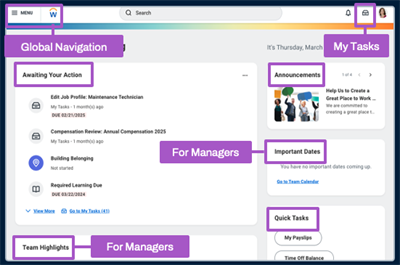
Workday Home
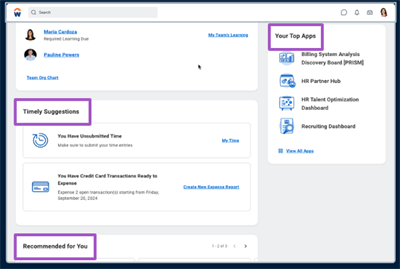
Workday Home
Workday Icon
The Workday icon takes you back to the Home landing page.
Search
Search allows you to find tasks, objects (such as workers, pre-hires, and organizations), and reports in Workday.
Notifications
From the application header, access your Notifications page to review notifications regarding business processes and rule-driven alerts (e.g., birthdays, time off). From the Notifications page, you can filter, sort, and refresh your notifications. You can also mark all notifications as read.
My Tasks
You can access your My Tasks from the application header or Home landing page. The All Items section is an activity stream that displays tasks and approvals that require action. The Archive section displays past actions and business process statuses completed within the last 90 days.
By default, the My Tasks displays the newest items first. From the All Items section, you can use the search bar. You can also save searches. There is also a Filters section that allows you to filter and sort your My Tasks items. You can use the Manage Filters link to create your own My Tasks filters using condition rules.
Here are a few common filters that you may use:
Filter | Description |
|---|---|
Favorites | My Tasks items you starred. |
Overdue | Business process items past their due date. |
All To Dos | All current to-dos awaiting your attention. |
Bulk Approvals
If you have multiple approvals awaiting action in your My Tasks, you can use the Bulk Approve functionality. From My Tasks, select the Bulk Approve tab, and then you can select the items you want to approve in bulk.
Worker Profile Menu
Elements | Description |
|---|---|
View Profile | Provides quick access to your worker profile. |
Home | Uses one consolidated view to display applications and gives users access to information and commonly used tasks. |
My Account | Allows you to change your password and user account preferences. |
Workbench
| Provides technical administrators and implementers easy access to the tools they need to create and manage custom reports, calculated fields, analytic indicators, and other administrative tasks and reports. |
Sitemap | Displays a list of the standard reports and tasks available to you, sorted by functional category. |
Favorites | Provides access to a configurable list of favorite business objects, reports, and tasks. You can use Favorites when searching in prompts. |
Audit | Displays a list of all the audit reports and tasks available to you, sorted by functional area. |
Drive | Provides a central place to store your Workday files. You can set up Drive to consolidate file management for several file types in Workday. Examples include Worksheets workbooks, plan workbooks, Microsoft® Excel® and Word® files, images, media files, and PDFs. |
My Reports | Includes a virtual drive that can store your generated reports. When a new report is available, a notification will display in the header and in your Inbox. You can also tag reports sent to My Reports to make them easier to locate. |
Documentation | Opens a new browser tab and takes users to the Administrator Guide section of Workday Community. You can use Workday documentation to obtain information on objects, system configuration, or procedures. |
Help | Opens a new browser tab and directs your workers to your training and help documents. Use the Edit Tenant Setup - System task to update the link to this page. To add other links, such as one to your support center, create a Quicklinks application and include the links as required on the Home page. |
Applications
Applications provide users quick access to dashboards, reports, and tasks directly from a Workday landing page. A user's security permissions determine which applications are available on a landing page. For example, the Personal Information application is available to all employees, while the My Team Management application is only available to managers.
You can define applications as required or optional, based on a user's security permissions. Users cannot remove required applications from a landing page; however, they can add and remove optional applications. You may rearrange applications to assist business needs and use. Select MENU on a landing page, then Add Apps or Edit.
Dashboards
Dashboards consolidate key management information and actionable items into a single location. Workday delivers preconfigured dashboards for managers in distinct functional areas, like Compensation, Recruiting, and Onboarding. You can also create an unlimited number of custom dashboards for your organization. Use the
Maintain Dashboards
report to run, edit, and delete dashboards.Worklets
Worklets are reports and charts configured on dashboards that provide quick, visual snapshots of important data. Workday-delivered dashboards include delivered worklets, which you can copy and modify as needed. You can also enable custom reports as worklets. Additionally, you can organize worklets into dashboard tabs. A dashboard can have six tabs, and each tab can contain six worklets.
Workday Assistant
Workday Assistant is a digital chatbot designed to help workers retrieve information and complete tasks. It uses natural language processing, which means workers can interact with Workday Assistant in a conversational manner. For example, if you want to know your vacation balance, simply ask, "What is my vacation balance?" or "How much vacation time do I have?" This functionality allows computers to analyze, understand, and derive meaning from human language. Workday can extract an understanding of a worker's input and take the appropriate action.
Here are examples of what workers can do with Workday Assistant:
- View worker information.
- View your personal information.
- Locate your payslips, tax forms, benefits, and compensation details.
- Request time off and view balances.
- Give feedback to a coworker.
- Managers can view direct report information.Note: Workers can use Workday Assistant directly from Workday and from natural workspaces (i.e., Microsoft Teams and Slack).Workday Assistant requires a signed ISA.
Resource
: For additional information on Workday Home, enroll in the Workday Home (Subscription) training, or search for "Workday Home" in Workday Community.Additionally, for more information about Workday Assistant, search for "Reference: Edit Tenant - Setup Assistant" in the Administrator Guide.
Standard Screen Icons
Icon | Description |
|---|---|

| Brings you back to your Home page. |

| Opens all sections available from the Worker Profile Menu when you select your photo from the Home page. |

| Displays the Related Actions menu for an object (available only if the user has permission to perform additional actions on that object). |

| Opens the Inbox, which includes both pending and archived tasks. |

| Opens your notifications. |

| Displays apps and configured shortcuts. |

| Opens the Related Actions menu for an object. |

| Add a filter to your data. |

| View this page as a PDF file that you can print. Restrict this option using the Export to PDF or Excel ® domain. |

| View this page as an Excel file. Restrict this option using the Export to PDF or Excel domain. |

| Send the report to a Workday worksheet. |

| Freeze columns, similar to Excel. |

| View more data with the full screen toggle. |

| Indicates that you can view a report as a chart. |

| Returns to the previous page, and allows you to rerun a report or task with new values. |

| Change the sort direction. An up or down arrow appears in the column heading of a report. |

| Appears in applications, worklets, and landing pages, and acts as a menu or settings option. |

| Opens the associated instance. |

| Alerts you to system limitations based on configuration. You may continue your process or configuration when an alert message displays. |

| Alerts you to a critical error. Correct an error to move forward in a process or to enable your configuration. |
Task Page Icons
Icon | Description |
|---|---|

| The Required Field indicator contains an asterisk that indicates that you must enter a value for this field before saving or submitting the page. |

| Select the Prompt icon to display a list of available values sorted in folders (if applicable). |

| The Calendar icon opens a calendar to select your date. |

| Select the Delete Row icon to remove the current row from the grid. |

| Select the Add Row icon to add a row to the current grid. |

| When you select the OK button, the system accepts your changes. |

| The Submit button accepts your changes and moves you to the next step in the business process. |

| The Done button closes a confirmation screen and returns users to the initial page that the user initiated the task or process from. |
| The Cancel button disregards all changes. |
| The Save for Later button saves the item in your My Tasks until you take the next action on it. |

| The More button gives you several additional choices, including Deny and Cancel, depending on the user and the business process. |
Prompts
If a field displays a prompt list icon, you must use one of the prompt values. In single-select fields, you can only select one value, and the prompt list will disappear once you choose a value.
If a field permits more than one value, the prompt list will stay open to allow you to choose as many values as necessary. The field expands as you enter additional values, and you can select the X to remove entries.
Search Techniques
Use the Search bar in the application header to search for tasks, reports, business objects, and more. When you perform a search, Workday displays type-ahead results and saves your recent searches.
Predictive Search
Predictive Search functionality provides you best-matched search results with minimal typing. Using the Search bar, enter at least three characters to display predictive suggestions. Workday processes each term or character string separately. So, if you enter two terms separated by a space, the system searches for objects containing both terms regardless of whether the terms are next to each other. Note that search suggestions and results are based on your security permissions.
Predictive Search best practices:
- Keep searches simple.
- Avoid general terms like "find," "edit," "maintain," or "create." Using a general term returns more results, making it harder to find what you are searching for.
- Search for multiple terms to narrow down your search.
Exact Match
Use Exact Match to search for a specific item. Workday returns the exact match first, in addition to any other similar results. Typically, Exact Match is used for employee IDs, emails, and phone numbers.
For example, if you search for Gail Bradley's employee ID, 21097, the system returns one result: Gail Bradley's employee object.
Search Prefixes
Search prefixes restrict search results to a particular type of Workday object, quickly narrowing down results. For example, the "bp" search prefix restricts search results to business process definitions. To view a report of all search prefixes, enter a question mark (?) in the Search box.
Hint
: You can also view a list of all prefixes from the global search by selecting View Search Tips.Here are some common search prefixes to get you started. Make sure you enter a colon (:) after the search prefix, followed by your search term.
Search Prefix | Object Type Returned |
|---|---|
org | Organization |
sup | Supervisory organization |
bp | Business process definition |
loc | Location |
field | Report field |
Global Search Results
Global Search is a core navigation tool in Workday. The Global Search Results page contains key areas:
Term | Definition |
|---|---|
Saved Categories | Saved categories produce faster and more accurate results tailored to a specific area of interest. On the Search Results page, select a search category from the categories panel on the left side of the screen. Workday automatically displays the saved categories: Articles, People, Tasks, and Reports. |
More Categories | Additional categories that users can select to filter the search results. You can add any of the items in More Categories to your Saved Categories. |
Configure Search | You can customize search categories for each user. Drag and drop to reorder your saved and more categories. |
View Search Tips | Tips on better ways to search. This includes information about how to use prefix words and a list of all prefix words. |
Search Results | Suggested results display the most relevant results, based on the categories selected. |
Synonyms
You can define synonyms to map your organization's terminology with Workday terminology. For example, you can define the synonym "zip code" for the Workday term "postal code." When you search for "zip code," Workday tasks, reports, and objects with "postal code" in the title appear in the search results.
Maintain your synonyms using the
Edit Tenant Setup - Search
task.Proxy Access
You can configure proxy access policies to allow certain users to proxy in as other users, for testing purposes. Proxying saves time when testing (e.g., business processes, reports) since you do not have to sign in and out as multiple users. You can create, edit, view, and delete proxy access policies in any tenant environment except Production.
Once configured, authorized users can access the
Start Proxy
task and select a target user to proxy in as. The proxy user can act on behalf of the target user, performing all tasks that the target user can access.Stop a proxy session with the
Stop Proxy
task. If you want to proxy in as a second worker, you can start a new proxy without stopping the first one.Proxy Access Limitations
Some key points and restrictions to keep in mind around proxy access:
- You can only configure one policy per environment. However, one proxy access policy can apply to multiple environments.
- Proxy access policies apply to nonproduction environments only.
- You can only configure unconstrained security groups with proxy access.
- A user cannot start a proxy session when acting as a delegate.
- There is no support for connecting to another service when in proxy mode, including:
- Integrations
- Scheduled reports
- Business form printing
- Background conversions
- Email
- Documents on My Reports
- Mobile Push Notifications
- Notifications received through the user interface
- Solutions
- Workday Drive
- Workday Worksheets
Proxy Access Policy Order
While you can only configure one proxy access policy per environment, you can configure multiple rules to control the permitted access.
Workday assesses the rules in order, and stops when it finds an applicable security group (one that the target user belongs to) in the On Behalf Of column. Therefore, the order of the rules really matters. Put the most restrictive rule at the top of the list and the least restrictive at the bottom.
Resource
: Search for the Proxy Access to Non-Production Tenants section in the Workday Community Administrator Guide for details on managing your proxy access policy.Workday Business Objects
Workday stores data as business objects (e.g., organizations, workers, positions) that are similar to database tables or Microsoft Excel worksheets. Just as a table or worksheet has columns and rows, a business object has fields and instances. Workday automatically links related business objects together, creating a web of interrelated objects. Objects make your data contextual and actionable: when you see something in Workday, you can often perform an action on it or find related data. This concept is the "power of objects."
In Workday HCM, a worker is associated with a position and that position is associated with a job profile. That job profile is then associated with a management level, job classification, exempt status, and more.
In the diagram below, the Worker is the primary business object, and the attached rectangles are examples of related business objects.
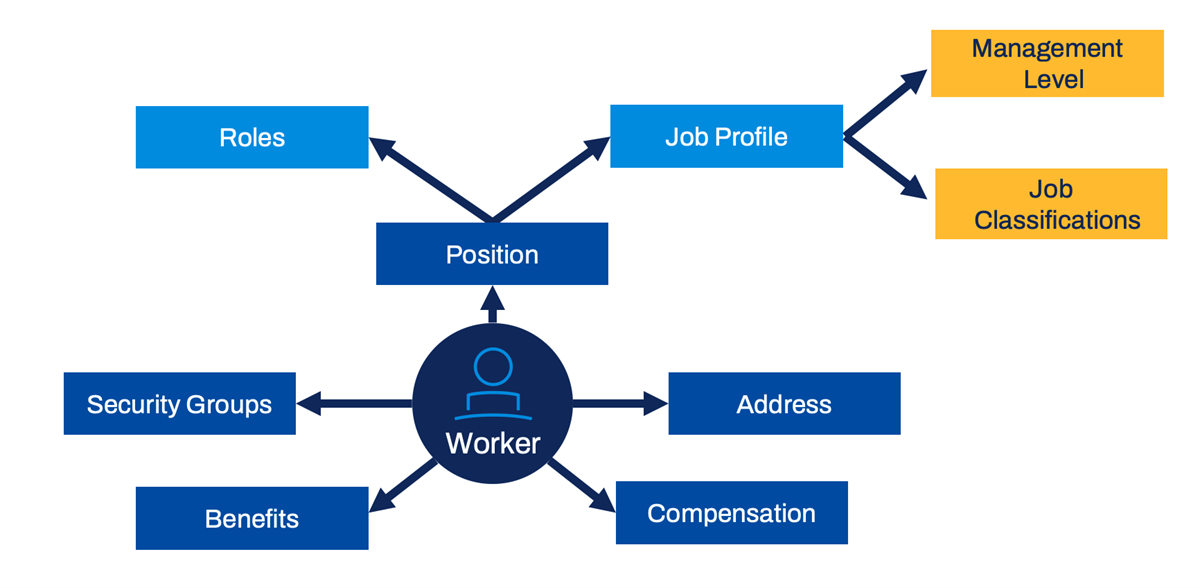
Example of Worker as the primary business object.
The primary business object is the main business object for the report. It holds the data that will display in your report.
Related objects that are associated with the primary business object are related business objects. These can have a one-to-one or one-to-many relationship with the primary business object.
Workday links related business objects together through fields. Related business objects enable you to access fields in a report that do not belong to the primary business object.
Reporting Basics
Reports in Workday have an easy-to-use, consumer-friendly interface with the functional user in mind. Reports exist as built-in features in the application, which allow users to act on the report output directly from the user interface. Reports in Workday leverage your security configuration, allowing you to access real-time, relevant data.
You can build custom reports using the Report Writer tool. You can embed reports in your business process transactions to provide relevant data for decision-making at the time of decision. You can also enable reports as worklets and display them on dashboards. In addition, you can use scorecards to display a snapshot of important metrics for a specific organization for a particular period. These metrics are sometimes called Key Performance Indicators, or KPIs.
The Workday reporting ecosystem supports many features:
- You can use reports in outbound integrations (Reporting-as-a-Service).
- Mobile devices can access reports.
- Workday allows you to associate layouts with your custom reports, which it uses to generate PDF files. In Workday, these designs are business form layouts. You can define a business form layout using the Report Designer (BIRT) tool in Workday Studio.
- You can use Prism Analytics to analyze data from both Workday and external sources.
- Workday helps you automate your Excel processing and formatting when exporting a Workday custom report. Excel templates reduce the time and effort needed to deliver Excel workbooks based on Workday custom reports. This is especially valuable in cases where you export a report on a regular basis and then reformat the data in Excel. This feature supports any macros, calculations, and formatting defined in the associated workbook template.
Workday Report Writer
Workday Report Writer enables you to design reports for functional users with an easy to use, consumer-friendly interface.
The Workday Report Writer tool is part of the application allowing you to easily create custom reports that are actionable and provide real-time data. Because the reporting tool is part of the Workday application, you can use the security configurations and organization structure to control access to modifications and data visibility. To create custom reports, you need membership to the Report Writer user-based security group.
In this chapter, you will learn about the basics of reporting configurations, including reporting types and how to copy and create custom reports.
Workday Standard Reports
Workday delivers standard reports that are available for all customers. If necessary, you can copy many of the Workday-delivered reports to create a custom report and modify it as needed.
You can use the
Workday Standard Reports
report to view Workday-delivered reports.The report displays the following columns:
Column | Description |
|---|---|
Category | The category for the standard report. |
Report | This contains the Related Actions you can take on the standard report. |
Name | Name of the standard report. |
Description | Description of what displays in the report. |
Type | The type of report, either XpressO or Report Writer. |
Schedulable | Indicates if you can schedule a report. |
Domain | Shows the name of the domain that secures the report. Users must have access to one of the security domains to run the report. |
Security Note
:- TheWorkday Standard Reportsreport shows all standard reports and categories, even if you do not have security permissions to access the menu category or the report.
- You must have access to the Custom Report Administration security domain to run theWorkday Standard Reportsreport.
Report Types
Workday Report Writer provides the following report types for creating custom reports and custom analytic solutions:
Report Type | Description |
|---|---|
Simple | Simple reports provide straightforward design options for the beginning or occasional user to create reports quickly and easily with limited options. You cannot share simple reports with other users. When you create a simple report, you will not have access to advanced filtering. Once you create a simple report, you can convert it to an advanced report. |
Advanced | Advanced reports provide all the features of a simple report, as well as more advanced features. For example, you can use an advanced report to access related business objects and produce multiple levels of headings and subtotals. Enable the use of subfilters, runtime prompts, charts, worklets, report sharing, and the ability to expose the report as a web service. |
Matrix | Matrix reports form the foundation for custom analytics. Allow you to group data, summarize metrics for those groupings, and then further drill into the summarizations by other dimensions or fields. |
Search | Search reports display search results based on values selected for facet filters on the report. |
Transposed | Transposed reports interchange the rows and corresponding columns on the report. |
nBox | nBox reports count data and display the results in a two-dimensional matrix. |
Trending | Trending reports are similar to matrix reports but with a time period element. Used to report and analyze trended worker data over a period of time, such as headcount, attrition, or trended journal data (e.g. supplier invoice accrual or sales averages). |
Composite | Composite reports allow you to combine several existing matrix reports into one report. Each matrix report is considered a sub-report and can have its own data source. The resulting composite report can then display data across multiple data sources. |
Search Reports
The object-action model drives interactive reports in Workday. An example of an interactive report is a Search report. There are many search reports available in the tenant, based on enabled functional areas.
Review the following Search report examples:
Report | Description |
|---|---|
Find Events | Displays events by business process. Filter results using search facets. |
Browse Jobs | Returns a list of approved internal job postings as part of an employee self-service career search. Narrow down the job postings using search facets. |
Find Workers | Find active workers by using search facets such as supervisory organization, location, employee type, and cost center. |
Find Worker for Project | Find workers for a project using search facets such as skills, job profile, work experience, and location. |
Find Candidates | Returns a list of prospects, active candidates, and workers who have a candidate profile with at least one education, skill, or work experience item. Narrow down results using search facets. |
Find Mentor | Find a mentor using search facets such as work experience, degree, school, and location. |
Navigating Search Reports
A Search report page contains three sections:
- Search bar: Enter the term or phrase you are looking for.
- Search facets: Filter results using facets located on the left side of the page.
- Results: Review this section to access all returned results.
Reporting Terminology
To use Report Writer, you must understand the terminology involved, especially when it comes to business objects and data sources.
Workday stores your data in business objects, similar to database tables or worksheets in Excel. Just as a database table or worksheet has columns and rows, a Workday business object has fields and instances.
The report data source provides a view into the primary business object (PBO). This object gives you access to class report fields (CRFs) as well as links to related business objects (RBOs).
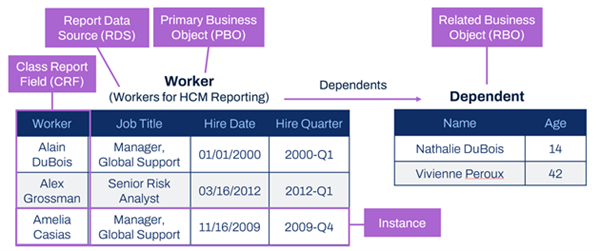
Reporting terminology using an example of employees and their dependents
Term | Definition |
|---|---|
Primary Business Object | The main business object for the report. It holds the data that displays in your report. The primary business object determines what fields are initially available to include in the report. |
Related Business Object | Objects that have an association with the primary business object. These can have a 1:1 or 1:M relationship with the primary business object. A field on the primary business object links the two business objects together. |
Report Data Source | Workday delivers data sources for some business objects. You can think of the data source as the 'view' or 'starting filter' for reporting on the given primary business object. |
Class Report Fields | When working with Workday custom reports, you can select available fields (depending on your security). These fields can be Workday-delivered fields, calculated fields, or custom fields. |
Instances | Instances of a business object in Workday are like rows in a table or spreadsheet. Each instance represents a unique occurrence of that type of object, such as a given organization or worker. |
Determining the Primary Business Object and Data Source
To determine the primary business object and data source when creating a custom report, there are several questions to consider:
- Which business objects contain the fields needed in the report?
- If there are multiple business objects:
- Are these business objects related?
- Which should be the primary business object?
- Which should be the related business object?
- Which field links the two business objects together?
- Which data source should I use?
Data Sources
When creating a custom report, the most important decision is selecting your data source. The data source drives the primary business object and view of the data. Data sources provide the starting filter for your report. You can search for data sources by name, category, business object, or a combination of category and business object.
Workday defines and delivers one or more data sources for most business objects.
Standard Data Sources
Most data sources in Workday are standard data sources. A given Workday business object can have several standard data sources associated with it, each representing a different filter or selection into instances of that object. Think of the data source as a starting filter. Choose the data source that returns the smallest dataset that still includes all needed data. This is more efficient than using a data source that returns a larger dataset and applying filters to only display a subset of the data.
A data source can contain all instances of the primary business object (e.g., All Workers), or it can have built-in, Workday-defined filtering logic (e.g., All Active and Terminated Workers). If the data source has built-in filtering, the filter comparison value is either built into the data source (e.g., All Active Employees) or displays as a user prompt. In the prompt, the user enters the comparison value when running the report (e.g., Employees by Organization).
The following example shows different standard data sources for the Worker and Employee business objects. The All Workers data source returns all active, terminated, and future workers. The All Active and Terminated Workers data source returns active and terminated workers, but not future workers. The All Active Employees data source returns active employees, but not contingent, terminated, or future workers. For optimal performance, choose the data source that returns the smallest dataset that contains all needed data. If you only want to report on active employees, then choose the All Active Employees data source for a more efficient report.
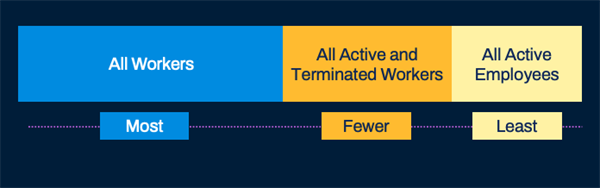
An example of how different data sources return different numbers of instances
Standard Data Source Performance Considerations
When selecting a data source for your report, be aware of your report's performance. There are a wide variety of standard data sources that range from very broad to very specific. However, all standard data sources cause your report to run slower than an indexed data source does. Therefore, try to select an indexed data source if it includes all the fields you need. This is especially true when reporting on large volumes of data, such as all workers in your organization.
Indexed Data Sources
Indexed data sources are a special type of data source optimized for performance, aggregation, and faceted filtering on large volumes of data. Try to use these whenever possible to get the best performing reports.
When you create a custom report using an indexed data source, a prompt enables you to select from a list of predefined filters (if available for that indexed data source). Data source filters are secured so users can only use filters they have access to.
To gain the performance benefits of indexed data sources, use indexed delivered fields. Nonindexed fields are usable but will not realize indexing benefits. Additionally, fields may be indexed for different purposes. The biggest impact to performance is using a field for grouping, aggregation, or filtering that is not indexed for those purposes. Nonindexed fields in detailed reports do not have as great an impact to the overall performance.
The following is a sample list of indexed data sources available in Workday:
|
|
Just like with standard data sources, a given Workday business object can have multiple indexed data sources associated with it. Each indexed data source provides a different filter into instances of that object. For example, the Journal Line business object has two indexed data sources: Journal Lines and Journal Lines for Financial Reporting. The Journal Lines data source returns more instances than the Journal Lines for Financial Reporting data source. For optimal performance, you should choose the data source that returns the smallest dataset that contains all needed data.
Additional Training
: To learn more about business objects and how they relate to one another, enroll in the Workday Business Object Model (Subscription) Learn On-Demand course in the Workday Learning Center.Creating Custom Reports
You can create new custom reports to meet business requirements. Alternatively, with Workday Report Writer, you can copy existing reports to use as the framework for new custom report requirements.
Copy a Standard Report
There are two ways to copy a standard report:
- From the standard report's Related Actions, select the Standard Report > Copy.
- You can use theCopy Standard Report to Custom Reporttask.
Note:
- You can only copy Report Writer reports, not XpressO reports.
- You cannot copy reports with deprecated data sources and fields.
Security Note
:- By default, the system does not share custom reports with other users. This means only the owner can access and run the report.
- You must have access to the Custom Report Creation security domain to copy a standard report and create a custom report.
Chapter Summary
Workday provides various tenants, or customer environments. The metadata is part of the Workday framework, and you cannot change it. Customer-defined, or tenanted data is configurable and secured. All customers are on the same version of Workday, allowing them to deliver functionality and enhancements at a rapid pace.
Workday is a unified system, which makes it critical for customers and consultants to understand the impact of design decisions on both previously deployed and future deployment areas. The Workday Touchpoints Kit is a tool that visually displays the data flows and configuration relationships within Workday to assist in making informed design decisions. The kit provides diagrams, heatmaps, and organizational details to help plan and execute during deployments.
Navigating in Workday is simple. You can easily navigate through the Global Navigation menu, search functionality, configurable landing pages, dashboards, and applications. You can also enable and use Workday Assistant to help retrieve information or complete common tasks.
Searching allows for minimal typing and categorical filtering. Use search prefixes to facilitate locating Workday objects, tasks, and reports with ease.
Landing pages are a collection of applications that allow users to access information, tasks, and reports. For example:
- The Home landing page is a consolidated view of information and tasks for both self-service and manager self-service.
- The Workbench landing page provides quick and easy access to existing tasks and reports for technical administrators and implementers.
All landing pages are configurable. You can configure required, optional, and recommended applications for specific security groups based on business requirements. Required applications appear when a worker signs into Workday and they cannot remove them. Optional recommended applications appear when a worker first signs into Workday, but they do have the option to remove them at any time.
Dashboards consolidate information and actionable items in a single location. Worklets on dashboards can display data that users reference frequently. Dashboards and worklets are fully configurable.
Workday stores data as business objects. Depending on security permissions, you can act on a business object by using the Related Actions, or drill into additional information. Workday links related business objects together through fields.
You can also locate data through reports. Use the
Workday Standard Reports
report to view all standard reports and categories in the tenant.Workday Report Writer is a tool built into the system, which allows you to copy existing, or create new custom reports to meet business requirements. Most reports and Workday pages provide the option to export to either a PDF or Excel file.