
Core Concepts and Navigation
Overview
Workday Financial Management is an object-oriented, cloud-computing software application to handle financial needs and business objectives. We will present a comprehensive overview of Workday Financial Management.
In this chapter, we will discuss the core concepts within Workday Financial Management. You will gain an overall view of how to perform transactions in Workday. We will discuss the building blocks for Workday financial applications, which will help you to understand and progress through your Workday Financial Management deployment.
Powerful search capabilities and multiple navigation tools make navigating Workday simple. In this chapter, we will review these tools, as well as discuss the many methods you can use to find tasks, reports, and business objects. Often, there is more than one way to perform an action on an object.
Objectives
By the end of this chapter, you should be able to:
- Describe Workday core concepts.
- Sign in to a Workday tenant.
- Demonstrate navigation techniques.
Core Concepts
- Organizations: The foundation of Workday Financial Management is the Company organization. This type of organization defines a way to group workers and financial transactions.
- Financial Accounting: A unique, event-driven accounting approach with a built-in, internal control framework, and a robust multicompany, multicurrency model.
- Financial Events: The automation of the accounting resulting from business operations.
- Domains: A predefined set of related, securable items (e.g., reports, tasks, instance sets, report fields, data sources).
- Business Processes: A sequence of one or more tasks that accomplish a desired business objective.
- Security: A security group is a collection of system users used to grant access to Workday.
- Reporting: User-defined, real-time query that provides insight.
Tenant
A tenant is a unique instance of the Workday system with data separated in a database that is securely segregated through password-controlled access. You can configure the tenant to meet your unique business needs. Workday performs most of the tasks that support your tenant during your initial deployment.
Workday provides several tasks for configuring specific areas of your tenant, as needed. These tasks are accessed by navigating to the
Tenant Setup
report and selecting a tenant setup task specific to the changes needed. Throughout this guide, there will be references made to different Edit Tenant Setup
tasks to assist with various system configurations.Resource
: More information about tenant setup and management is available on Workday Community.Business Objects
Workday stores data as business objects (e.g., organizations, suppliers, ledger accounts), which are similar to database tables or worksheets in Excel. Just as a database table or worksheet has columns and rows, a Workday business object has fields and instances. Workday automatically links related business objects together. For example, a supplier is associated with supplier invoices, the invoice is associated with a supplier invoice payment, and the payment is associated with a bank account.
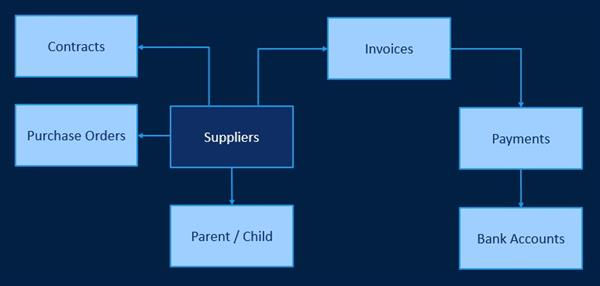
Workday uses a very powerful, object-action model that drives navigation and reporting. When you view a page in Workday, most of the items on the screen are links, and have a Related Actions icon next to them. These features make Workday reports and viewable pages actionable.
The Power of Objects
: When you find something in Workday, you can perform an action on it. For example, by selecting a supplier's Related Actions icon, you can find the available actions and a quick view of supplier information.Basic Navigation – Application Header
The application header always displays while you navigate throughout Workday, and includes: Global Navigation, the Home icon, search bar, Workday Assistant, notifications, My Tasks, and the worker profile icon.
Note
: The Global Navigation Menu button, located in the upper-left corner of the screen, is also referred to as the Menu button throughout this course.
Global Navigation
The Global Navigation icon allows users to view and select applications. Users can manage applications and add, remove, and even reorder their applications.
Saved in Global Navigation
The
Saved
feature is located within the Global Navigation Menu
and allows users to access their saved content across Workday in a single location. The Saved
feature centralizes all saved items and favorites in Workday into a single globally accessible location. Users can save these items in the Saved
menu option on the Global Navigation Menu
:- Career Hub - Saved Plan
- Drive Favorites
- Favorites
- Learning - Saved for later and Paths
- Shortcuts
Home
Selecting the Home icon takes the user to their preferred Home landing page. Users can override their preferred landing page in the
Change Preferences
task.Search
The search bar allows you to search for business objects, reports, tasks, workers, and more by typing in key terms. For example, if you enter "customer," you will notice reports, tasks, and business objects that contain the word "customer." The search bar also returns type-ahead, predictive results.
You can narrow down search results by categories, such as Banking, Reporting, and Security, located on the left side of the page. You can also use search prefixes. Search prefixes allow you to narrow down your results to a specific type of search result. When using a search prefix, Workday searches all items of that type and returns all of the results available to you. Examples of common search prefixes include 'org:' for organizations and 'bp:' for business processes. To find all of your accessible search prefixes, type a question mark (?) into the search bar.
After you have typed three characters into the search bar, Workday returns the seven best matched results; the results can include up to two people and two organizations.
The search bar automatically performs searches using an AND operation. Additional Boolean operators are available in Find reports to customize your search.
Notifications
Notifications display reports you have run, processes that are complete, and documents that are available for review. Notifications do not show actionable items. Actionable items are displayed in My Tasks.
My Tasks
My Tasks is an activity stream that combines business process actions and notifications. You can view your pending approvals or steps that require completion for business processes. You can also view notifications regarding your requested processes. Use the Archive tab to access process status and historical actions. From My Tasks, you will notice your most recently received action items. When you select an item, it will take you directly to that item in the full My Tasks view. You can also filter tasks using specific criteria and access the My Delegations report to view and manage task delegations.
Profile
Your profile displays a picture of the currently logged in user (you). Select the profile icon to open the main menu and access landing pages. The landing pages include My Tasks, Notifications, Favorites, the Drive, your profile, and more. Depending on your security, you may notice fewer options on the My Account menu than another user.
The View Profile selection is a composite view of a worker that displays a collection of information. The profile can include contact information, job information, time off, etc.
The Home link will take you to the Home landing page, if enabled, not your preferred landing page. Through the Home landing page, team members display commonly used applications to support employees or contingent workers. Managers are granted access to tasks and reports about themselves and their team from one consolidated view. You can configure a new landing page using the
Maintain Dashboards
report.You can also access other landing pages. Landing pages display a collection of applications to quickly view data and perform tasks. There are different landing pages to support different functions. Home is a landing page that has its own icon. The Workbench landing page provides quick and easy access to existing tasks and reports for technical administrators and deployment partners. All the tools you need to create and manage custom reports, calculated fields, and analytic indicators are available from one convenient location. The Workbench landing page also helps to highlight new and existing functionality, which you may not be familiar with.
At the top of each landing page, you will find a "Configure this page" icon that resembles a gear. By selecting the icon, you can personalize the landing page by adding or removing any required or optional applications to or from this page. You can also specify the order in which you would like the applications to appear.
Other pages available from the menu also display data based on your security. They include:
- Sitemap: Includes detailed menu-based navigation.
- Favorites: Displays the business objects, reports, custom reports, and shared reports you have added as favorites.
- Drive: Consolidates file management for several file types in Workday, such as Worksheets workbooks, Microsoft Excel® and Word® files, images, media files, and PDFs.
- My Reports: Stores the reports you generate on a virtual drive. This area is not a mapped drive located on your computer.
- Documentation: Opens the Workday Administrator Guide where you can search for information about the Workday system.
- Help: Directs your workers to your training and help documents. Use theEdit Tenant Setup - Systemtask and enter your training and help website's URL in the "Help" link field.
- My Account: Allows the worker to change their password, change their preferences, and sign out of Workday.
Basic Navigation – Landing Pages and Dashboards
Landing Pages And Applications
Applications are reports that display as tiles on a Workday landing page. They provide users quick access to frequently referenced data and tasks common to a specific functional area. You can identify applications as required or optional based on one or more of the user's security groups. You cannot remove required applications from the page. Users can add or remove optional applications.
- A worker's personal information, such as Time Off.
- A manager's direct reports, such as My Team Time Off.
Security determines which applications are available. For example, the Personal Information application is available to the Employee as Self-Security group, where every employee is a member. The My Team Management application is only available to managers.
Note
: We recommend that you enable the Home landing page for all users.Dashboards
Dashboards consolidate key management information and actionable items in one location. Workday secures dashboards to specific domains. Users access dashboards based on configurable security.
Workday delivers dashboards with applications that are specific to them. Workday builds applications with the Workday Report Writer using report-specific calculated fields, you can copy and modify them to satisfy unique requirements. Workday Report Writer enables you to add additional custom applications to these dashboards. To optimize performance, Workday caches most of the delivered applications for these dashboards.
Use the
Maintain Dashboards
report to view the list of enabled dashboards, configure them, and change their descriptions. You can add menus and announcements to any Workday-delivered or custom dashboard.System Admin Hub
The
System Admin Hub
consolidates administration tasks from specific product areas into a centralized location. In the System Admin Hub you can find the most frequently used system administration tasks in one centralized location, eliminating the need to remember and search using exact task names.Basic Navigation – Field Type
There are multiple field types in Workday. The most common are single and multiselect fields.
Single-Select Fields
When choosing a prompt, you must select one of the available options. In single-select fields, you may select only one value and the prompt list will disappear once you choose a value.
Multi-Select Fields
If a field permits more than one value, you will notice checkboxes in the pull-down menu.
After you select your options, they will appear in the field, which will expand as you enter additional values. The prompt list will stay open until you close it to allow you to choose as many values as you need. While the prompt is open, you can either select the X to remove entries or you can choose the checkboxes to clear them. After the prompt closes, you can still remove entries by selecting the X.
Basic Navigation – Screen Icons
Page Icons
This table contains commonly used page icons in Workday:
Icon | Description |
|---|---|

workday home | Home : Takes you to your Home page. |

worker profile | Worker Profile : Select the name or picture to view the worker profile, access menu items, manage your user preferences, or sign out of the Workday session. |

Actions icon | Related Actions : Right-clicking on a user's name displays the Related Actions menu for an object (available only if the user has permission to perform additional actions on that object). |

filter icon | Filter : Narrows down data by creating a row on your report where you filter data to display from one or more columns. |

print icon | Print : Displays the page as a printable PDF file. You can restrict this function using the Export to PDF and Excel domain. |

excel icon | Excel : Displays the page as an Excel file. You can restrict this function using the Export to PDF and Excel domain. |

workbook icon | Export : Exports to a workbook. |

back arrow icon | Back Arrow : Changes prompt values and reruns either a report or a task with new values. |

| Configure this Page : Appears in the upper-right side of landing pages, dashboards, and select applications. This functions as a menu or settings option. |

alert icon | Alerts : Soft warning message that alerts you about system limitations based on configuration. You may continue your process or configuration. |

errors icon | Errors : Hard warning message that alerts you of a critical error. Correct the error to move forward in a process or to enable your configuration to function. |

| Required Field Indicator : Indicates that you must enter a value for the field before saving or submitting the page. |

| Prompt : Displays a list of available values sorted in folders (if applicable). |

| Calendar : Opens a calendar to select a date. |

| Add/Remove Row : Adds or removes a row to the grid. |

OK icon | OK : Accepts your changes. |

submit icon | Submit : Accepts your changes and moves you to the next step in the business process. |

done icon | Done : Closes the confirmation screen. |
cancel icon | Cancel : Disregards all changes. |
save for later icon | Save for Late r: Saves the item in My Tasks until you take action. |
| Sort Ascending/Descending : Appears when you select a column heading in a report. Displays a context menu that enables you to sort the report output by the results in the selected column or apply a filter to the selected column. |

| Open the associated instance, replacing the current view page (only available on select view pages). |
Functional Areas
Each Workday product (like Workday HCM and Workday Financial Management) comprises a distinct functional area. A functional area is a grouping of tasks, reports, and objects. For example, the Workday Financial Management product includes the following functional areas: Financial Accounting, Business Assets, and Supplier Accounts.
A functional area is a collection of related securable items, where each functional area is further divided into domains and business processes. The
Functional Areas
report will display all functional areas and included domains and business processes. You can enable and disable functional areas for each tenant.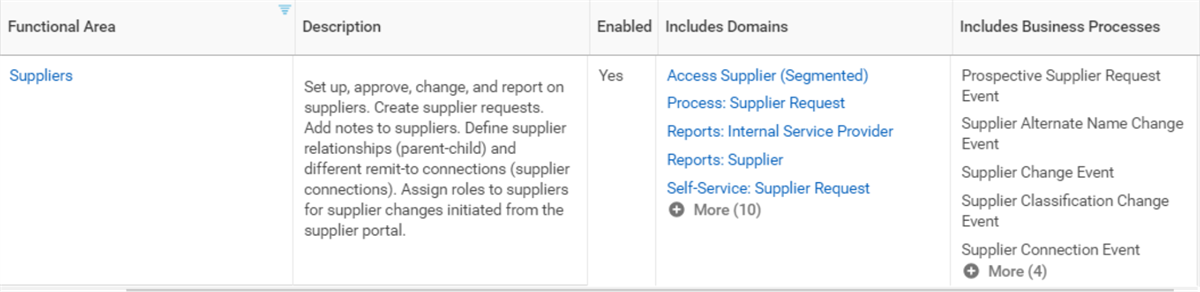
suppliers, description, domains, and business processes
Generally speaking, a domain relates to set up data, which is an area that power users or administrators complete. Complete the setup data on an as-needed basis. High-level security protects domains from unauthorized configuration. Additionally, there is no workflow or approval process for these tasks.
Business processes cover the daily transactions completed by workers in Workday. Very granular security secures these business processes. You can configure them and they may include workflow for approvals.
Domains
A domain is a predefined set of related securable items (e.g., reports, tasks, instance sets, report fields, data sources). Workday predefines domains and their related securable items. Customers cannot modify them. For example, the Workday Financial Management product includes the Customer Accounts functional area. The Customer Accounts functional area includes several domains including the Process: Customer Payment domain. This domain, in turn, contains several related securable items such as instance sets, report fields, reports and tasks, and web services.
Although you cannot change which securable items comprise a domain, Workday allows you to configure security policies that govern permissions for the content of a domain. A domain security policy grants a group of user's access to the securable items contained in the domain.
Business Process Framework
Functional areas also include business processes. A business process is a set of configurable steps used to complete a larger overall task, like creating a customer invoice. Business process definitions automate business events in Workday.
A business process defines the tasks complete for an event to occur, their order of completion, and who completes them. The business process definition specifies the security group responsible for each step. It notifies the workers in these groups and updates when each step is complete so it can move on to the next step. Steps can be conditional.
Once you initiate a business process, Workday routes the tasks to the responsible roles (based on proper security group membership). Workday then enforces security and business rules throughout the execution of the business process until it is complete.
Configurable Security
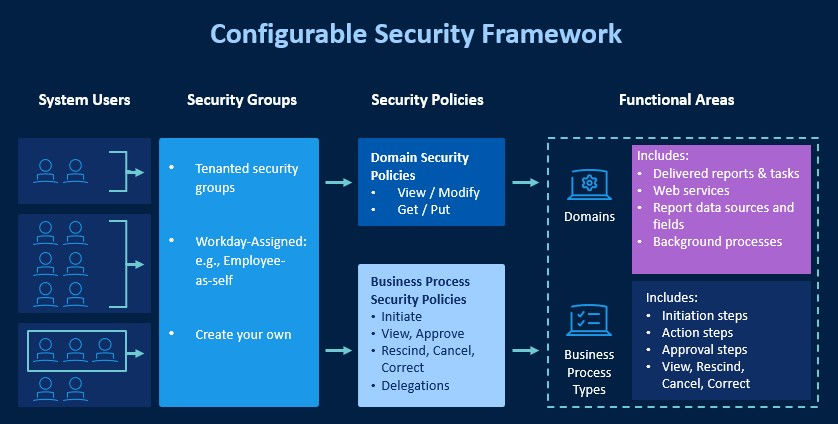
Workday provides a configurable security framework, which allows you to control view and modify access to the Workday application via security groups and security policy updates. The Workday security framework supports your organizational structures, roles, global models across all elements of the application.
Workday groups securable items into domains and business processes. The group's corresponding domain or business process security policy secures it. Workday predefines these groups. You cannot change them. You can edit which security groups can access the securable items in a domain or business process. You cannot edit securable items in a policy. You cannot delete policies.
Security Group Types
Membership in a security group dictates what you can view and which tasks you can perform. Workday delivers security group types, which describe how it assigns security to users. You can create new security groups using the security group types.
Role-Based Security Groups
Role-based security groups commonly identify users in key support or leadership roles supporting different organizations. Workday defines these security groups either as constrained or unconstrained. Constrained role-based security groups identify and constrain your support staff to target instances in an organization that they support or lead.
Role-based security groups use assignable roles. A member of a role-based security group resides in a position or job assigned to the role. The role-based security group definition references the role. Assign role assignments to a given position or job for a specific organization or role-enabled instance.
User-Based Security Groups
User-based security groups provide administrators system-wide access to data in permitted security policies. You can manually assign user-based security groups to a user. They stay with the user, regardless of position or job changes.
Examples of user-based security groups include:
- HR Administrator
- Payroll Administrator
- Finance Administrator
- Security Administrator
- Report Writer
- Auditor
Workday provides system defaults of several user-based security groups as starting points to leverage and assign to your workforce. You can also create your own user-based security groups as needed.
User-Based Security Framework
Workday provides a workflow-enabled task for updating user-based security group assignments. When enabled and configured, this workflow allows you to create your own approval processes for the assignment or removal of user-based security groups. This workflow can be initiated through the Workday UI or with a web service task. By providing a configurable review process, a security administrator can assign themselves additional user-based security groups, but it can then route an approval/review to another security administrator to ensure your security procedures are being followed. You can opt out of the legacy versions of both the UI and web service tasks.
Note
: Using both the new business process and non-workflow enabled tasks can cause conflicting assignments.