
Data Integrity Tools
Overview
Workday provides several tools to help ensure users include the proper data on the proper transactions. The three tools covered in this chapter are Maintain Worktag Usage, Maintain Related Worktag Usage, and Maintain Custom Validations. These tools help users catch transaction issues up front. Doing so ensures that the data required for business process routings, account posting rules, and financial reports is on the transaction.
Objectives
By the end of this chapter, you will be able to:
- Configure custom validations.
- Configure worktag usage.
- Configure related worktag usage.
- Understand when to use each of these tools.
Security Policies
As you deploy Workday, you will configure security policies to ensure the appropriate security groups have the right permissions. This chapter covers the following security groups and domains.
Security Groups
- Finance Administrator: This user-based security group has unconstrained access to create and maintain all financial setup data and no approval authority. Examples include:
- Financial institutions
- Financial accounting data
- Ledgers
- Journal sources
- Account control rules
- Fiscal schedules
- Items
- Taxes
Domains
Topic | Functional Area | Domain |
|---|---|---|
Data Integrity | Common Financial Management | Setup: Custom Validations Setup: Enable Worktags |
Custom Validations
Custom validations allow you to define validation logic to control data quality on your financial transactions. For example, a custom validation might ensure that a supplier invoice transaction includes both a cost center and region Worktag but only for ABC company.
You can create custom validations to:
- Warn users when entering invalid transactions.
- Prevent users from submitting invalid transactions.
- Alert transaction approvers to conditions that need more careful review.
A custom validation contains:
- Transaction type.
- Validation type.
- Error message.
- Condition rules.
Custom validations will generate errors or warnings when a user submits the transaction. Errors occur at the header and line level of the journal.
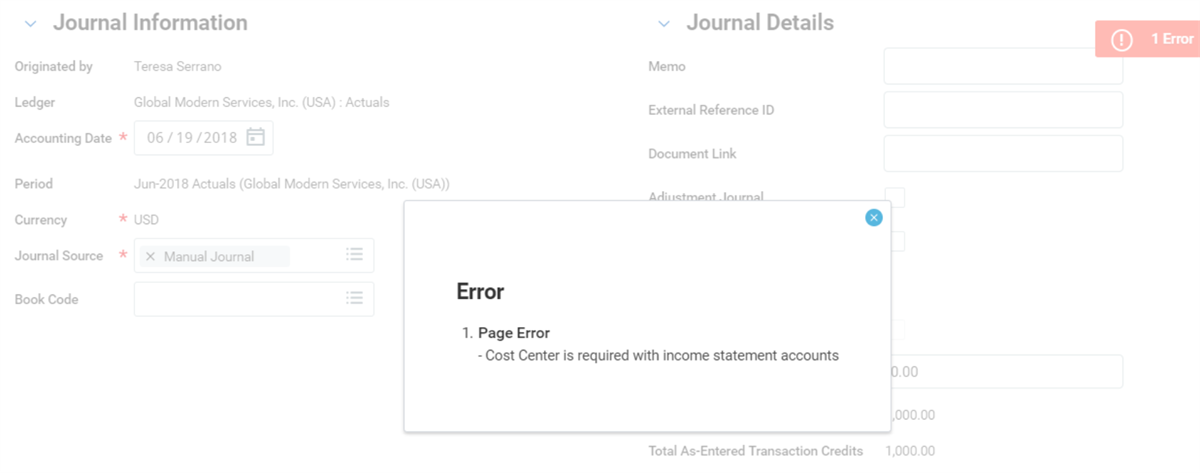
Error page screen shot
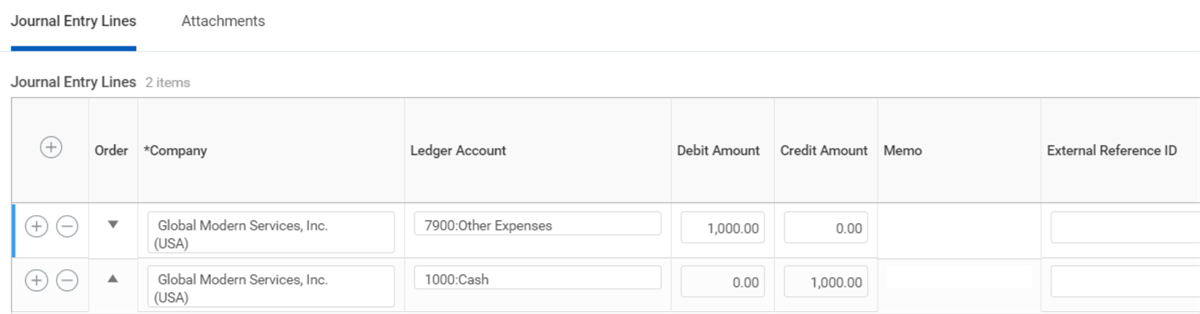
journal entry lines screen shot
Custom Validation Transactions and Types
Each type of transaction has its own set of custom validations and the list of transactions, which allow for custom validations is Workday delivered. You can create custom validations for numerous transaction types, some of which include:
Transaction Type | |||
|---|---|---|---|
Accounting Journal | Ad Hoc Bank Transaction | Ad Hoc Payment | Cash Sale |
Customer Invoice | Customer Invoice Adjustment | Customer Refund | Expense Report |
Purchase Order | Supplier Invoice | Supplier Invoice Adjustment | Timesheet |
*For a complete list, reference the Maintain Custom Validations report.
You can configure custom validations as either Critical or Warning severity type. Workday executes both types when the user submits the transaction, not during data entry.
- A Critical custom validation is a firm stop. The user must resolve the error before they can continue.
- A Warning is a message to the user they can bypass.
Using the existing Maintain Custom Validations task, you can create or edit critical errors and warning messages for transactions based on rule conditions that you establish. When users perform these transactions, Workday validates them against the current custom conditions. Approvers also review any warnings in the transaction they receive for review.
Custom Validation Condition Rules
A condition is part of the custom validation and consists of one or more rules. You can create condition rules describing the criteria required to generate an error or warning during transaction validation. You are writing the condition rule to search for a time when something is wrong with the transaction. Custom validations are resolving to a negative.
For example, you may want a custom organization or custom worktag on every supplier invoice for a specific company. Thus, you write a custom validation to determine if a custom organization or custom worktag is missing because the error is conditional and not tenant-wide. If a custom organization or custom worktag is missing from the transaction, when you use that specific company, the custom validation displays the error message.
You can write Custom Validation rules to generate an error or warning if a certain combination of data is present. You can also write Custom Validation rules to generate an error or warning if a combination of data is not present. For example, when creating a customer invoice for WOK, if the Revenue Category is Course Delivery, then Course Name cannot be blank.
You can write Custom Validation rules to generate an error or warning when data is not present under a specific circumstance.
When you are writing custom validations, the following fields are available:
Field | Description |
|---|---|
Description | The default message that displays to users if you do not configure a validation message. If you do not create a custom message, Workday instead displays the description of the custom validation. |
Category | Assigning a category makes the validation rule easier to find later. A Business Process Administrator can create Custom Validation Rule categories using the Maintain Condition Rule Categories task. |
Derived Logic | The statement you defined through the rule conditions. The statement displays for existing rules and after you save new rules. |
Copy Condition from Rule | You can copy and modify an existing validation rule to create a new one. |
When creating your conditions, you will be able to specify:
Term | Definition |
|---|---|
And / Or | When two (2) or more statements exist in the expression, set this condition to control how the statements relate to each other. |
( ) | Use parentheses when you have three (3) or more statements and a combination of And and Or conditions. For example, A and (B or C). |
Source External Field or Condition Rule | The field or condition rule you select as the source determines which other options are available. Workday controls the available fields and their values by the context of the condition. The selection list includes calculated fields associated with the same type of business object to which this condition is relevant. |
Relational Operator | These options depend on the data type. For example, an amount field would have a "greater than" option, but a text field would not. |
Comparison Type | Specifies whether Workday compares the source to another field or to a value that you enter in the Comparison Value column. |
Comparison Value | Based on the Comparison Type, select a comparison field or enter a value to compare to the source. |
When you use conditions to select from several courses of action, Workday examines the conditions in order until it finds a match, and then stops. If you have a variety of conditions, always put the most specific conditions first. Otherwise, a more general condition matches before Workday gets to a more specific condition.
As you complete the Rule Conditions, consider the maintenance of the condition rules and updating of data. Use hierarchies whenever possible to minimize maintenance.
Edit a Custom Validation
You can update the custom validation and its condition rules. Use the Related Action from the validation and select Validation > Edit Condition Rule.
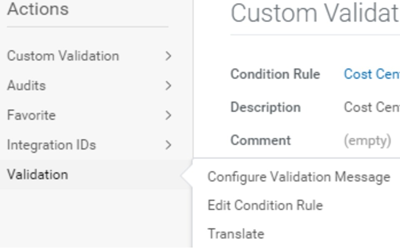
custom validation screen shot
Use an Existing Custom Validation
If you have written a custom validation you can use on another transaction type, you do not need to write another one. You can choose to use the same custom validation on other transaction types, which allows you to reuse and only maintain one custom validation.
For example, you have a cost center validation on the supplier invoice transaction. You know the company requires a cost center on a supplier invoice adjustment. You can reuse the existing cost center validation.
In this example, Supplier Invoice Adjustment does not contain any custom validations. To use an existing validation, select the Maintain Validations button to access the Edit Validations Rules screen.
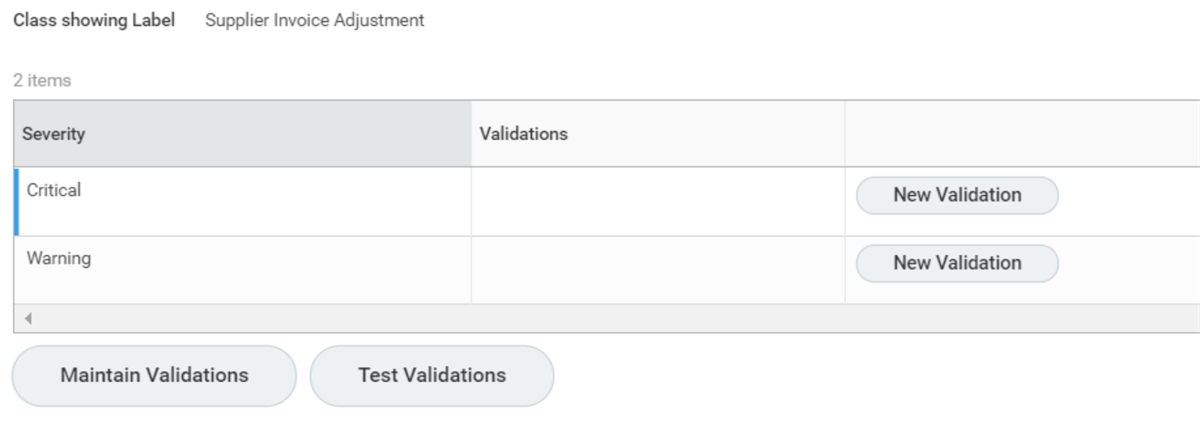
critical warning label screen shot
Here you can add an existing condition to the Critical or Warning rule types. You can also use this screen to remove an existing validation.
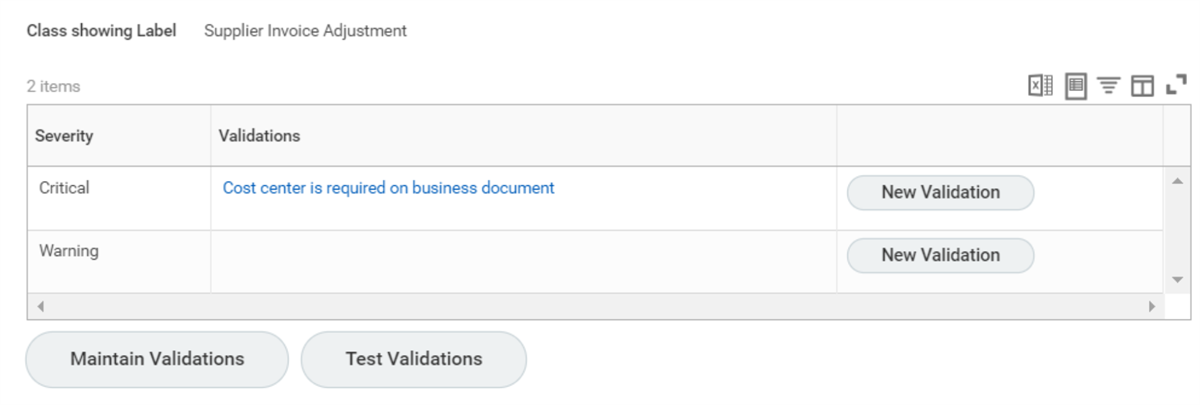
class showing label screen shot
Custom Validation Messages
By default, Workday displays the default message setup in the custom validation. For more descriptive text, you can create a validation message.
- Access the Maintain Custom Validations report.
- Select the type of transaction.
- From the Related Action on a validation, select Validation > Configure Validation Message.
- Enter a custom validation message.
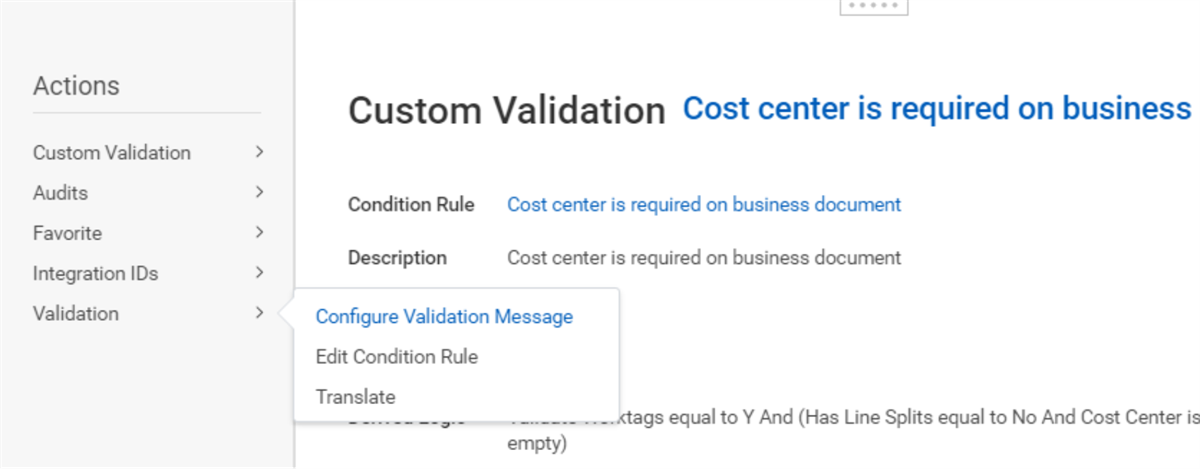
configure validation message screen shot
Maintain Worktag Usage
What appears on a transaction drives financial accounting and reporting. For example, if you plan to run period close reports by Cost Center you will need a cost center on every transaction that might affect period close. If you know that a project determines spend rules, make sure you include a project on each supplier invoice and supplier invoice adjustment.
While you cannot technically make a new field required, only Workday can do that, you can choose to make a worktag required. Worktag Usage and Custom Validations allow users to set rules that require specific worktags on a transaction. When a specific worktag or piece of data is missing, Workday displays an error to the user prompting them to complete the required data.
Worktag Usage, Related Worktag Usage, and Custom validations help users catch transaction issues up front. Doing so ensures that data required for business process routings, account posting rules, and financial reports is on the transaction.
For each type of financial transaction that uses worktags, you can choose the worktag types that you want to be available in the transaction. Doing so simplifies worktag selection because only the worktags that make sense for your business appear.
Workday delivers the allowed worktag types that are available for each transaction type. Use the Maintain Worktag Usages task to view the allowed worktags and modify them as needed.
In addition, you can specify whether a worktag is a Primary or Additional Worktag and whether you require the worktag or not.
Primary Worktags
Adding the worktag as a Primary Worktag presents the worktag as an individual field or column. You can choose the order in which this worktag displays and on which transaction you enable the worktag. You can specify up to 10 Primary Worktags on any transaction.
Additional Worktags
You can set up other worktags that you may want on a transaction as Additional Worktags. Workday presents these other worktags in a multiselect field. Marking an Additional Worktag as required places an asterisk (*) on the Additional Worktag field/column. Searching within the prompt will also mark the worktag type with an asterisk (*).
Error Messages
Workday will show the user an error message if any required worktags are missing. Highlighted fields indicate missing values. If you configure a worktag as required, you will not be able to save the transaction with a missing value - not even save for later.
Tenant Wide
Any worktag setup as Primary will display for that transaction type throughout the tenant. If you have multiple companies in a tenant, Workday will prompt all companies for the same required worktag setup through Maintain Worktag Usage. If you need to require a specific worktag only on one company and not throughout the tenant, you can use Custom Validations.
Maintain Related Worktag Usage
You can define worktag usage at the transaction level as described in the previous section. Related worktags are related to other business objects in the tenant. For example, on a Cost Center, you can relate a specific Region worktag value. When you use a cost center on a transaction, Workday automatically populates the related Region worktag that you configured using the Maintain Related Worktag Usage task. Below is a list of several objects that you can configure with a related worktag (the list is not comprehensive):
- Cost Center
- Customer
- Project
- Region
- Revenue Category
- Spend Category
Note
: When maintaining related worktag usage for a business object such as Customer, it is important to note that you can set the values to Default Required.
Workday will require a default value for the worktag type in every instance of that object.Additionally, you can set the worktag type to
Required on Transaction,
which will require that a value for that worktag type be on all transactions.General Ledger Conversion
When deploying Workday, there could be a need to migrate historical ledger activity into the new Workday tenant. There are several considerations to keep in mind when converting the data. Remember to meet customer requirements to enable desired internal and required external reporting.
Approach Considerations
- Span of Data Conversion - how many years of Journal Line data does the customer require? The need for year over year reporting in the Workday tenant impacts the customer data requirement. If the client cannot access their legacy system, you can expand the number of years required for conversion to support external and statutory reporting.
- Summarized vs Detailed Journals - what level of detail does the customer require on historical journals? The simplest way to migrate journals from the legacy system to the Workday tenant is to create summary journals. Workday creates a summary journal for each company/fiscal period combination with varying lines to support ledger/worktag combinations as required. If the customer must be able to do detailed analysis on historical journals, you may have to convert each historical journal in the Workday tenant. Only use the later approach if required due to the volume of data.
- Worktags to Convert - what worktags should be available on the converted journals? A simple approach is to convert the Balance Sheet accounts without worktags, and include Revenue and Spend Categories, and Cost Center detail on P&L accounts. You can include more detailed worktags on current year conversions for midfiscal year go-lives. Ensure that worktags included on historical journals make sense for worktag application post-go live, especially on operational journals.
- Multicurrency - are there foreign currency transactions to convert? Is there a need to report historical conversion in a currency other than the company base currency? The frequency of revaluations of the foreign balances will impact the approach selected.
EIB Templates for Conversion
You can use EIB templates generated from the Put Beginning Balance Journal Web Service for beginning balances. Use the Import Accounting Journal WS Background Process for historical monthly activity. Modify the templates to include the level of worktag detail required. There are some distinct differences between the two integrations listed in the table below:
Put Beginning Balance* | Import Accounting Journal |
|---|---|
Not impacted by ledger period status | Ledger period must accept activity. |
Does not go through a Business Process. | Will go through the Configured Business Process (can set Autocomplete and Submit columns to Y to bypass). |
Subsequent loads replace previous Beginning Balances | Subsequent loads create new journals. |
*Note: For translated balance conversion, use the Put Beginning Balance Translation Amounts web service.
After you complete the conversion, verify that all journals are in a posted status. It is possible you will need to temporarily remove custom validations intended for journals after go-live when you are loading historical conversions. Custom Validations will not apply to Beginning Balance loads.
You can use the Trial Balance and customer-specific Financial Statement reports to reconcile historical data once loaded. You may want to create a "data-extract" custom report to perform reconciliations. Once account reconciliations are complete, you can close the ledger year.
Financial Deployment as a Subsequent Phase
If the deployment is not a Workday Financial Management first deployment, you can convert existing ledgers in the production tenant to Historical Ledgers. This historical ledger will only move ledger balances, not operational transactions. Complete a reconciliation between the transactions and ledgers before conversion. Past, current, and future ledger periods cannot be in an Open Status during conversions. If there are Commitment and Obligation ledger types, Workday converts them to historic automatically with the actuals ledger.
After you convert the current actuals ledger, you can create a new actuals ledger. You will need to recreate the future ledger years and ledger periods.