
Compensation Overview
Overview
Compensation administrators identify the compensation components that you create and load as part of your deployment. The compensation administrator continues to maintain the compensation framework. This administrator requires a strong understanding of the design and management of compensation.
The compensation framework includes one or more compensation packages, defined grades, different plans, compensation elements, and compensation business processes or tasks. In this chapter, we cover an overview of the compensation framework.
Objectives
By the end of this chapter, you should be able to:
- Summarize the compensation framework in Workday.
- Compare the compensation partner and compensation administrator security groups.
- Identify and explain compensation configuration options in theEdit Tenant Setup - HCMtask.
Compensation Overview
Workday tracks compensation at the enterprise and individual worker level. The compensation framework consists of grades and plans grouped together in a package. Compensation grades provide guidance with pay ranges. Grade profiles allow for localization of pay ranges. Compensation plans provide various types of pay components.
The image below illustrates a compensation package and the relationships to eligibility rules, grades, and plans.
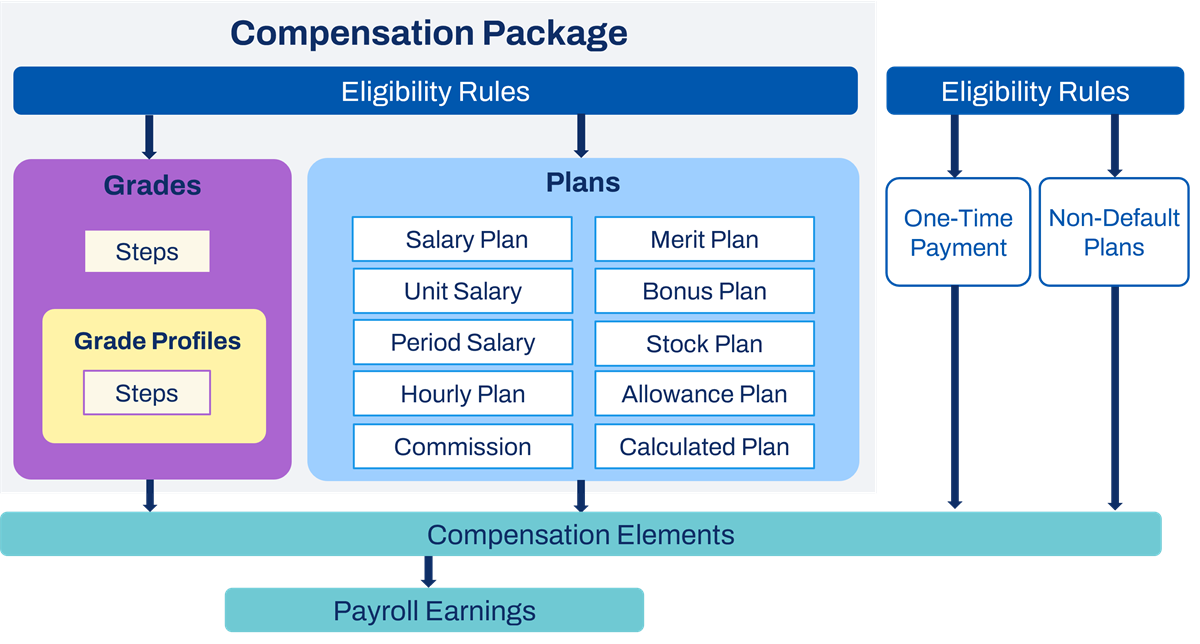
It is common to refer to allowances and time off plans as benefits to the employee. Below are common definitions for Workday Compensation and Workday Benefits:
Compensation | Benefits |
|---|---|
Financial reward in return for services. | Nonfinancial reward considered a "perk." |
Employee receives cash in their paycheck such as an internet allowance. | Employee does not receive cash such as a pension or healthcare plan. |
Performance-related such as a bonus or merit increase. | Not performance related. |
Regular or ad hoc compensation such as a stock grant or spot bonus. | Regular nonfinancial incentive such as a pension. |
Management negotiates and approves compensation. | Assign, elect, or waive benefits. |
No cost to the employee. | Compulsory benefits are typically free of charge. Optional benefits have a cost to the employee. |
Note
: In Europe, management negotiates and approves benefits that are part of compensation in Workday.Compensation Partners and Administrators
The compensation partner and compensation administrator security groups typically have a division of responsibilities:
Compensation Partner | Compensation Administrator |
|---|---|
View worker HR and events data for workers they support. | View worker HR and events data for all employees. |
View worker compensation data for workers they support. | View worker compensation data for all employees. |
Initiate and view compensation events for workers they support. | Initiate and view compensation events for all employees. |
View contact information for workers they support. | Set up all compensation components such as compensation plans, packages, eligibility rules, and compensation elements. |
Run compensation reports for workers they support. | Run compensation audits for all employees. |
Benefits and Pay Hub
Workday delivers a Benefits and Pay Hub to provide a convenient single location for employees to review and maintain benefits, compensation, and payroll information. The Hub also provides access to useful reports to enable employee self-service.
To use the Benefits and Pay Hub, enable and set up the Self-Service: Benefits and Pay Hub and Self-Service: Compensation History security domains to provide employees appropriate access. The configurable hub can also contain announcements, suggested links, and cards with display options that meet your organization's specific needs.
Total Rewards Report Overview
There is one
Total Rewards
report, but there can be different templates to control what data appears. A total rewards template includes a total rewards rule that identifies the workers and total rewards sections that will appear when running the Total Rewards
report.When viewing a
Total Rewards
report, as illustrated in the image below, the value of each component is annualized. The employee's base compensation currency is used to normalize any compensation elements that are in other currencies.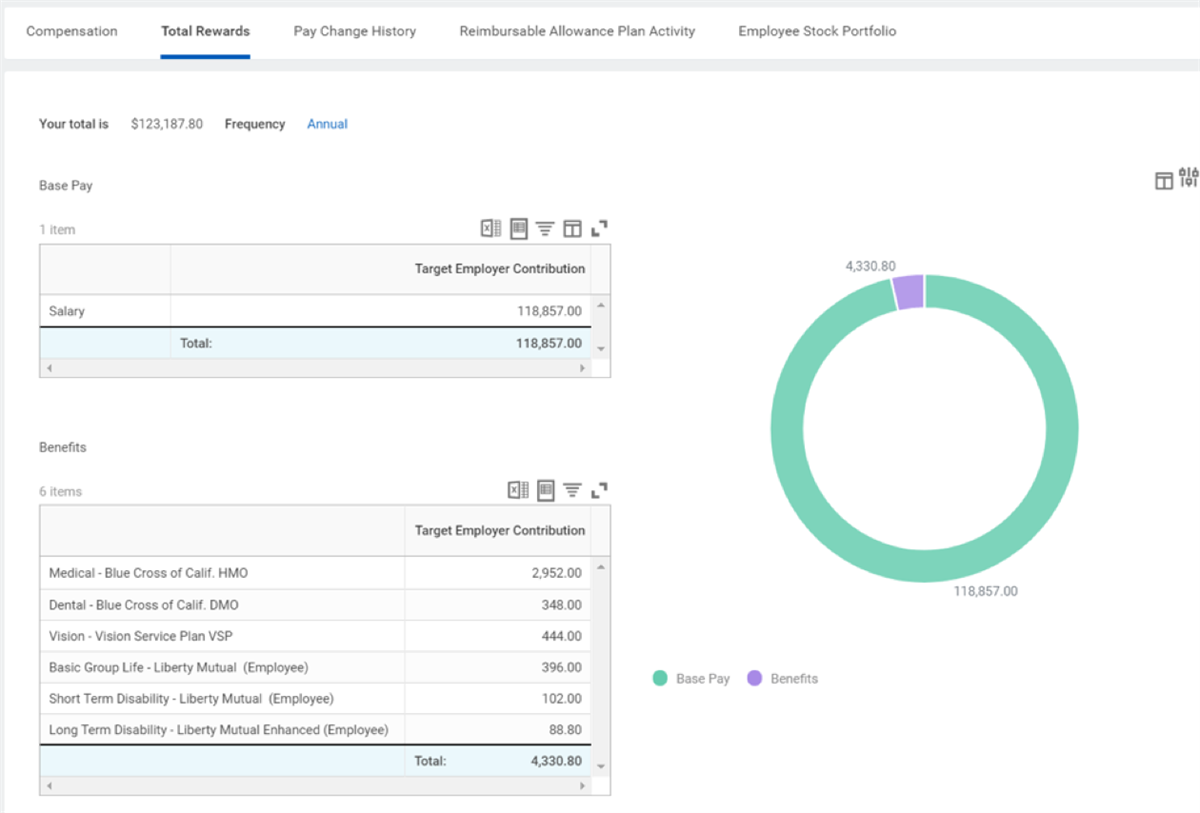
Total Rewards Rule
The total rewards rule controls access to the total rewards template. For the
Total Rewards
report to display, security requires two conditions:- An employee matches the criteria on the total rewards rule.
- A total rewards template uses the rule.
Total Rewards Sections
Each section represents all plans that should be part of the total rewards calculation for that section. For example, for a section named Allowances, you would assign all allowance plans to be part of the calculation for that section. If you create new allowance plans, edit the Allowance section to include the new compensation plans.
The setup of a total rewards section is simple, but there are a few crucial fields:
Field | Description |
|---|---|
Title Text | Displays at the top of the section in the Total Rewards report, as well as in the pie chart legend. |
Explanatory Text | Displays below the section in the Total Rewards report. This small print can add information and clarify the purpose of the section. |
Primary | Overrides the default text on the primary header. If not populated, the system will use "Target Employer Contribution" as the default text. |
Comparison | Overrides the default text on the comparison header. If not populated, the system will use "Amount" as the default text. |
Item | Select the compensation plan, benefit plan, earning, deduction, or pay component group you want to pull into the section. |
Item Name Override | Enter text to override the current item name. |
Balance Period | If you enter a payroll component, you must select a balance period. The options are:
|
Display When Zero | Select this checkbox if you want employees to have visibility to the compensation or benefit component, even if the value is zero. |
Hide Value | Select this checkbox if you do not want the employee to have visibility to the value of compensation or benefit components. |
Note
: Currently, the value of projected annual time off cannot be in this report.Total Rewards Template
A total rewards template controls which employees can view the
Total Rewards
report and sections. Each section of the template specifies the compensation components to display. For example, if terminology and classification or types of benefits vary by country, you can create a template to show compensation and benefits by country. You could also show a more targeted view, such as highlighting commission-related compensation or executive packages.The
Total Rewards
report is for individual employees to view and understand the value of their total compensation package. In addition, there are other reports, such as the View Bonus History
report, which lists all awarded bonuses, the effective date, amounts, and currency.Total Rewards Template Audit Report
Run the
Total Rewards Template Audit
report to identify any employees that may be eligible for more than one template. If the report returns with no items, then your template configurations are mutually exclusive and employees are only eligible for one template.You should use this report to ensure that every employee is only eligible for one template. If they are eligible for more than one, the most recent one you create displays for the employee. To resolve this, you should edit the necessary total rewards rules to make each template mutually exclusive.
Tenant Setup - Workday Human Capital Management
You can find tenant setup configurations for compensation in the
Edit Tenant Setup - HCM
task. Below is a list of some of the compensation configuration options available in the Edit Tenant Setup - HCM
task.Resource/Glossary
: For a full, comprehensive list of all fields in this task, refer to Workday Community. Search Reference: Edit Tenant Setup -
HCM.Field | Definition |
|---|---|
Enable Compensation Setup Segment Security | This enables you to divide access to compensation setup data among multiple compensation administrators. For example, UK compensation grades should not be visible to compensation administrators in the U.S. |
Hide Total Salary & Allowances | This enables you to hide the Total Salary and Allowances from the worker profile and Related Actions menu. |
Enable Actual End Date | This enables you to enter the date a compensation plan will end for a worker. Enter this date to assign the plan to the worker using the Rollout Compensation Plans to Employees task or a Propose Compensation subprocess. |
Enable Employee Visibility Date | This enables you to select a future date that controls when an employee can view their pay-related compensation events. By making this selection, you have time to inform employees of changes before they can view them in self-service tasks. This functionality is available for the One-Time Payment business process, Propose Compensation Change step of the Change Job business process, and the Request Compensation Change task. This function does not hide any nonrelated pay changes, such as job title. |
Enable Multiple One-Time Payments | This enables you to award multiple one-time payments for a worker as part of one business process. |
Disable Pay Date Help Text for One-Time and Referral Payment Processes | Select this option to disable help-text based on the related payroll payment date under the Effective Date or Scheduled Payment Date fields during one-time and referral payment processes. |
Route Business Processes Based on Costing Overrides | If using worktags, then you can enable this option so Workday will route business process steps to the managers associated with the worktags. Once you enable this option, you cannot disable it. |
Use Calculate 100% FTE for Pay Range Comparisons | This allows comparisons of part-time workers to their full-time equivalents. This function is appropriate if using full-time pay ranges and if you select the Apply FTE% option on the salary plan. The Apply FTE% option has no impact on calculations. |
Compa-ratio Midpoint | Two Options: Use Calculated 50% Value: Calculates the compa-ratio based on the midpoint between the min and max. Use Configured Midpoint Value: Uses a configured midpoint of the range to calculate the compa-ratio. |
Default Frequency | Sets a default value for a compensation component if there is no frequency defined. |
Enable Dynamic Display for Compensation Plan Sections | This option simplifies assigning compensation during the Propose Compensation Change process internal job changes and internal hires by displaying only relevant plan types for the employee. Leaving this option clear will display empty plan sections with an Add button for plan selections with no plans to select from. |
Enable Defaulting Based on Changes to Guidelines | Enables plan assignment defaulting based on guideline changes during compensation changes. |