
Concept: Single- and Multi-Instance Field Values in Workbooks
This topic describes workbooks with multi-instance field values that were inserted after December 2019. Refreshing live data in older workbooks doesn't add multiple instance values; only the first value would be returned. To include values for multi-instance fields in your workbook, run the Data Wizard to insert the report data into a new area of the workbook and select the
Enable Multi-Instance Values
option. Multi-instance values display only for live data areas in workbooks - not for workbooks that are created after you click the Export to Worksheets button from a Workday report.
Enabling Multi-Instance Field Values in the Data Wizard
In the
Options
dialog of the Data Wizard, the Enable Multi-Instance Values
check box causes all values of all multi-instance fields to be displayed in the resulting workbook. By default, the check box isn't selected; this preserves backward compatibility with existing workbooks.Visual Cues for Instance Field Values in Workbooks
To interact with the values, hover over a cell containing single-instance or multi-instance field values.
Instance Value Visual Cues
| Notes
|
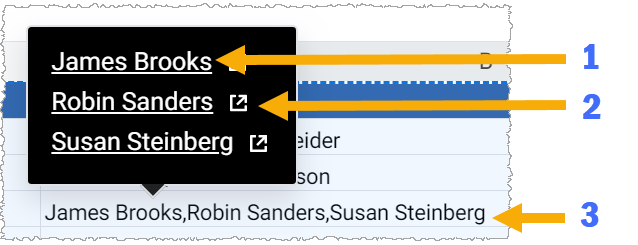 | When you insert instances as live data, you see these characteristics:
If you don't have access to an instance's details, you see an error when you click the details link. |
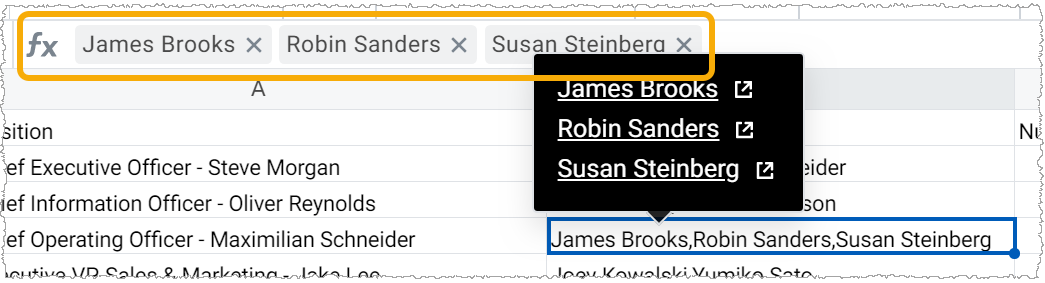 | When you insert instances as values, you see the same characteristics as above. When you select a cell containing instance values, they display in the formula bar as tags with an x icon, enabling you to delete individual values from the cell if needed. You can also delete all values from within the cell using the Delete key.If you want to type into one of these cells, first you must remove all instance values; text and instance values can't coexist in a cell. Entry area instance values have the same appearance and behavior as instances that Worksheets inserted as values. |
Workbook Actions and Instance Value Behaviors
Keep these behaviors in mind when your workbook contains instance values:
Action/Object | Notes |
|---|---|
References in formulas | When comparing a single instance value to a string that visually appears to be the same, the formula evaluates them as equal. |
Using the formula editor | The formula editor isn't available when working with multi-instance field values in workbooks. |
Filtering | Each multi-instance value set displays as a selectable filter. |
Sorting | Worksheets sequences the sort based on the concatenated set of values in the cell, as if it were a string. |
Pivot tables | Worksheets treats each unique set of instance values as a separate value. |
Charts | Worksheets treats each unique set of instance values as a separate value. |
Links to documents such as PDFs from an instance | If you click the link of an instance that has a document preview page, but you don't have permission to view the preview, you see the error message The task submitted is not authorized .If you click the link of an instance that doesn't have a preview page, you see the message No task runner for message . |
Download to Excel as XLS, XLSX | Worksheets converts multi-instance values into a string in the form of JSON, maintaining the multi-instance values and types if you reupload the workbook. |
Download to CSV | Instance values are in a comma-separated list. |
Download to Excel as values | Worksheets converts instance values to strings with a line break between each value. |
Download as PDF/Print | Worksheets converts instance values to strings with a line break between each value. |
Example Comparisons of Single Instance, Multi-Instance, and String Values
This table shows when comparisons evaluate as the same or different, based on the type of data you're comparing.
Comparison | Result | Example |
|---|---|---|
Multi-instance values in a different sequence | Not equal | MULTIINST(INSTANCE("ID1","Denver"), INSTANCE("ID2", "Chicago")) Compared to: MULTIINST(INSTANCE("ID2","Chicago"), INSTANCE("ID1", "Denver")) |
Multi-instance with 2 IDs and values, compared to string with values in a different sequence. | Not equal | =MULTIINST(INSTANCE("ID1","Denver"), INSTANCE("ID2", "Chicago")) Compared to: The string "Chicago,Denver" |
Multi-instance with 2 IDs and values, compared to a single instance with the value in a different sequence. | Not equal | =MULTIINST(INSTANCE("ID1","Denver"), INSTANCE("ID2", "Chicago")) Compared to: The single instance ("ID1", "Chicago,Denver") |
Multi-instance values with different IDs but the same descriptors. | Equal | =MULTIINST(INSTANCE("ID1","Chicago")) Compared to =MULTIINST(INSTANCE("ID2","Chicago")) |
Multi-instance with a single value, compared to an equivalent string. | Equal | =MULTIINST(INSTANCE("ID1","Chicago")) Compared to: The string "Chicago" |
Multi-instance with a single value, compared to a single instance value; IDs can differ. | Equal | =MULTIINST(INSTANCE("ID1","Chicago")) Compared to: The single instance ("ID4", "Chicago") |
Multi-instance with 2 IDs and values, compared to an equivalent string. | Equal | =MULTIINST(INSTANCE("ID1","Denver"), INSTANCE("ID2", "Chicago")) Compared to: The string "Denver,Chicago" |
Multi-instance with 2 IDs and values, compared to a single instance that has the same descriptor. | Equal | =MULTIINST(INSTANCE("ID1","Denver"), INSTANCE("ID2", "Chicago")) Compared to: The single instance ("ID1", "Denver,Chicago") |
Worksheets-Unique Formulas That Manipulate Instance Field Values
This table summarizes functions that enable you to work with single-instance and multi-instance values. For details, see the Function Reference in the User Guide ().
Function | Description |
|---|---|
INSTANCE | Returns a single-instance value. |
INSTANCE.DESCRIPTOR | Returns the descriptor (string value) of the instance. |
INSTANCE.ID | Returns the ID of the instance. |
MULTIINST | Creates a multi-instance value from a comma-separated list of single-instance values. |
MI.COUNT | Returns the number of instances inside a multi-instance value. |
MI.INDEX | Returns the instance at a specific index in a multi-instance value. |