Define Data Validation
You can define rules that determine what data can be entered as values into the cells in your workbook. For example, you might want to make sure users choose a geographic region from a list of valid regions, which your workbook stores in another column.
Notes
:
- We don't recommend using resource-intensive functions such as SELECT in a data validation formula. Unexpected behavior might occur.
- Worksheets supports range references, and formulas that result in a list, as data validations.
- As a best practice, be specific with your validation formulas and use absolute references. To make a cell reference absolute, add a dollar sign ($) in front of the column letter and row number in the formula. Examples: $Q$45, $T$67, $A$1:$A$10, etc.
- Uploaded Excel spreadsheets containing validations created in Excel® spreadsheets will continue to work in Worksheets, but you can't view or edit them in Worksheets.
- Worksheets validatesvaluesthat users type into validation cells, but not formulas. For example, if 100 isn't a valid value and a user types it into a validation cell, an error occurs. If the user types =95+5 into the cell, an error doesn't occur.
- In the workbook, select the cell or range where you want the data validation to occur, and select .The Data Validation dialog displays and the selected cell or range displays in theCell Range to Validatefield.
- In theList of Values from Formulafield, type the formula that determines the values to list in the data validation cell or range.Alternatively, you can type a list of values surrounded by quotes and separated by commas. Example: "1,2,3".
- (Optional) With the validation selected, edit your validation by selecting .
In the
Cell Range to Validate
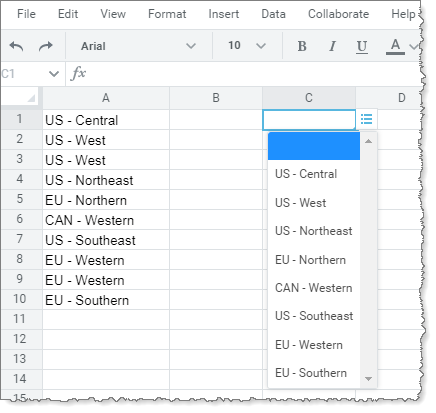
field, C1 is selected. When the following formula is in the List of Values from Formula
field:=A:A
The unique values in column A display in the data validation list in cell C1: