
Concept: Searching in Workbooks
To find values in a workbook sheet, and optionally replace them, select or press Ctrl+F (on Windows) or Command+F (on Mac) to open the
Find
popup. You can drag the popup around on the sheet if needed, so you can see the content that you're working with.

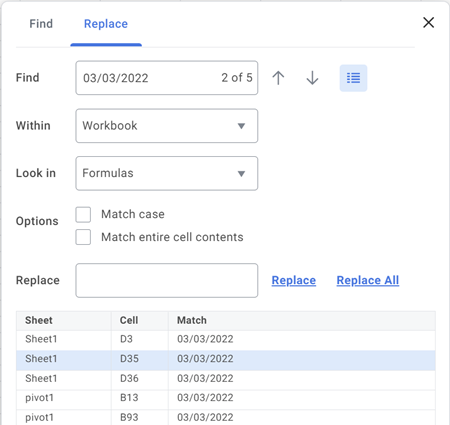
You can type up to 1000 characters of text into the search field. Worksheets finds cells containing the text, as you type.
You can view a list of the results by clicking the List icon.
By default, Worksheets searches the current sheet, and it searches in formulas (not values). You can do more actions by clicking the  icon:
icon:
Find Options
icon:- Search the entire workbook or a selected range.
- Find a formula value (the value as displayed in the formula bar).
- Match the case of the Find field value.
- Limit results to those that exactly match the Find field value.
When you select a range of cells before opening the
Find
dialog, Worksheets preserves your selection. The Find Options
dialog displays, with the Within field and range field auto-filled based on your selected range.Keep these considerations in mind when using the Find and Replace feature in a workbook:
- You can't replace any protected or read-only values, such as live data, pivot tables, charts, or array formulas.
- Although you can't replace live data values, you can replace live data notes and formula columns in live data.
- Worksheets finds date values, and values that have a units element, based on your selection of either Formulas or Values in the Look In field. Example: If a cell displays January 1, 2022, the formula bar might display 01/01/2022. When searching, select to look in Formulas to find 01/01/2022 or look in Values to find January 1, 2022.
- The first 1,000 results display in the list view. After you scroll through those results, the next set of 1,000 results displays.
- Think about the size of your workbook before using theReplace Allaction. Performance can degrade with large workbooks, particularly when a replacement causes the workbook to recalculate, such as when a volatile function is involved. If you choose to do aReplace Allwith more than 10,000 values, Worksheets replaces 10,000 results and returns to the Find dialog. You can then replace more results.
- If you search for a value in a hidden sheet, or in a hidden column or grouped columns, Worksheets doesn't return matches.
- If you replace values for cells containing single-instance or multi instance values, all instances in a cell convert to a string.
- When searching for content, Worksheets supports the ability to look in either values or in formulas. When replacing content, Worksheets supports only looking in formulas. Example: If you want to replace January 1, 2022 with January 1, 2023, you need to search for the value as displayed in the formula bar - typically 01/01/2022 - not January 1, 2022.
- Worksheets returns results for pivot tables and live data areas when theLook inselection is Formulas even though we don't typically think of these values as having data in the formula bar. This is because Worksheets derives those cell values from formulas.
Finding Text Using Wildcard Characters
Worksheets supports using common wildcard characters to find single specific characters, multiple matching characters, and question marks, asterisks, or tilde characters:
- To find any single character, use the question mark (?). Example: Searching fornu?cfinds values that start with nu, followed by any character, followed by a c followed by any characters.
- To find any number of characters in a value, use the asterisk (*). Example: Searching forman*finds values that start with the string man, followed by any characters.
- To find question marks, asterisks, or other tilde characters, use the tilde (~) followed by ?, *, or ~ . Example: Searching forfy22~?findsfy22?.