
Concept: Automatic Subtotaling and Grouping
Worksheets can automatically calculate subtotals for sets of related data in your workbook, and
calculate a grand total. You can also manually create groupings (also called outlines)
of data.
Keep these considerations in mind:
- The data must have column headings, including a field (heading) that identifies the group.
- The data must be sorted according to those groups. Example: if you want to subtotal by month, all rows for the individual months must be contiguous.
- Subtotaling looks visually similar in the user interface to Workday composite reports.
- Subtotaling isn't supported in entry areas such as plan entry areas or project entry areas.
Steps
- Click in a cell containing a value, which you want to subtotal by, then select .
- In theSubtotaldialog, complete these fields:At each change inSelect the column heading for the data you want to group by.Use functionSelect SUM for a subtotal, or one of the other formulas.Add subtotal toSelect one or more columns to place the resulting subtotals in.
Results
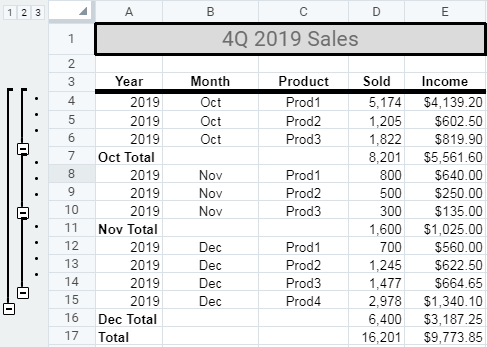
Worksheets inserts a SUBTOTAL formula into the appropriate cells based on your
selections in the
Subtotals
dialog, placing a subtotal row
between each group, and a grand total row at the bottom of the data set. Additionally, to the left of the data, you see numbered Group buttons indicating the
levels of grouped data. You can expand or collapse the data details by clicking the
numbered buttons or by clicking the + or – buttons that display vertically alongside
the data.
Example
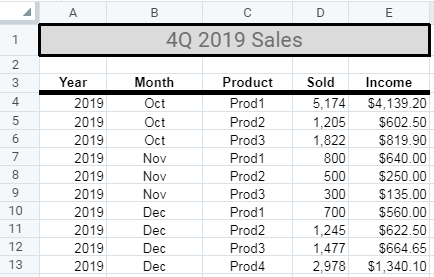
This is a data set that we can
add subtotals to:
In the Subtotals dialog, we select these values:
At each change in | Month |
Use function | SUM |
Add subtotal to | Sold and Income |
The resulting workbook looks like this:
Removing Subtotals
If you want to remove the subtotals, select a cell in the subtotaled data set, select , and click
Remove Subtotal
.Grouping
You can manually group (outline) related data in your workbook without adding
subtotals. To do so, select the rows or columns that you want to group, then
right-click and select
Group
. After grouping, you can select
to Ungroup
a single group, or select Ungroup
All
to remove associated groupings.