
Concept: Discovery Board Workspace
When you open a discovery board, Workday opens the workspace in View mode. View mode enables you to view the discovery board, but not make any changes. If you have Can View or Can Comment permission on the discovery board, you view the discovery board in view mode.
If you're the owner or if you have Can Edit permission on the discovery board, you can click
Edit
to switch to Edit mode. Edit mode enables you to make changes to the discovery board and save it.You see these workspace components in edit mode:
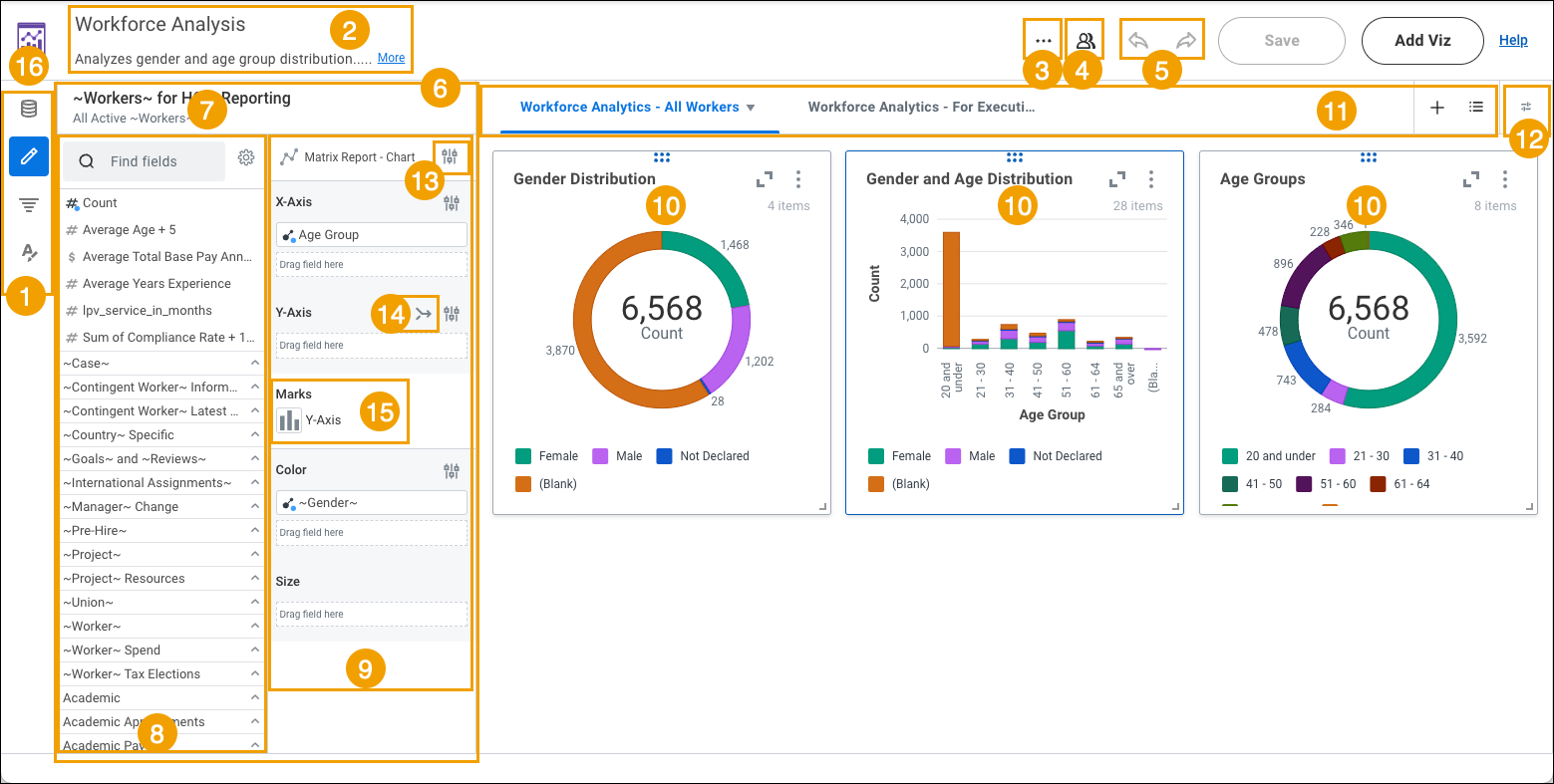
- Panels for editing a viz. The left side panel is where you navigate between the data source panel, builder panel, filter panel, configuration panel, and formatting panel to edit and configure a viz. Click an icon to hide or open a particular panel. You might want to hide a panel to see more of the workspace.
- Board title and description. Click in either field to enter or edit text.
- Menu options for the board.
- Share button. Click to share a board with an individual user or a security group.
- Undo and redo buttons.
- Builder panel. The builder panel contains the options for configuring the selected viz in the workspace. You select the type of viz to create, such as Chart or Pivot Table, drag fields into the drop zones, and configure any drop zone or field options. You can narrow the list of fields by filtering the field list.
- Data source used in the selected viz. You can change the data source in the viz by clicking the data source panel.
- Field list. Expand a category to see the fields in that category. All summarization fields for a particular Numeric or Currency field are grouped under the field. Hover over the Numeric or Currency field and click the double chevron icon to expand it to see the related summarization fields.
- Drop zones and drop zone options. The available drop zones and options vary by viz type.
- Visualization.
- Sheet controls.
- Control panel. The control panel displays the controls linked to the prompts and filters that viewers and editors can use to provide input values.
- Viz type options.
- Select a dual or merged Y-axis (Area Chart, Bar Chart, Chart, and Line Chart vizzes only).
- Select mark type (Chart viz only).
- Back to Drive button.
The left side panel includes these icons:
- Data source panel. View or change the data source for the selected viz.
- Builder panel. Build the viz by selecting the fields and configuring options for the selected viz.
- Filter panel. Filter the data in the selected viz or all vizzes on the sheet.
- Configuration panel. Configure how vizzes display data, such as managing the sort order of fields or overriding populated values forDrill ByandShow Details.
- Formatting panel. View or change formatting options for the selected viz or all vizzes on the board, such as changing the assigned color.