
Example: Set Up a HiredScore Job Requisition Posted Externally Template
This example illustrates:
- How to configure the template for the Job Requisition Posted Externally message that is triggered by the Hiring Manager Talent Advisor Collaborator (also known as HMTAC or the HM-TA Collaborator) functionality in Microsoft Teams.
- The impact of this configuration in MS Teams.
Your organization uses the HMTAC functionality to facilitate team communication about specific requisitions. It triggers the sending of messages in MS Teams at various stages throughout the process. You want to customize the Job Requisition Posted Externally message template, which notifies the hiring manager when a job requisition is posted externally and provides the external posting link so it can be shared with colleagues.
Customization needs to include:
If the link already exists at creation time or is added later, a message is sent. If the link changes, the existing message is updated in real time without an additional Job Requisition Posted Externally message.
- A specific message title.
- A tag that mentions and notifies the manager that handles the requisition.
- A specific message body.
After configuration is complete, the message should display as follows in MS Teams:
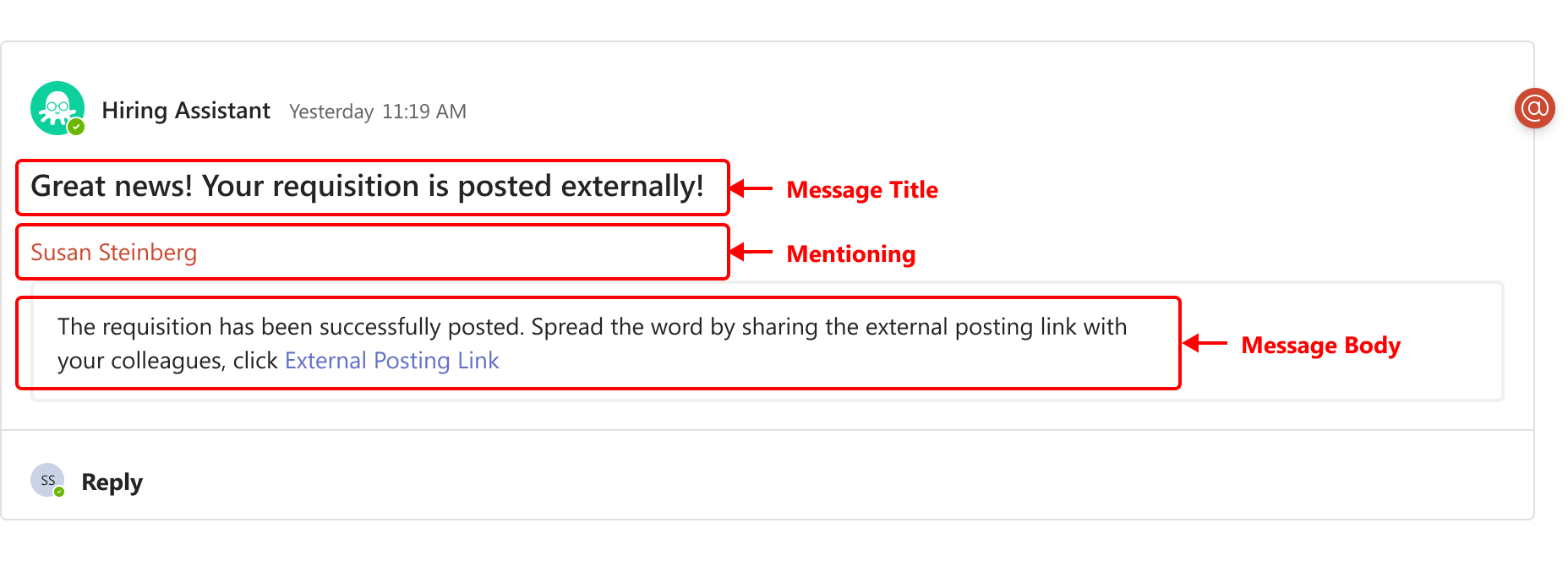
Your implementer must complete the steps to configure and authenticate the HiredScore and MS Teams integrations in Workday.
Changes submitted on this tab impact your account's configuration in HiredScore and existing configurations (including custom rules or filters) are overridden. Changes can take up to 30 minutes to display in the HiredScore UI. In some cases, this may take longer.
- Access theHiredScore Tenant Setuptask in Workday.
- On theHM <> TA Collaboratortab, select theJob Requisition Posted Externally Templatesub-tab.
- ClickEdit.
- Select theEnable in HM-TA Collaboratorcheck box to ensure that any changes you make on this task are effective in MS Teams after submitting them in Workday.TheTriggered Byoption isn’t configurable because the Job Requisition Posted Externally message is automatically triggered after the creation of the requisition is posted to the external site.
- Enter and select these values:FieldValueMessage TitleGreat news! Your requisition is posted externally!MentioningManager
- Customize the template’sMessage Body.
- Copy the default text in theMessage Bodyfield.This field is automatically populated with a default message in JSON format.
- Access the Microsoft Adaptive Cards Designer at https://adaptivecards.io/designer/.
- In the Adaptive Cards Designer, replace any existing content in theCard Payload Editorwith the JSON text that you copied in step a.The card preview updates in real time to display how the message card is currently configured.
- In theCard Payload Editor, customize the message and include this custom link to a Help Center article about posting externally:
- ${req_is_posted_external_only_1}
The resulting JSON text in theCard Payload Editoris:{ "type": "AdaptiveCard", "$schema": "http://adaptivecards.io/schemas/adaptive-card.json", "version": "1", "body": [ { "type": "TextBlock", "wrap": true, "text": "The requisition has been successfully posted. Spread the word by sharing the internal posting link with your colleagues. Click [Internal Posting Link.](${req_is_posted_external_only_1})" } ] }TheversionJSON key is for internal reference purposes only and doesn’t impact JSON behaviour. - ClickCopy Card Payloadand return to theHiredScore Tenant Setuptask in Workday.
- Paste the copied JSON text into theMessage Bodyfield to replace the existing content.
- For the${req_is_posted_external_only_1}parameter in theCustom Linkssection, enter the URL of the Help Center article in the correspondingLinksfield.Verify that the JSON syntax is correct to avoid JSON errors.
- ClickOK.
- ClickDone.
- (Optional) You can add translations for supported languages by selectingAdd Translationin theTranslationssection.
- Select the language you want to add and provide the translated text for both theMessage TitleandMessage Bodyfields.
- Verify that any dynamic parameters in the original message are maintained in all translations.
- After you add translations, verify that the message renders correctly in the Adaptive Cards Designer and that all parameters and links are correct.
When a job requisition is posted externally and the HMTAC functionality triggers an automated MS Teams message to the hiring manager, it should display as illustrated in the screengrab:
Any users selected in the
Mentioning
field receive an MS Teams notification.