
Reference: Planning Pane in Excel Interface for Planning
The Planning pane is available only when you are connected to
Adaptive Planning
. Different sheets have different options available. Options for All Sheets
The following options are available From the Planning pane:
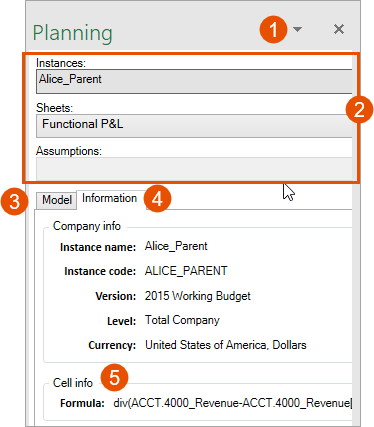
Option | Description |
|---|---|
1 | Click the X to hide the panel or the  to detach the panel and move it around your screen. to detach the panel and move it around your screen. |
2 | If you have access to multiple instances, choose the instance. Select the sheet to access. View or update and select any assumptions you want to use while you plan. |
3 | In the Model tab at minimum, select the version and level or account. This can affect whether or not the cells are editable, based on your permissions. Cube sheets have more options available in the Model tab. |
4 | In the Information tab, view the instance name, version, level and currency with which you are working. |
5 | The Cell Info section within the Information tab displays the formulas entered in a selected cell. |
Options for Cube Sheets
These options in the Planning pane are available for cube sheets.
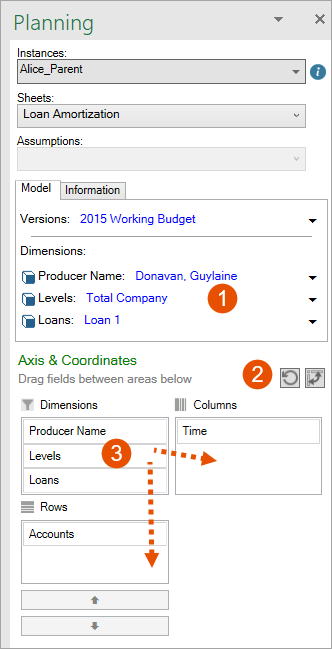
Option | Description |
|---|---|
1 | Filter data by any or all dimensions. If a dimension isn't displayed here, remove it from the column or row box |
2 | Click  to reset the display to the original. Click to reset the display to the original. Click  to switch the columns with the rows. to switch the columns with the rows. |
3 | Drag and drop dimensions into columns (to the right) or rows (below). |