
Add Elements to Report Filters
Use
filters
on an individual worksheet or workbook. You can define any element such as a department or location as a filter. When you apply the filter to an OfficeConnect
worksheet, it dynamically filters data to display only the matching values.You can filter reports by at least one of the following elements:
- Accounts
- Levels
- Versions
- Currencies
- Attributes
- Custom Dimensions
You apply filters to an individual worksheet or workbook, not to specific rows, columns or cells such as when applying elements in a report.
The filters that you apply to your OfficeConnect worksheets or workbooks follow OfficeConnect precedence rules. Filters at the worksheet level take precedence over filters at the workbook level. See:
Multi-Selecting Filters
Define a set of filters for selection on your worksheet. From Worksheet Filters, search or browse for filters. Select a subset of available filters by selecting elements individually or by multi-selecting using the context menu. Right-click an element to display the context menu.
You can multi-select filters from the
Filters
tab in the Reporting
pane, Worksheet Filters
, Workbook Filters
, and Repeating Reports
. All descendants are selected or cleared even when the filter is in Collapse All state.After selecting a subset of filters, you can access this subset from:
- A worksheet: The Filters tab in the Reporting pane. Use the Show Filters icon in the upper right of the Filters tab and the Worksheet Filters dialog to see all filters or only selected ones.
- A workbook: The Workbook Properties > Filters tab.
You can select multiple currencies for your subset, but can only select one currency to filter on the worksheet or workbook. A currency as a selected filter on the worksheet is explicit and overrides any implied currency that comes from a level.
Select or Clear Immediate Children
Selects or clears all the immediate items below a highlighted element. In the example, you choose
Select Immediate Children
of GL Accounts. Notice that the sub-accounts of Assets are not selected.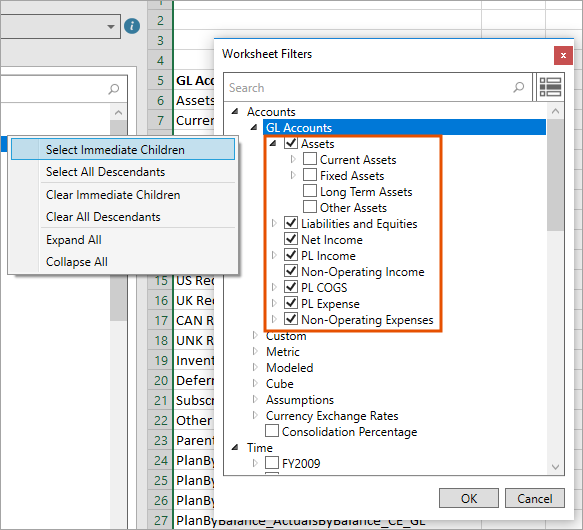
Select or Clear All Descendants
Selects or clears every item that rolls up to the item, even those several levels down. In the example, you choose
Select All Descendants
of GL Accounts and the sub-accounts of Assets and their children are selected. 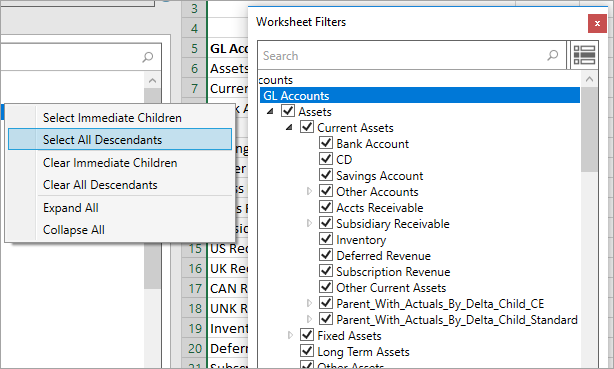
Select and Clear All
Right-click any item in the list, at any level, and choose or and the entire list updates.
Select
Clear
Apply Filters to a Workbook
To apply filters to a workbook:
- Open theOfficeConnectworkbook with applied accounts and time elements.
- SelectWorkbook Propertiesand then select theFilterstab. Any previously selected filters are listed on the tab.
- Select
 to open the Workbook Filters dialog.
 - Search or browse for elements by which to filter the workbook. Example: To filter the workbook by different asset accounts, search on "assets".
- Select the element types you want to include in the filter. Example: If you searched on assets, you can select Current Assets and Fixed Assets.
- SelectOK. TheEnable filterscheck box in the workbook properties becomes selected.
- Select the specific element types to filter by. Example: Select Current Assets to filter the report data by only this asset type. SelectOK.
- Refresh the workbook.
To remove filters from a workbook:
- Open theOfficeConnectworkbook from which you want to remove the filter.
- SelectWorkbook Propertiesand then select theFilterstab.
- UncheckEnable filters.
- Refresh the workbook.
Apply Filters to a Worksheet
To apply filters to a worksheet:
- First apply the subset filters to the worksheet.
- Next use the subset filters to filter the worksheet.
To apply subset filters to a worksheet:
- Open theOfficeConnectworkbook with applied accounts and time elements.
- (Optional) Select the worksheet to which you want to apply a filter.
- SelectWorksheet Filters. The Worksheet Filters dialog appears with any previously selected filters.
- Search or browse to select the element types you want to include in a subset. Example: To filter the worksheet by levels, you can select Company A and Company B.
- SelectOK.
- Navigate to the Reporting pane and select theFilterstab. The subset filters appear on this tab.
To filter a worksheet:
- From theFilterstab, selectEnable Filters.
- Select the specific element types by which to filter the data on the worksheet.
- Refresh the worksheet.
To remove a filter for a worksheet, go to
Filters
tab for the worksheet and uncheck Enable filters
. Clearing this option turns filters off but remembers your prior filter selections.Review or Verify Applied Filters
Click the
Review
tab from the Reporting
pane to review filter metadata.- For worksheet filters, navigate to and expand the Worksheet.
- For workbook filters, navigate to and expand the Workbook.
Applied filters are listed under Elements.