
Reference: Planning Tab Buttons in the Excel Ribbon
The Planning tab appears in the Excel ribbon after you have installed
Excel Interface for Planning
. This page explains the toolbar's buttons and their functions. Planning Tab Buttons
 | Log in to connect to Adaptive Planning : access your sheets, refresh the data displayed in Excel and update the server with modifications you've made in Excel. Log out to work offline. You modifications are not saved to the server until you log in again and submit. |
 | Click to pull in any new data that has been entered by other users since you were last connected. If there are conflicts between the new data and your data, you'll be asked to resolve it. |
 | Click to save your work to the online sheets. |
 | Click to refresh the Planning pane with the most current sheets, levels, and assumptions. |
  | Add and delete rows in certain sheets. |
 | Add splits to create subcategories for selected rows. The value rolls up to the original row, which will no longer be editable for you. |
  | Delete and rename splits you've created. |
 | Browse and use keywords to find and select dimensions for a cell. |
 | Filter data displayed on the Grid or compare up to 3 versions on the same Grid (for example, last year's actuals, last year's budget and today's working budget). |
 | For modeled sheets only. Filter columns by content, using operators such as begins with, ends with, and so on. |
Preference Toggles 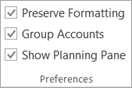 |
|
 | Use the drop-down and choose:
|