
使用命名範圍
命名範圍
若要連結表格來源
OfficeConnect
用於 Excel OfficeConnect
如果是 PowerPoint,請將表格定義為命名範圍。「命名範圍」
是 Excel 檔案中使用者定義的儲存格、列或欄區域。使用已命名範圍,您可以將該區域視為一個整體來執行運算。範例︰您可以從工作簿中的任何位置快速跳到指定範圍。此外,您可以從以下位置複製命名範圍︰
OfficeConnect
for Excel,並在 PowerPoint 投影片中連結。在指定範圍內,您可以移動或變更資料,以及新增或刪除列或欄。命名範圍可保持單一物件的完整性。您在 Excel 中對指定範圍所做的任何變更,都會在您重新整理簡報後立即反映在 PowerPoint 中。
在 Excel 線上說明中搜尋
命名範圍
以取得資訊。Create a Named Range
Use one of two methods to create a named range:
- Select an area on the grid
- Use the Define Name command
To create a named range by selecting an area:
- Select the area you want to include in the range such as set of cells, rows, or columns.
- Click in theName Boxmenu so that the current contents are selected.
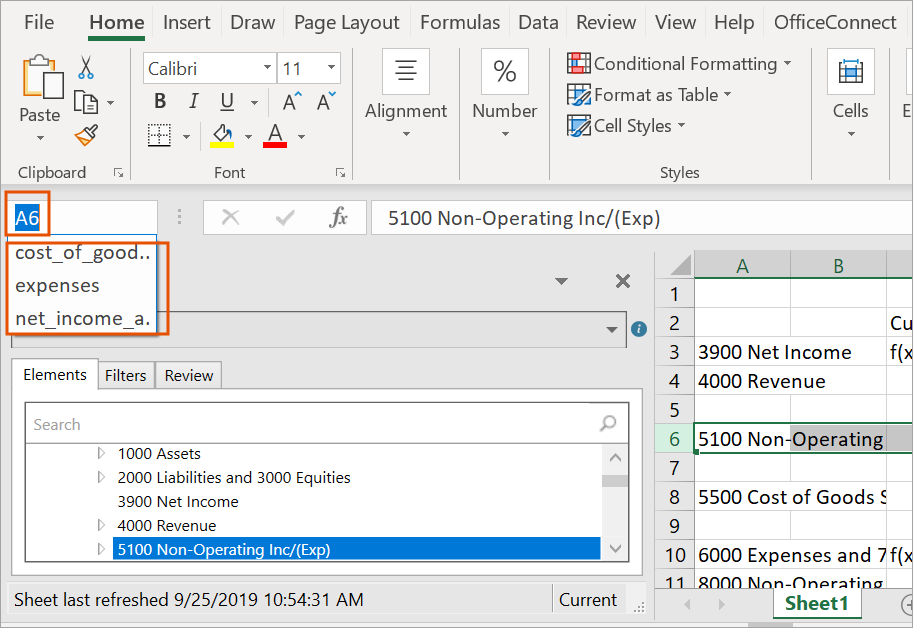
- Enter the name you want for this named range, and then press Enter. The named range is created. To see the named ranges in any sheet in this workbook, you can click the Name Box menu. Select a named range in the menu to goes to its location in the grid.
You can also create a named range by using the Define Name command.
To create a named range by using the Define Name command:
- Select the area you want to include in the named range such as set of cells, rows, or columns.
- Select theFormulastab in the ribbon.
- From theDefined Namesgroup, selectDefine Name.
- Enter the name you want for this named range.
- InScope, specify whether this named range is available from a particular worksheet in the workbook, or to the whole workbook.
- InComment, add a note if necessary.
- InRefers to, verify the code reflects the area you selected for this range. Make any corrections as needed, either by selecting in the grid or by changing the code.
- ClickOK. The named range is created as you specified. You can see the named range in theName Boxmenu.
Change a Named Range
You can change a named range to add or remove columns or rows. The named range adjusts automatically.
Use the Name Manager to:
- Change the scope of a name range.
- Change the name of the named range.
- Delete a named range.
To change or delete a named range:
- Select theFormulastab in the ribbon.
- From theDefined Namesgroup, selectName Manager. The Name Manager dialog appears, listing all named ranges in the workbook.
- Select the named range you want to change, and then clickEdit.To delete a named range, clickDelete.
- Change the name of the named range.
- InComment, add or change a note about the named range.
- InRefers to, change the area for this named range. When you click in the field, the range appears in the grid. Make your changes by either selecting in the grid or by changing the code.
- ClickOK.
- ClickClosein the Name Manager dialog box. The named range is modified as you specified.