
Find and Replace Elements in Reports
Find and Replace Elements
With Find and Replace, you can:
- Find an element that is available on many worksheets in a workbook or on a single worksheet.
- Replace each instance of the element one at a time or all at once.
Use find and replace when you want to make global changes across of many sheets. You can find the following elements that are added to the worksheet. You cannot find labels and cannot find elements applied through a filter:
- Accounts
- Dimensions
- Versions
- Time
- Context
Find and Replace is available from the following areas:
- Thetab. From the Find drop-down, selectOfficeConnectFindorReplace. The Find and Replace dialog box opens to the selected action.
- TheElementstab or theReviewtab in theReportingpane. Right-click an element and selectFind. The Find and Replace dialog box opens with the selected element pre-populated in the Find tree.
Find and Replace Abilities
- Auto-filter search: As you type the keyword,OfficeConnectfilters the tree to show only the elements matching the text entry.
- Find and replace scope: Choose to find in selected sheets or entire workbook.
- Selected worksheets: Finds instances on selected worksheets. Ctrl-click each worksheet tab before finding the element.
- Workbook: Finds instances across all sheets in the workbook.
- Find and Replace options:
- Find All: Finds all instances.
- Find Next: Finds the next instance.
- Replace All: Replaces all found instances. When the replace is complete, a message appears indicating the number of instances replaced.
- Replace: Replaces the instance and goes to the next instance.
- Remove: Remove the element from the location. To remove an element, find it, from theReplacetab, selectRemove the element instead of replacing it, and clickReplace.
Example: Global Find and Replace an Element in Workbook
Suppose that you are responsible for developing and maintaining a series of financial reports based on the 2015 Draft Budget version. Organizational changes occurred halfway through fiscal year that require a refactoring of the draft budget. You want to replace the old version on all sheets in the workbook with a new version called
2015 Working Budget
.When you use the Search box at the top of the elements list, you're searching the list of elements available, not the elements you added to the report.
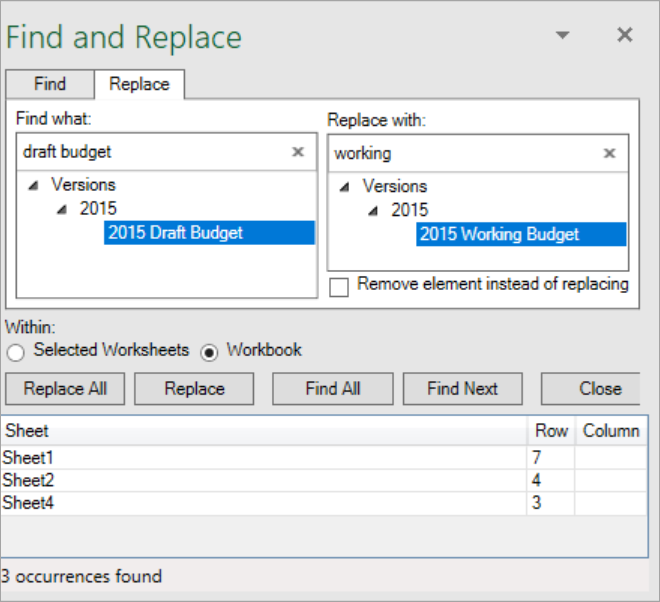
- On theFindtab, type a key word in the search text box to search for elements that you have added to the report. Select the element from the tree navigation to highlight the element to find. Example: Typedraft budget
- SelectWorkbookto find all instances across all sheets in the workbook.
- ClickFind All. A list of sheets appears in the lower pane indicating where instances of the element is found.
- On theReplacetab, type a key word in the search box to search for elements that you have added to the report. Select the element from the tree navigation to highlight the element to replace. Example: Typeworking budget
- ClickReplace All. When complete, a message appears indicating the number of instances that were replaced.