
Copy Forward and Downward
- To change values on a version scenario, create a scenario version inModel Management.
- Ensure that you have access to any versions or scenario versions where you want to change data.
- Security:
- Editable Sheet Accesspermission.
- (Optional)Edit Dimension on Sheetpermission.
When you copy forward or downward, you:
- Copy numbers if the cells have numbers.
- Copy formulas if the cells have formulas.
- Copy blanks if the cells have blanks.
- Copy into cells in columns you can't see due to filters or display options.
- Don't copy cell notes.
- Skip over locked cells and rollup cells.
- Don't copy into suppressed rows with zeros or blanks.
- Don't copy into hidden accounts on cube sheets if you selectHide rollup totals to improve sheet performanceinCube Sheet Propertieswhen you build the sheets. You hide accounts in theDisplay Optionswhen you view the sheets. To copy downward into hidden accounts, clear theHide rollup totals to improve sheet performancecheck box.
You can use copy forward or downward to speed up data entry across ranges of cells when the values are:
- Relatively consistent.
- Related, either increasing or decreasing according to a set pattern.
You can copy forward on all sheet types, but copy downward is only available on cube sheets.
Copy forward and downward aren't available if you try to copy:
- Time, account, level, or dimension rollups.
- Locked cells.
- (Optional) To propose changes to the base data using a scenario version, from the version prompt, select the base version to expand it.
- (Optional) Select the scenario version that’s nested inside the base version.
- To access the copy forward and downward options, right-click a cell or range of cells.
- As you configure your copy forward or downward, consider:
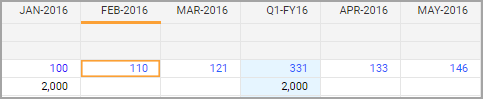
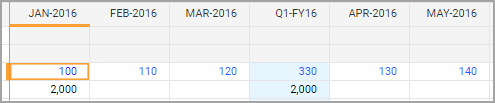
選項 說明 Copy To EndCopies forward or downward to the end of your row or column. For copy forward to the end, you copy your values like you selectedEndon theCopy throughprompt.ValueOnly available for copy forward.To access this prompt, selectAdvanced....We automatically populate this field with the value that's currently in the cell. You can leave the existing value or change the value. Any changes don't affect the original data that you right-clicked.Copy throughOnly available for copy forward.To access this prompt, selectAdvanced....Copies forward through a time period. Uses theValueas the starting value.Example: If you selectQuarterwith 300 as your starting value, you copy forward 300 to the end of the quarter.Copy OptionsOnly available for copy forward.To access this prompt, selectAdvanced....You can only increase or decrease the copy forward for numeric data.When you increase or decrease the copy forward, you increase or decrease the value from the previous cell. You can increase or decrease by value or percentage.Stop at zeroOnly available for copy forward.To access this check box, selectAdvanced....To prevent your values from going negative when you decrease your copy forward, select this check box.
Copy forward increased by 10%:
Copy forward increased by 10 value:
Copy forward decreased by value with and without a stop at zero:
