
Concept: Formula Syntax and Rules for Custom Calculations
Rules for Calculations
You add a calculation to an existing tier to calculate on that tier. Example: Add a custom calculation to a levels tier to calculate on levels.
If you change the display name format of levels, dimensions, or attributes after using formulas for custom calculations in reports, revisit those formulas to ensure correctness.
A calculation formula can reference the following elements in a report:
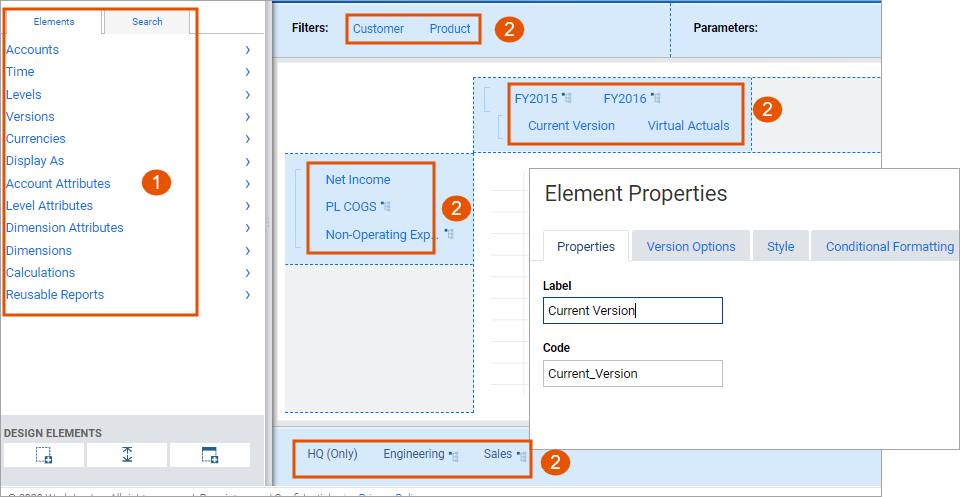
Option | Description |
|---|---|
1 | The elements in the Elements pane that are independent of the report properties or the user session. These elements are not on the report rows, columns, filters, or sheet tabs.Example: If you are calculating on accounts, you can use the same accounts in a formula as the ones that show under Elements > Accounts . |
2 | The elements in the canvas such as on the rows, columns, filters, or sheet tabs. These elements are dependent on some report property or the user session. A calculation refers to an element in the canvas using the element code. Example:Current Version is an element on the canvas that does not refer to a specific value of the Version dimension. It changes to match whatever version the current user is on when running the report. |
Formula Syntax Examples
All standard operators and functions are available in the report formula syntax plus the formula syntax for
reports only.
See Reference: Formula Functions and Reference: Operators and Functions for Calculations. Elements Tab
Enclose these elements in square brackets using See the following examples:
[
] or account code
[
.element name
]- Accounts. Example: To calculate gross margin:[PL_Income]-[PL_COGS].
- Custom dimensions. Example: To total the US, Japan, and Canada dimensions:[US]+[Japan]+[Canada].
- Level dimensions. Use the plus(+)and minus(-)enclosed in parentheses to roll up parent elements. Example:
- [Operations(+)]refers to the rollup of operations.
- [Operations(-)]refers to the "operations only" level
- Rollup(). Use this function to aggregate data based on the rollup mode such as sum or average that is set for the account in Modeling. Example: To roll up the data for the Marketing, Engineering, and Sales levels, use:Rollup([Marketing], [Engineering], [Sales]).When a rollup contains a value that is a subset of another value, the function uses the parent value and ignores the subset.When a rollup contains only contra accounts, the default calculation returns the sum of the accounts as a positive integer.When a rollup contains a mix of contra and regular accounts, the default calculation returns the sum of the regular accounts minus the sum of the contra accounts.This Rollup() function is only available for custom calculation elements in reports.
Report Builder
Use
RPT
syntax to refer to elements in the report builder using their codes. Example:
- To refer to the first month in the report, useRPT.FirstMonth
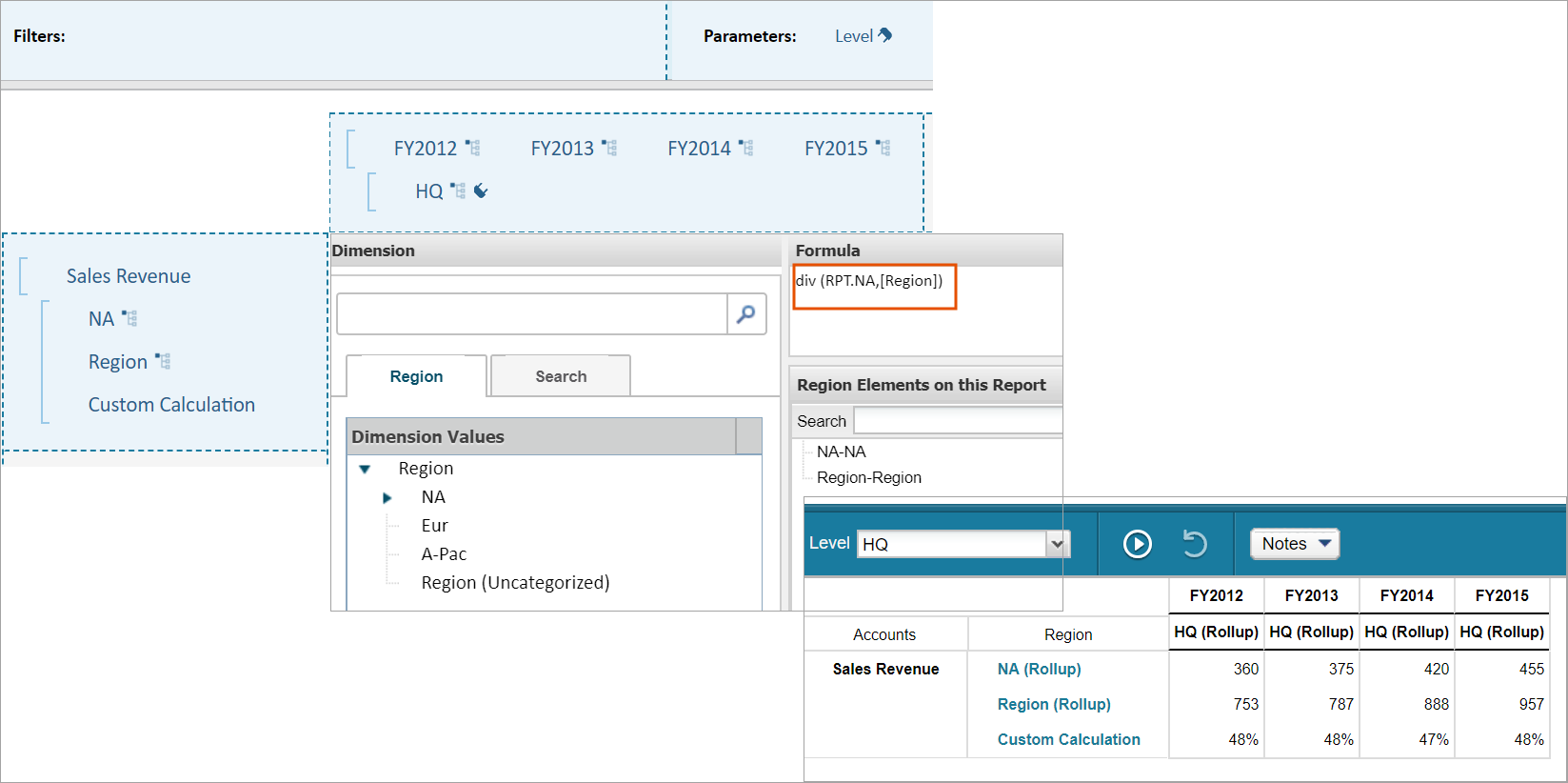
- To calculate a region's share of the total, use:DIV(RPT.SelectRegion,[Region(+)])*100.Select.Regionis the code for a specific level such as Sales - North.Region(+)represents the parent level for that specific level such as Operations. Example: You want to show what percentage of the total sales revenue the North America (NA) region contributes. To create this report, you add the Sales Revenue account and NA and its parent region to your report rows. You drag a custom calculation into the regions tier. On the columns, you add time and level (HQ). Add a formula to the custom calculation to calculate the NA share of sales revenue as a percentage of the region total.
Element is a report parameter
If an element is a report parameter, the parameter value reflects in the calculation.
Example: A report displays time (Jan, Feb, March) on the columns and time is a parameter. A Subtotal column adds the values for the months. When you change the parameter to display Feb, March, and April, the Subtotal column now adds the values for these three months. To sum the three periods shown in the report, use:
RPT.FirstMonth + RPT.SecondMonth + RPT.ThirdMonth
.Note that
FirstMonth
, SecondMonth
, and ThirdMonth
are the codes for the time elements.