
Use Dimensions and Attributes in Excel Interface for Planning
Many companies use dimensions to add context to data. A dimension is a categorization that slices accounting data. Many companies use dimensions to analyze and break down data. Time periods, organizational levels, accounts, products, and regions are common dimensions. Dimensions help planners see the data through different lenses to pinpoint strong or weak patterns.
Dimensions and attributes, although they function differently within your model, act more or less the same in online sheets and
Excel Interface for Planning
. Both attributes and dimensions have multiple values that are either assigned to data as read-only or provide a dropdown menu of possible selections, or values, for you to choose.Although dimensions can be a part of any sheet, they're only dynamic within cubed sheets, which means you can use them to filter, arrange and change the view of the sheet. Learn to identify sheet types.
Dimensions in Standard Sheets
Standard sheets can have both level dimensions and other custom dimensions, but they cannot have attributes. Dimensions in a standard sheet are columns that aren't related to time:
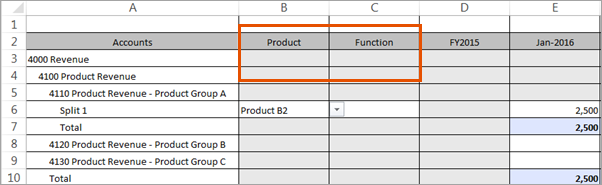
Dimensions in standard sheets may be editable or read-only. To edit or select dimension values:
- Verify that you've selected a level that cannot be expanded further.
- If the cell is still gray, add a split to any cell in a corresponding time column:
- If the cell remains grey, it's a read-only cell.
- If the dimension cell turns white after you add a split, click in the cell.
- To find the dimension value you want, open the Dimension Values. Either:
- Right-click, and choosePlanning>Select Dimension Value.
- Or, clickSelect Dimension
 from the ribbon.
- Scroll or expand and collapse the list to browse, or start typing in keywords to search for the dimension.
- Select the value and clickOK.
- Submit your changes on the sheet to save them.
Dimensions in Modeled Sheets
Modeled sheets can have any kind of dimension and any kind of attribute. Like a standard sheets, most dimensions and attributes in modeled sheets are columns that have cells with dropdown values to choose. In a modeled sheet, it may be harder to identify dimensions and attributes because many of the cells in modeled sheets also have drop-down menus.
- To select a dimension value:
- Click the cell with a dimension.
- Either:
- Right-click, and choosePlanning>Select Dimension Value.
- Or clickSelect Dimension icon from the ribbon.
- Scroll or expand and collapse the list to browse, or start typing in keywords to search for the dimension.
- Select the dimension value and clickOK.
- Submit your changes to save them.
Filter Dimensions and Attributes in Modeled Sheets
If the dimension and its related dimension attribute are both on a modeled sheet, the sheet let's you know that the two columns are related and filters the available selections accordingly.
- Here's how it Works
- This example illustrates how dimensions and attributes can filter each other within the sheet for easier data entry.
- Productis a dimension with value options: Slacks, Blouses, and Shoes.
- Coloris an attribute of Products with value options: Black, Brown and White.
- Slacks are available in Black and Brown.
- Shoes are available in Black only.
- Blouses are available in all colors.
If you select theProductfirst and choose:- Blouses, theColorcell prefills with(none)in blue text to indicate that it is related. In theColordropdown, all options are available for blouses.
- Shoes, theColorcell prefills withBlackin blue text to indicate that it is the only possibleColoroption for shoes.
- Slacks, theColorcell prefills with(none)in blue text. When you click theColordropdown arrow, only Black and Brown appear as options.
If you select theColorfirst and choose black:- Black, theProductcell prefills with(none)to indicate that it's related. In theProductdropdown, all options are available.
- Brown, theProductcell prefills with(none)and in the dropdown, only Slacks and Blouses are available.
- White, theProductcell prefills withBlousesbecause it's the only product available in White.
Use Dimensions in Cubed Sheets
In cubed sheets, dimensions work with Accounts, Time, and Levels to slice data and data entry. You don't have to add splits when you use a cubed sheet because the sheet itself creates "splits" of data as you enter it based on the dimensions in use.
- Dimension Rules on Cubed Sheets
- Find dimensions listed in the Planning pane > Model tab.
- Unlike in other sheets, dimensions on a cubed sheet include Accounts, Time, and Levels as well as custom dimensions and attributes.
- A dimension can either be a filter, a row or sub-row, or a column exclusively.
- You can only have one dimension for the columns.
- You can have unlimited dimensions listed as rows or filters.
- Types of Dimensions on Cubed Sheets
 The main Adaptive Planningcategories, such as organization levels, accounts, time, and custom dimensions, such as product, customer, region.
 Attributes, or subcategories further slicing the dimensions, such as customer types, color, size. Both dimensions and attributes have values that you can select as filters, or that you can add to the grid's rows and columns.
- Add Dimensions to the Grid
- From the Planning pane > Model tab, go to the Axis & Coordinates section:
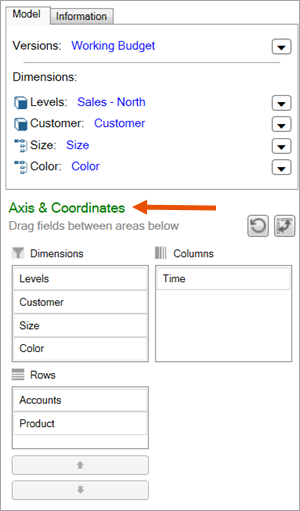
- Add dimensions to columns: drag and drop them from the Dimension or Row box into the Columns box. The dimension replaces the current column dimensions (typically time). You see the values of the dimension listed across the columns. For example, if you drop Product into Columns, you see product values (Blouses, Slacks, Shoes and so on) as column headers.
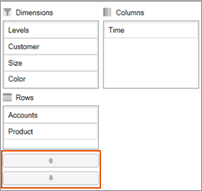
- Add dimensions to rows: drag and drop them from the Dimension box into the Rows box. The values are listed down the rows. For example, if you add color to the rows, you see all the color values (red, orange, yellow, and so on) listed down the rows. If you have more than one dimension in rows, the second one nests within the first, the third within the second, and so on. For example, if Product is listed below Accounts, you see the product values listed for each account. Use the arrows to change the order. For example, if you move Product up, you see accounts listed for each product value.
- Add dimensions to filters: Drag and drop them from the Rows or Columns boxes to the Dimension box. You see them listed in the filters as dimensions, and you can select the values from the dropdown to filter the data.
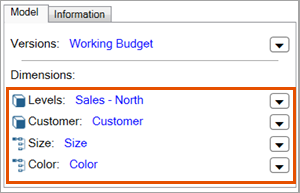
- Don't see a dimension listed as a filter?
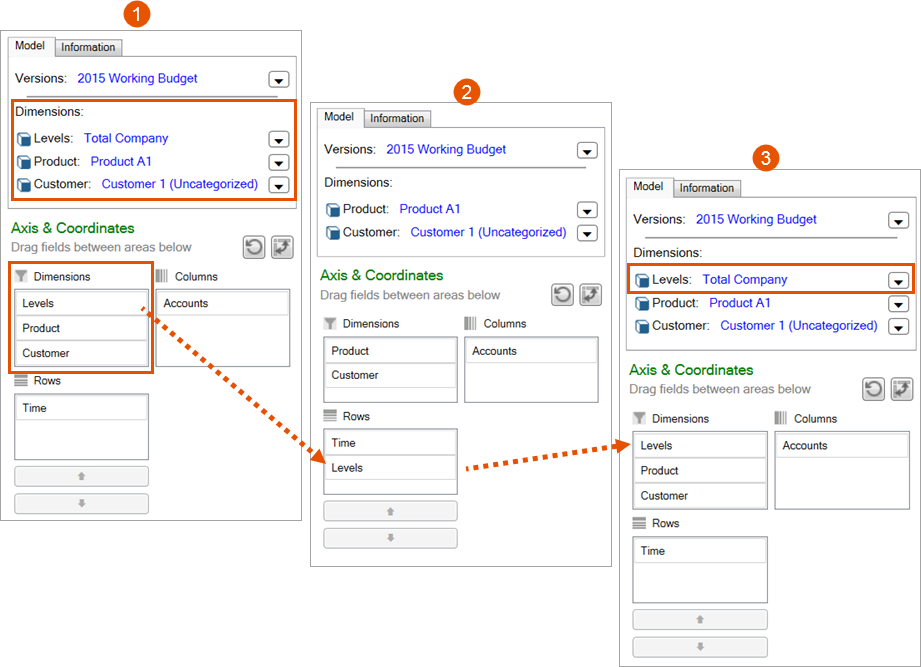 OptionDescription1Levels is listed as a dimension you can filter on and it's also in the Dimensions box.2Drag and drop levels into the Rows box. Notice that it isn't available as a filter anymore.3Drag and drop dimensions back into the Dimension box so you can use it as a filter.
- Remove Dimensions from the Grid
- From the Planning pane > Model tab:
- Remove from rows: drag it back into the Dimensionsbox.
- Remove from columns: drag a replacement into the Columnsbox and it will automatically remove the old one.
- Remove from filters: selectAllfrom the dropdown of the dimension to stop filtering.
Add New Dimension Values
Some modeled and cubed sheets allow you to add new values for dimensions. To add the values, access the sheet through
Adaptive Planning
, not Excel Interface for Planning
.