
Concept: Cube Sheet Building
Cube sheets can contain multidimensional data input across a specified set of dimensions. Common use cases for cube sheet include:
- Revenue planning for products.
- Operational metrics.
How Cube Sheets Work
With cube sheets and merged cube sheets, end users can pivot and filter the sheet using all the dimensions and attributes you added. Generally, users enter the data in certain accounts by custom dimension and watch the calculated accounts update as soon as they save the sheet.
When end users open a sheet from the
Sheets
area, they can pivot the sheet by:- Moving the dimensions to the columns.
- Nesting multiple dimensions in the rows.
- Moving dimensions to the filters.
End users can't enter data into merged cube sheets. Merged cubes are composites of data gathered in other sheets and calculations based on that data. Merged cube sheets are always read-only.
Options for Building Cube Sheets
When you build cube sheets, you have the option to make the sheet a merged cube. Merged cube sheets are a type of cube sheet that combines the data presence of source sheets. Once you start buidling a sheet, you can use the Sheet Summary
to link to:
- Cube Accounts: Manage the accounts and the account settings. See Create Cube Accounts.
- Dimensions, Attributes and Levels: Add and remove dimensions from the sheet, and manage the settings of each. See Add Dimensions and Attributes to Cube Sheets and Reference: Sheet Properties for Cube Sheets.
- Restrictions: Build restrictions for various intersections of data. See Set Restrictions for Cube Sheets.
- Erase All Data: Deletes all data, which is necessary when you want to remove a dimension from the cube. See Erase All Data in Sheets.
- View Capacity: Review the current capacity of the sheet per version. See View the Capacity of Cube Sheets.
Cube Sheet Dimensions
We consider all elements on the cube a dimension. You can manage these elements when you click
Dimensions, Attributes and Levels
from the Sheet Summary
. Dimensions available for cube sheets include:
- Time(required): You can manage the time periods the sheet displays.
- Level(required): You can change the level availability. See
- Account(required): Cube sheets require at least 1 standard account for data entry. You can then display the calculated accounts on the sheet or hide them.
- Dimensions: You can add up to 10 custom dimensions to the sheet. Too many dimensions and dimension values can affect the performance of the sheet.
- Attributes: You can add attributes to help users filter the sheet.
When you add custom dimensions to a regular cube sheet, the cube sheet forces users to enter data for the custom dimension values. The data is always sliced by dimensions, so you can easily report on the data with charts and reports.
When you build cube sheets,
Time
, Level
, and Account
are already in the canvas. You can then drag other dimensions to the canvas. By default
Time
is the column and Account
is the row. All other dimensions are filters. You can change the display in Sheet Properties
> Initial View
. Keep in mind that users can save their own default views of the sheet.Cube Accounts
When you click
Cube Accounts
from the Sheet Summary
, you can review the list of cube accounts, which includes the type of each account.Account Type | Description |
|---|---|
Cube | These are Cube Standard Accounts :
|
Calculated | These are Cube Calculated Accounts .
|
Linked | These are Cube Standard Accounts that link to other accounts:
|
Standard | These are cube-entered general ledger or custom accounts:
|
Assumption | These are Cube Assumption Accounts :
|
Metric | These are Cube Metric Accounts :
|
With merged cube sheets, you can only create:
- Cube calculated accounts (at least 1 is required). The data entry override option isn’t available for these accounts.
- Cube metric accounts.
Managing Performance and Usability
Cube sheets can hold many dimensions, which can create cells in the tens of thousands or more. They can feel cumbersome to your end user. Adaptive Planning provides many options that can help you improve the performance and usability of the sheets. See:
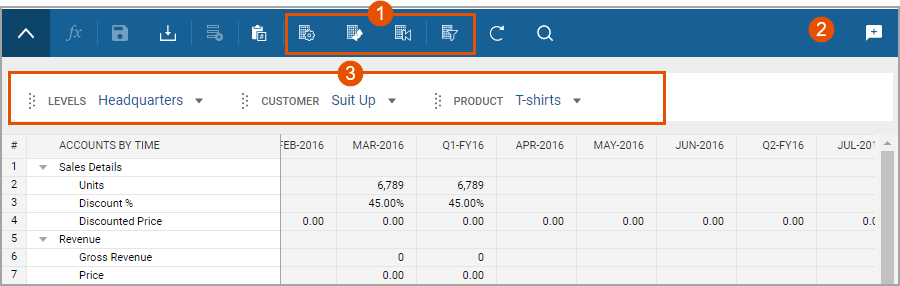
How Cube Sheets Look in the Sheets Area
Option | Description |
|---|---|
1 | More display options exist in the toolbar. You can pivot the sheet to view data in multiple ways. |
2 | No level drop-down list exists in the toolbar. Levels are a dimension to use as filters, columns, or rows. |
3 | Alternative dimensions enable you to filter data, drag and drop into the columns and rows, and nest up to 5 dimensions in the rows. |
Merged cube sheets are entirely read-only. These sheets combine the data presence of other sheets to display calculated data.
Although the use case for cube sheets is modeling complex, multidimensional sales forecasting, you can use them for planning almost any multidimensional model.