
Add Rules to the Access Rule Spreadsheet
- To use associations, you need the association codes: Go to Administration > Associations. The codes are listed in the table. You can export them for easy access while you create your rules.
- To use accounts, you need the account codes:
- Use the exportAccounts API to pull all account codes
- For modeled account codes, use the sheet name.
- Account codes display in the account hierarchies in the Modeling area.
- For exchange rate accounts, go to Modeling > Currencies to find the currency codes and exchange rate type codes and then use this pattern to create the account code:Assum.Exchangerate.FromCurrencyCode.ToCurrencyCode.RateCode.
- Security:Userspermission.
You can create rules for either a username OR a group name. Each secured dimension and attribute has a
Grant
column and a Grant All Except
column. For each secured dimension or attribute in the rule, enter data either in the Grant
column OR
the Grant All Except
column. Ask yourself if it is more efficient to list all the grants, or to list all the exceptions.
If you're listing more than one value, add a new row for each value. Several rows can make up one rule.
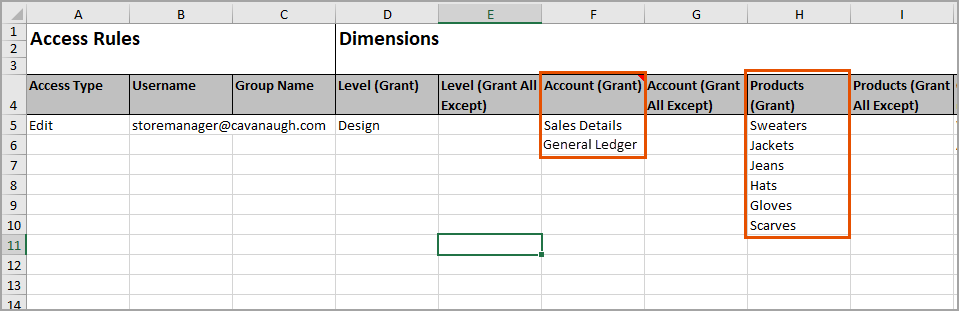
For the next rule, enter the
Access Type
in a row below the last listed dimension.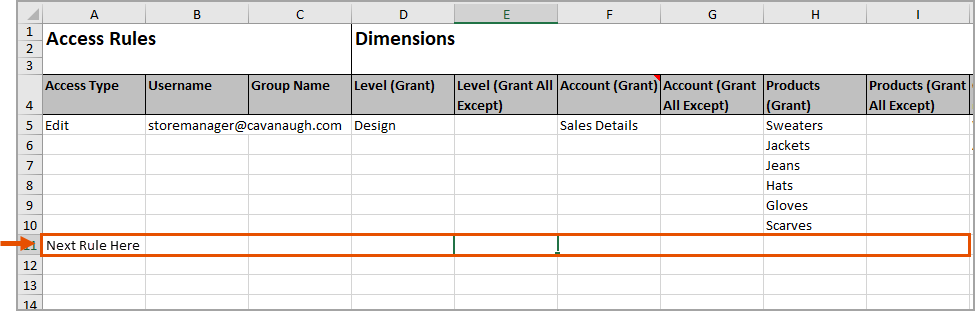
Don't add more than 1 blank rows between each rule. Any content after the 2 completely blank rows is not imported.
The accounts listed are accessible only at the levels and custom dimension values listed in the same rule and vice versa. Example: 1 of the rules assign John Doe access to the
Sales Detail
account group at the Sales
level. The other rule assigns him access to the Expenses
account group at G&A
. He cannot access the Sales Details
accounts at the G&A
level or vice versa.Many rules work together to create access per user or group.
Example: These two rules work together to grant John Doe's data access:
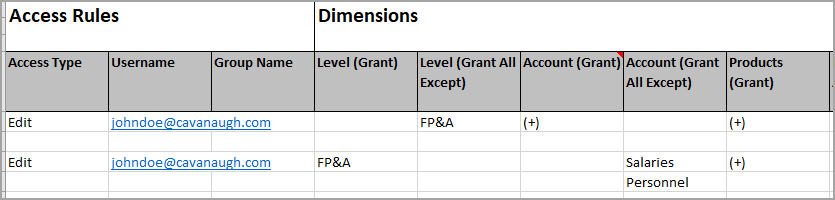
The rules alone result in different access:
- The first rule says John has no access to the FP&A level. He has access to all other levels for all accounts and all product dimensions.
- The second rule says John only has access to the FP&A level and no other levels. The only accounts he can't edit are the Salaries and Personnel accounts.
The rules together have a different result. John can edit everything except the Personnel and Salaries accounts at the FP&A level.
- Open the template or the spreadsheet with the exported rules.
- As you complete the columns, consider:
Opção Descrição Access TypeEnter:- Edit
- Full View
- Limited View
UsernameEnter the username of the user. Leave this column blank if you're creating a rule for a group.Group NameEnter the name of the user group. Leave this column blank if you're creating a rule for a single user.Level (Grant)Only complete this column, if you're leaving the Level (Grant All Except) column blank for this rule.Enter 1 level value per row. To grant access to:- All levels, enter(+)or the code of the top level.
- A level and its descendants, enter the code of the parent level. This excludes ancestors.
- The owned levels of the user or group, enter(~).
- Levels listed in a level association, enter the level association code in parenthesis.
The only way to give access to an (Only) level is to give access to the parent and all descendants.To filter the level access through level attributes, complete the column for the level attribute. The column has the name of the level attribute in the header. You also must secure the level attribute before you can create rules with the attribute values.Level (Grant All Except)Only complete this column if you're leaving the Level (Grant) column blank.List the codes of parent levels or child levels. This removes access to the levels listed, their ancestors, and their descendants. It gives access to all other levels. You can create other rules that give access to descendants of the levels that you list here.You can't enter association codes or (~) in this column.Account (Grant)Only complete this column if you're leaving the Account (Grant All Except) column blank.Enter 1 account code per row. To grant access to:- All accounts, enter(+).
- Entire account hierarchies, enterGL Accounts,Custom,Metric,Assumptions, Cube,orModeled.
- All accounts in a group, enter the account code.
- All accounts in a cube or modeled sheet, enter the name of the sheet.
- An account and all its descendants, enter the account code of a parent account. This excludes ancestors.
You can also grant access to accounts through account attributes. Enter attribute values in the corresponding account attribute column. The column has the name of the account attribute in the header. You also must secure the account attribute before you can create rules with the attribute values.Account (Grant All Except)Only complete this column if you're leaving the Account (Grant) column blank.List the account codes, account group codes, hierarchy names, or cube and modeled sheet names. This removes access to the accounts listed, their ancestors, and their descendants. It gives access to all other accounts. You can create other rules that give access to descendants listed here at different intersections.Custom Dimension (Grant)The column header displays the name of the dimension in place of "Custom Dimension".Only complete this column if you're leaving the corresponding (Grant All Except) column blank.Enter 1 dimension value code in each row. To give access to:- All the dimension's values, enter(+). This includes theallvalue, or the dimension rollup.
- Level, account, and split rollup values on standard sheets, enter(+). See Access Rules and Your Model.
- Specific dimension values, enter the value codes. This excludes theallvalue, or rollup, and parent values in hierarchical dimensions. It also excludes level, account, and split rollups.
- Only the dimension values associated with the user or the users in the group, enter the association code of the custom dimensions in parenthesis.
- Only theroot uncategorizedvalue, enter (-).
Every rule automatically gives access to the root uncategorized value of custom dimensions.You can also grant access to custom dimension values through dimension attributes. Enter attribute values in the corresponding dimension attribute column. The column has the name of the dimension attribute in the header. You also must secure the dimension attribute before you can create rules with the attribute values.Custom Dimension (Grant All Except)The column header displays the name of the dimension in place of "Custom Dimension".Only complete this column if you're leaving the corresponding (Grant) column blank.List the value codes 1 in each row. This excludes theallvalue. For hierarchical dimensions, list the parent code to remove access to the parent, its descendants, and its ancestors. You can't list theroot uncategorizedvalue in this column. There is no way to remove access from theroot uncategorizedvalue.You can't enter dimension associations in this column.Level Attribute (Grant)The column header displays the name of the attribute in place of "Level Attribute".Only complete this column if you're leaving the corresponding (Grant All Except) column blank and if you have completed the Level (Grant) column.To filter access to the granted levels, enter:- 1 attribute value in each row. Grants access to the granted levels that are also tagged with the attribute values.
- The attribute association code in parenthesis. Grants access to the granted levels that are tagged with the attribute values in the association.
Level Attribute (Grant All Except)The column header displays the name of the attribute in place of "Level Attribute".Only complete this column if you're leaving the corresponding (Grant) column blank.Enter 1 attribute value in each row. Filter the levels listed in the Level (Grant) column to remove all the levels tagged with the attribute values.You can't enter association codes in the Grant All Except column.Account Attribute (Grant)The column header displays the name of the attribute in place of "Account Attribute".Only complete this column if you're leaving the corresponding (Grant All Except) column blank.Enter 1 attribute value in each row to grant access to all accounts tagged with the attribute values. If you have accounts listed in the account columns, the attributes filter the access.Account Attribute (Grant All Except)The column header displays the name of the attribute in place of "Account Attribute".Only complete this column if you're leaving the corresponding (Grant) column blank.Enter 1 attribute value in each row to remove access to all accounts tagged with the attribute values. If you have accounts listed in the account columns, the attributes filter the access.Dimension Attribute (Grant)The column header displays the name of the attribute in place of "Dimension Attribute".Only complete this column if you're leaving the corresponding (Grant All Except) column blank.Enter:- 1 attribute value in each row to grant access to the dimension values tagged with the attribute values.
- The attribute association code in parenthesis. Grants access to only the dimension values tagged with the attribute values in the association.
Dimension Attribute (Grant All Except)The column header displays the name of the attribute in place of "Dimension Attribute".Only complete this column if you're leaving the corresponding (Grant) column blank.Enter 1 attribute value in each row to remove access to all dimension values tagged with the attribute values. If you have the custom dimension values listed in the dimension columns, the attributes filter the access.You can't enter associations codes in this column. - Save the spreadsheet.You can change the name of the template file. Don't change the extension, the sheet names, or the column headers.