
Example: Set Up Data Flow with Weighted-Average Translation
Weighted-Average Translation
(WAT) is an account setting for cumulative accounts. A default formula pulls the data from a periodic account into the cumulative account. Weighted-Average Translation then converts the currencies on the delta at the average periodic exchange rate. This provides a weighted-average conversion. Additional settings: Balance Reset and Balance Transfer at Reset provide automated data flows.See Create Weighted-Average Translation Accounts and Concept: Weighted-Average Translation for more information.
Steps
Use custom or general ledger accounts to create this example. For this walk-through, we use general ledger accounts. This walk-through illustrates a common general ledger and calendar setup, but yours may be different.
- Create a new child account forRetained Earnings, calledRetained Earnings, Beginning.
- Create a newYTD Income (Loss)account as a child ofRetained Earnings.
- Check and confirm the account settings of theNet Incomeaccount.
- Set up an initial balance sheet for theRetained Earnings,Beginningaccount.
- Use currency-tagged splits to seed the initial balance ofRetained Earnings, Beginning.
- Add the balance sheet accounts to a Balance Sheet sheet and watch the data flow!
This walk-through replaces stored data in the
Retained Earnings
account with calculated values. Automatic transfers accumulate thereafter. Export the data if you want to save existing data in this account. Or, contact us to help you transition.Change Retained Earnings into a Rollup Account
Most instances include a Retained Earnings
account in the general ledger list. To make Retained Earnings
a rollup account, create a child account.
This step moves the data that is in
Retained Earnings
to the new child account. When you add a default formula to the child account, you delete the data.- Edit Retained Earnings
- Prepare theRetained Earningsaccount to be a rollup account:
- From the nav menu, clickModeling. Then clickGeneral Ledger Accounts.
- In the account list, click theRetained Earningsaccount (generally found inLiabilities and Equities>Equity).
- In the settings:
- Change the Name to:Retained Earnings, Ending.
- Change theExchange RatetoAvg: Monthly Average.
- ClickSave.
- Create Retained Earnings, Beginning Account
- Set up a new account to receive the weighted-average translation transfer.
- In the account list, highlightRetained Earnings, Ending.
- From the toolbar, clickCreate New Account.
- For the settings:
- Code:REBegfor the code.
- Name:Retained Earnings, Beginning.
- Type:Cumulativeby default because it's the child ofacumulative account.
- Planned byandActuals by: ClickDelta. Allows the account to receive the weighted-average translation transfer fromYTD Income (Loss). The setting has no other affect on the account because you won't enter data in this account.
- ForData Typesettings:
- Default Formula: Enter the number0(zero). The zero in the formula makes this account read-only in sheets. The account accumulates whatever you enter in the initial balances and any incoming transfers.
- Weighted-Average Translation: Click the check box. Enable so the account can receive the ending balance of theYTD Income (Loss)account.
- Exchange Rate: ChooseAvg: Monthly Average. This account won't calculate currency translations because of the currency-tagged splits you add to its initial balance sheet. Match this setting to theYTD Income (Loss)exchange rate type as a best practice.
- Result
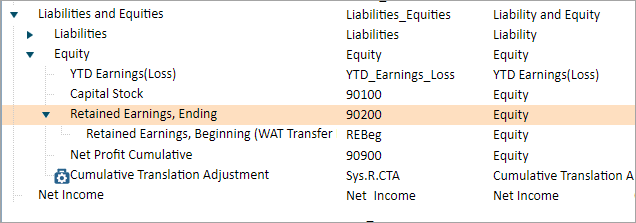
- Your general ledger account list looks like this when you're done with this step:
Create a New YTD Income (Loss) Account
Most instances include a YTD Net Income
,
but you can't edit this account in the ways required for this walk-through. Create a new YTD Income (Loss)
- In the account list, click theRetained Earnings, Endingaccount.
- From the toolbar, clickCreate New Account.
- In theAccount Details:
- Code:YTDNI.
- Name:YTDIncome (Loss).
- Rolls up to: Check that it'sRetained Earnings, Ending.
- Type:Cumulativeby default because it's the child of acumulative account.
- Planned byandActuals by: ChooseDelta. This setting applies the exchange rate to the the change from period to period, rather than the accumulated or the periodic total.
- Default formula: EnterACCT.Net_Income,the code for theNet Incomeaccount. The account pulls in the periodic value of the net income account and accumulates the values.
- Weighted Average Translation: Click the check box. The account converts the delta by the selected exchange rate before accumulating it. This keeps the exchange rate affect aligned with the periodic account's data.
- Reset Balance: Click the check box and selectYear. The account accumulates until the end of December. Then, it resets the balance to zero and starts accumulating again.
- Transfer Balance on Reset: Click the check box and selectRetained Earnings, Beginning. The account transfers the balance at the end of the year to theBeginning Retained Earningsaccount at the start of the next year.
- Exchange Rate: ChooseAvg: Monthly Average. Match the exchange rate used in theNet Incomeaccount to keep the affects of the exchange rates aligned.
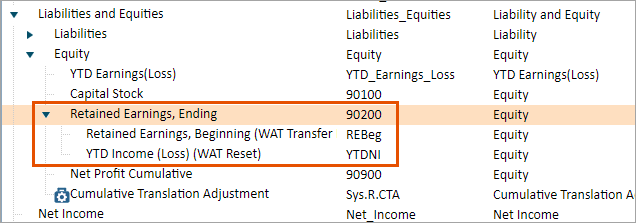
When you're done with this step, your account list looks like this:
Check the Settings of the Net Income (Loss)
Your instances includes a Net Income
root account for the income statement. Check the settings to make sure it works with your new YTD Income (Loss)
account:
- Highlight theNet Incomeaccount.
- In the settings, for exchange rate, selectAvg: Monthly Average.
- ClickSave.
Create the Sheet for Retained Earnings Initial Balances
If you aren't using currency-tagged splits to seed your retained earnings yet, you manually entered or calculated the exchange rates for each currency in each level. Setting up currency-tagged splits doesn't change this data as long as you use the same historic values for each currency when you seed the account. See Currency Tagged Splits for Initial Balances for an overview of the feature.
- Go toModeling>Level Assigned Sheetsto create a standard sheet. For the name, enterInitial Balance Entry for RE.
- Add theRetained Earnings, Beginningaccount to the sheet and clickShow initial balance.
- For dimensions, addCurrency (system). Currency-tagged splits requires this dimension on a sheet.
- Add the levels that can access the sheet and save.
When you complete this step, you have a sheet that looks like this and allows for currency-tagged splits.

Seed the Initial Balances for Retained Earnings, Beginning
For this walk-through, the instance has several levels that track Retained Earnings with three different currencies:
- Headquarters uses British pounds (GBP).
- Research and Development uses British pounds (GBP)
- Sales and Marketing uses U.S. dollars (USD).
- Canadian Sales, a division of Sales and Marketing, uses Canadian dollars (CAD).
- US Sales, a division of Sales and Marketing, uses U.S. dollars (USD).
- Marketing, a division of Sales and Marketing, uses U.S. dollars (USD).
Canadian Sales rolls up to Sales and Marketing, which rolls up to British Headquarters. You only enter the initial balances in the leaf levels for each currency. There's four leaf levels (levels without sub-levels) in this example: Research and Development, Canadian Sales, US Sales, and Marketing.
To seed the initial balance:
- From the nav menu, clickSheetsand open theInitial Balance Entry for REsheet.
- Choose Actuals from the version drop-down. Choose a leaf level from the levels drop-down. In this case, selectCanadian Sales.
- Note all the levelsCanadian Salesrolls up to. Canadian sales rolls up to two levels:Sales and MarketingandHeadquarters. Note the currencies for each of the rollup levels:GBPandUSD.
- Add splits for each currency noted in step 3 and the currency of the level: (CAD).
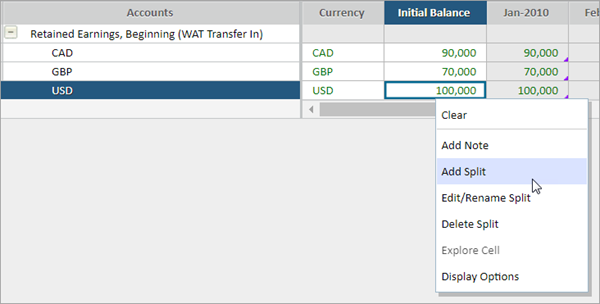
- Right-click a cell in theInitial Balancecolumn forRetained Earnings, Beginning. SelectAdd Split:
- Enter the name of the split to match the currency. Start withCAD.
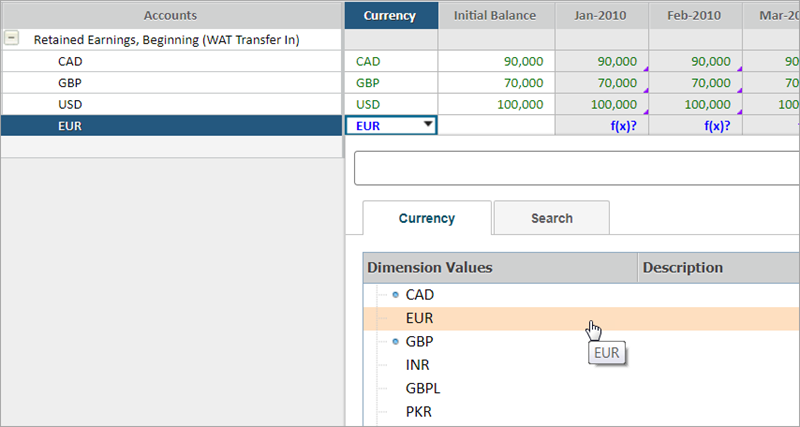
- Click the drop-down arrow in the cell of theCurrencycolumn and choose the currency that matches the split name:
- Enter the initial balance for each currencies split.
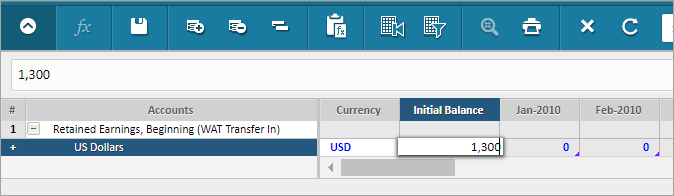
- Save the sheet.
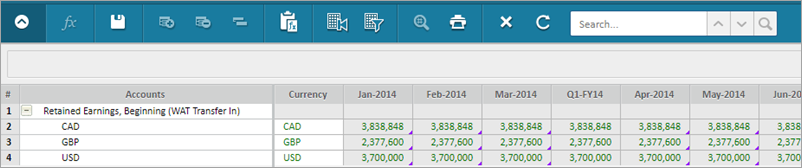
When you seed the initial balance, the leaf level shows the values in all three currencies through time:
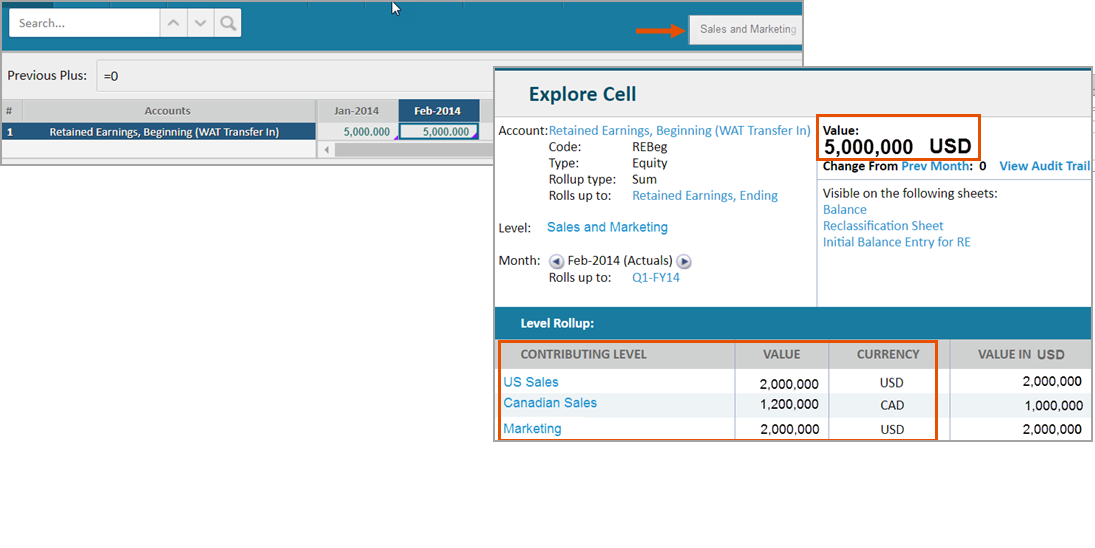
The rollup levels, like Sales and Marketing, show the total in the currency for that level only. Explore the cell to see the contributing levels and their values in all currencies:
Resulting Data Flow
Of the four accounts (Retained Earnings, Retained Earnings, Beginning, YTD Income (Loss) and Net Income), the only account you update in sheets is Net Income
. In this example, Net Income is a calculated value based on revenue and expense activity. For simplicity, we computed the same amount for Net Income in the income statement for each month: $75,000.
The data feeds into YTD Income (Loss) on the balance sheet from the default formula. The YTD Income (Loss) data converts currencies on the delta. Then accumulates through the year.
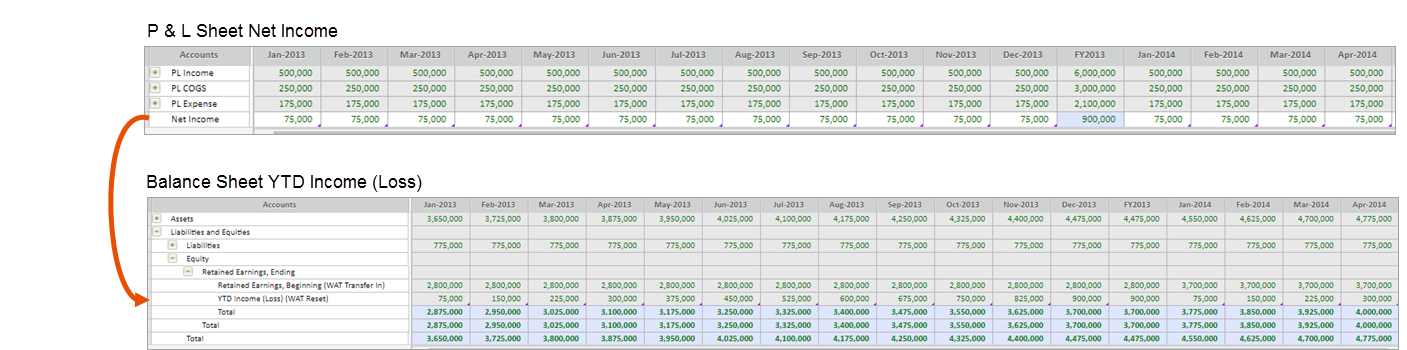
Notice in the Balance Sheet that the cells for YTD Income (Loss) are gray. This means you and your team can't edit the data. There's also a blue triangle in the cell, which means a formula calculates the data. Explore a YTD Income (Loss) cell to see that the data is the result of a default formula that pulls in the Net Income and accumulates it.
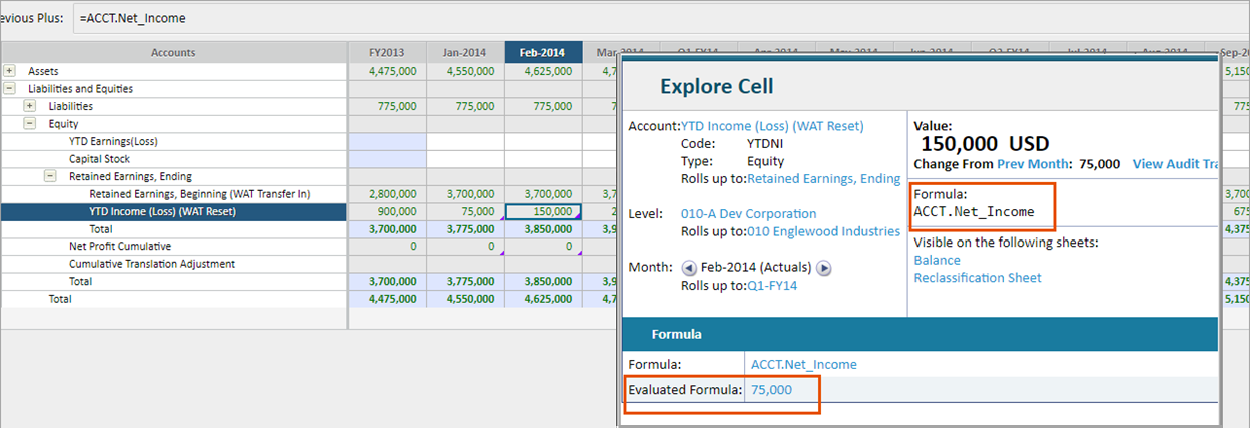
The balance in YTD Income (Loss) resets to zero at the end of the year, and starts accumulating again.
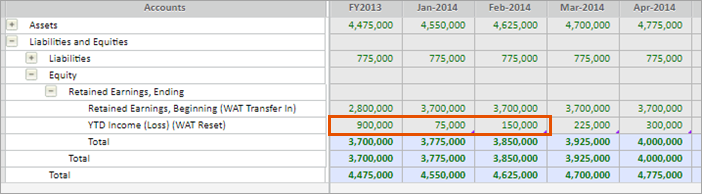
The Retained Earnings, Beginning account cells are also gray. This is because the account has a formula and you cannot edit the data. Month to month, the balance doesn't change. At the beginning of the fiscal year, the account receives the balance transfer from the YTD Income (Loss), and accumulates with the previous balance.
