
Steps: Create Copies of Reports in the Same Workbook
You can create copies of a report using the Repeating Reports option.
Use Repeating Reports to create multiple copies of a well-formatted report and filter each copy by an element, such as selected levels or dimensions. This is useful for meeting your divisional reporting requirements versus global reporting requirements.
Suppose that you have finalized a P&L report based on a set of
Adaptive Planning
data. This report is formatted with your corporate colors and fonts, Excel formulas, charts, and mini-charts. You are ready to distribute this report to Operation heads for budget reporting by each operational location. The following shows the resulting set of repeating reports as indicated by the worksheet names with each sheet reporting on the P&L results for the named location: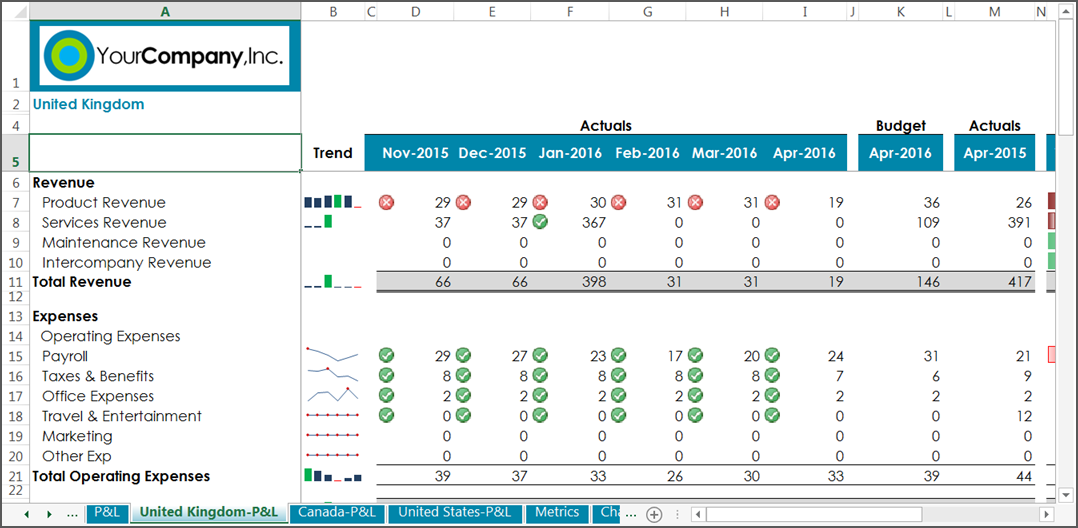
The Repeating Reports option does the following during the copy process:
- Copies the worksheet and enumerates the selected elements, applying one element as a filter to each worksheet.
- Refreshes each copied report automatically based on the filter such as by level). You have the option to refresh at a later time.
- Names the worksheets based upon a user-defined naming convention.
- If the repeating report label was applied, places the element label in the report.
- Keeps Excel formatting, styles, formulas.
- Keeps all metadata (labels and elements) applied on the worksheet and selected in the Filter tab.
Once the repeating reports are created, they become independent reports and you can work on them separately. They are not linked to or associated with the original report. To sync repeating reports with subsequent changes to the original report, delete the repeating reports and recreate them, or work on them individually.
Prepare the Original Report for Copying
- Open the finished report inOfficeConnectand confirm that it includes the desired data and format, such as:
- Adaptive Planningdata
- Excel formatting, such as conditional formatting, formulas, logos, and charts
- (Optional) Rename and shorten the worksheet name. Example:Change the worksheet name from Profit and Loss to P&L.
Define a Label Based on the Repeating Report Filter
This step is optional, but must be done prior to creating repeating reports.
Using labels, you can auto-populate repeating reports with the element associated with each report. You must define the label first before specifying the element for the repeating reports. See Defining a Label for Your Report for general information about labels.
- Select the cell location where you want the label to appear. Example:Navigate to cell A2
- ClickLabelsfrom thetab.OfficeConnect
- SelectSystem Variableas the Label Type,{Repeating Report Element}as the Label Type Value. ClickAdd Expression.
During the copy process, this label is applied to all repeating reports, but not on the original report.
Set Criteria for Creating Repeating Reports
You can specify how to copy a report from the Repeating Reports dialog box. The following steps describe how to create a set of repeating reports based on levels.
If any of these element types are already in use as a filter on the report, they will not be available for selection from this dialog box.
To manually refresh worksheet data at a later time, clear this check box. Refresh option from the
Adaptive Planning
data is cleared from each repeating report during the copy process. This is a good option If you are creating a large set of repeating reports and want to refresh each repeating report individually. Use theOfficeConnect
tab to refresh manually. See Populating the Report for more information on refresh.- In the OfficeConnect tab, clickFiltersand selectRepeating Reports. The Repeating Reports dialog box opens.
- Select the element type and elements that tell the copy process how many worksheet tabs to create and what to name them. For multi-selecting elements from this list, right-click on the element to display a context menu. Choose to select or clear descendants or children or to expand or collapse all.
- Element type: Choose an element type. These include Accounts, Levels, Versions, Currency, Attributes (Account, Level, and Dimension) and Dimensions are available as types to filter. Example: Choose Levels If any of these element types are already in use as a parameter on the report, they will not be available for selection from this dialog box.
- Selected elements: Choose at least one element. Only the elements for the selected element type appear in this list. Example: Choose: United States, Canada, United Kingdom from Operations
- Define the naming format that changes the worksheet name to include the element for the repeating report. You can also choose a delimiter that separates the element from the original worksheet name. Example: United Kingdom-P&L or P&L, Canada. The maximum Excel character limit is 32 and will truncate the sheet name when reached.
- Delimiter: Choose Comma, Hyphen, Space, Underscore Example: Choose Hyphen
- Sheet name format: Choose to show the sheet name or element first by selecting[Sheet Name][delimiter][Element]or[Element][delimiter][Sheet Name]Example: Choose P&L-[Level}
- (Optional) The Refresh sheets option selected by default populatesAdaptive Planningdata for each repeating report during the copy process. Example: Keep the default to refresh repeating reports automatically. To manually refresh sheet data at a later time, clear this check box. This is a good option if you are creating a large set of repeating reports and want to refresh each repeating report individually. Use the Refresh option from theOfficeConnecttab to refresh manually. See Populating the Report for more information on refresh.
- ClickCreate.