
Steps: Protect Sensitive Data
The salary detail settings are an access control found in general ledger and custom account settings, modeled sheet properties, and shared snapshot reports. The settings work with the
Access Salary Detail
user permission. The permission allows only privileged users to view or edit the details of sensitive or private data, such as personnel information, salaries, and addresses. This permission also enables you to edit lookup values in modeled sheets.In accounts, the protected details are the splits. The account setting blocks a user from expanding the account splits, or linking to the splits in Cell Explorer of all level-assigned sheets, reports, and charts. Only general ledger and custom accounts have the setting. For modeled accounts the setting is read-only and depends on the modeled sheet property.
In user-assigned and level-assigned modeled sheets, the property blocks users from seeing the sheet and automatically activates the account setting for all the modeled accounts in the sheet. Although users without the
Access Salary Detail
permission can't open the sheet, there are many ways they can access the accounts, including through reports, charts, account formulas, and linked accounts. Use best practices described in this article to avoid breaches. In shared snapshot reports, the property blocks users from seeing the shared report.
How Salary Detail Works
In general, an
Adaptive Planning
model handles sensitive data, like salary accounts, one of two ways:- Standard sheet splits: The salary account is on a standard sheet. You add splits to the salary account to enter individual salaries. These splits roll up to the total in the salary account. Protect the account with the salary detail account setting.
- Personnel modeled sheets: The rows in the modeled sheet contains sensitive data that calculates the salary per employee. In a modeled sheets, all the rows are splits. Protect the entire sheet with salary detail sheet property.
What the Salary Details Settings Don't Protect
- Any user with permission to build reports and charts can use protected general ledger, custom, and modeled accounts.
- Any user who has access to a sheet, chart, or report with protected accounts can see the total values of the protected accounts and drill to the levels they have access to.
Prerequisites
Prerequisites
For required permissions, see each section in this article.
Navigation
 For navigation, see each section in this article.
Basic Steps to Protect Sensitive Data
Basic Steps to Protect Sensitive Data
- Create a privileged permission set with theAccess Salary Detailpermission. Assign this permission set to the users who can see sensitive details.
- Protect accounts with theContains Salary Detailsetting.
- Protect modeled sheets with the salary detail property.
- Use best practices to secure the modeled sheet details.
- Share snapshots with privileged users only, using the shared report setting.
Create a Privileged Permission Set
The salary detail settings are meaningful only if you limit the
Access Salary Detail
permission to select permission sets. Required Permissions:
Admin Access > Permission Sets
and Admin Access > Users
. From the nav menu, select Administration
> Permission Sets
.To create the permission set:
- Select theNew Permission Setbutton. You can also edit an existing permission set.
- Enter a permission set name, such asSalary Detail, orPrivileged Data.
- Find and select theAccess Salary Detailpermission.
- Add other permissions that allow users with this permission set to view and edit sheets, reports, and charts.
- SelectSubmit.
To assign the permission to users:
- From the list of permission sets, select theAssignlink next to the new permission set.
- Select from theAvailable Userslist and add them to theSelected Userslist for the permission set.
- SelectSubmit.
Protect General Ledger and Custom Account Splits
If your salary account is a general ledger or custom account, select the
Contains Salary Detail
check box in the account setting.When the
Contains Salary Detail
account setting is on, users without the Access Salary Detail
permission can only see the account total in sheets, reports, and charts. They can drill through time and levels, but not through dimensions and splits. Users must have this permission to drill or explore contributing values and splits.- Activate the Account Setting
- Required permission:Access Model Management > Model From the nav menu, select Modeling.
- SelectGeneral Ledger AccountsorCustom Accounts. Your salary account may be either.
- Select you salary account from the account list.
- In the settings on the right, find the Data Privacy section and selectContains Salary Detailradio button.
- Save.
- Account Best Practices
- Cube accounts: You can't protect cube accounts or cube sheets. Sensitive accounts should be general ledger, custom, or modeled so that you can protect the data.Linked Accounts: If you link the accounts, theContains Salary Detailsetting is read-only and depends on the source account. If you link to a modeled account in a protected modeled sheet, the setting is activated. If you link to a cube account or modeled account that's not in a protected sheet, the setting is off.Account Formulas: If you use a protected account in the account formula or shared formula, you don't need theContains Salary Detailsetting to protect the account details . If you leave it off, users without the permission can explore the data of the linked account until they reach the protected account.
Protect Modeled Sheets
If your instance uses a personnel modeled sheet, activate the salary detail sheet property.
This allows only users with the
Access Salary Detail
permission to open the sheet. Users without the permission can’t see the sheet. - Activate the Sheet Setting
- Required permissions: Access Model Management > Model and Access Salary Detail. From the nav menu, select Modeling.
- SelectLevel Assigned SheetsorUser Assigned Sheets.
- From the sheet list, select theEditlink next to the name of your personnel sheet.
- SelectColumns and Levels.
- From the toolbar, select Sheet Properties
 .
. - Select the Security tab and checkViewing this sheet or any of its rows requires Salary Detail permission.
- Save the sheet.
TheContains Salary Detailsetting of all its accounts are now activated and read-only: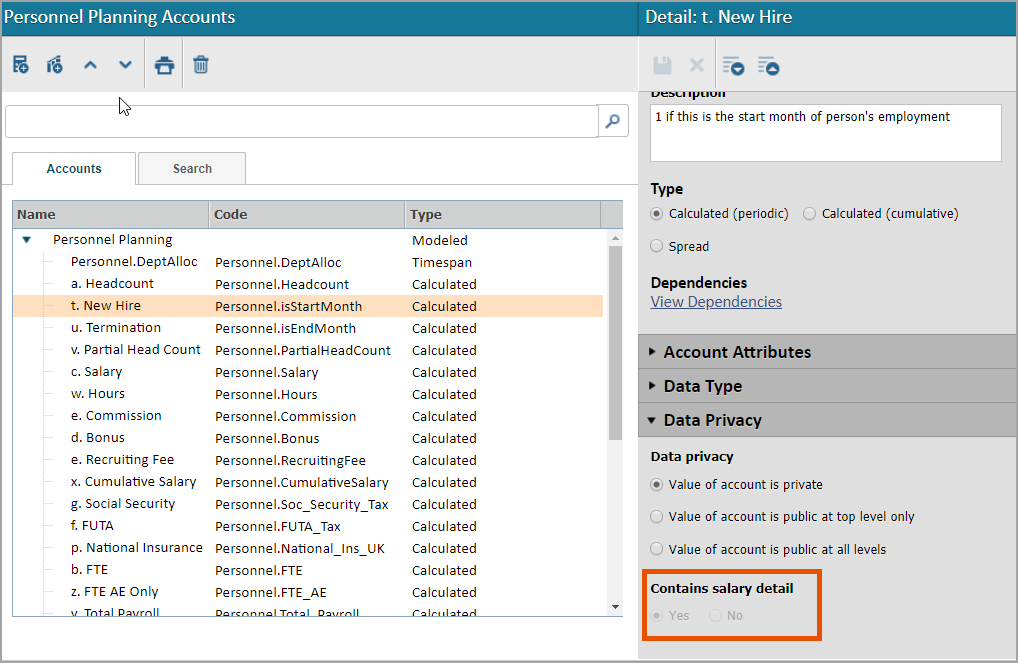 If you use the accounts in reports and charts or link other accounts to the modeled accounts, only users with the permission can explore the data. Those without the permission can view only the totals.All users must have the permission to open the sheet, even if it's a user-assigned sheet assigned directly to the user.
- Best Practice with Dimensions and Modeled Accounts
- Add custom dimensions to protected modeled sheets carefully.Users without theAccess Salary Detailpermission can explore the data of protected modeled accounts in sheets, reports, and charts. They can only explore through time and levels. They can't see the dimension break down, which is considered a detail.However, in reports, anyone can drag custom dimensions into a report. This breaks down the data of protected modeled accounts by dimension, potentially exposing data that you want to protect.Example: A dimension for regions in personnel sheet lets users tag each employee with a region. In reports, the dimension breaks down the salary account by region. This doesn't expose sensitive data.A dimension for employee names or employee titles in personnel sheets lets users in the sheet tag each row with a name or title. In reports, the dimension breaks down the salary account by name, exposing the salary of individuals, or by title, exposing the salary of groups or individuals.Best Practice: In your protected modeled sheets, don't use custom dimensions for sensitive data, such as employee names, titles, etc. Use data entry columns to keep the data protected.
Protect Snapshot Reports
Snapshot reports allow you to share reports exactly as you see them with others who have different access controls. This can potentially expose sensitive data. The salary detail snapshot setting protects the snapshot so that only users with the permission can open the report.
- Share a Protected Snapshot
- Required permission:Access Reports > Create Shared Reports. From nav menu, select Reports.
- Either build a new shared report and save, or open an existing shared report that you want to snapshot.
- From the toolbar, selectCreate Snapshot.
- Specify the snapshot report details and clickCreate & Share.
- ClickAdvancedand selectFile only available to users who can view salary detail.
- ClickOK.
Only users with the permission can find the snapshot in the reporting shared folder.