
Concept: Sheet Types
You can identify the sheet type by the content of the sheet toolbar, rows, and columns.
There are 3 sheet types, each with different capabilities:
- Standard
- Modeled
- Cube
Sheets enable you to view, enter, and update data including actuals ledger data, forecasts, and budgets.
Standard Sheets
Standard sheets
contain a simple grid of accounts and time periods.
Examples:
- Balance sheets.
- Cash flow sheets.
- Expense sheets.
- Profit-and-loss sheets.
- Revenue sheets.
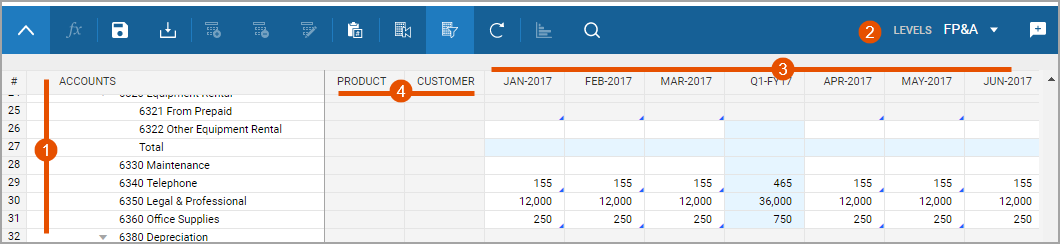
Option | Description |
|---|---|
1 | Accounts or levels populate down the rows. |
2 | Levels or accounts exist in the drop-down menu. Swap the rows with the drop-down menu. |
3 | Time populates across the columns. Change the time periods with Display Options . |
4 | Dimensions exist as columns with cells that have drop-down values. Not all standard sheets have dimensions. In order to select dimension, add a split. |
Standard sheets also have the
Add Split
, Delete Split
, and Rename Split
buttons in the toolbar. Modeled Sheets
You can use modeled sheets for entering record-based data.
These sheets have customized field names across the columns and records as rows.
Modeled sheets contain the underlying business logic for modeling financial events.
Examples:
- Depreciation of capital purchases.
- Monthly salaries for personnel.
- Revenues generated from sales.

Option | Description |
|---|---|
1 | Add Row and Delete Row buttons display in addition to, or instead of, the add, delete, rename splits buttons. |
2 | Labeled columns exist across the top and records list down the rows. The column types determine how you enter data. You can type in fields, or select from drop-downs. There are no row headers, only column headers. |
You can enter new information into existing rows or add new rows. Your admin can set a maximum number of rows a modeled sheet can display at once. If the sheet has a maximum, a message states how many rows of the total you can see. Use the filters to uncover different sets of data.
Cube Sheets
Cube sheets allow for multi-dimensional data input in
a few accounts across a potentially large set of dimensions.
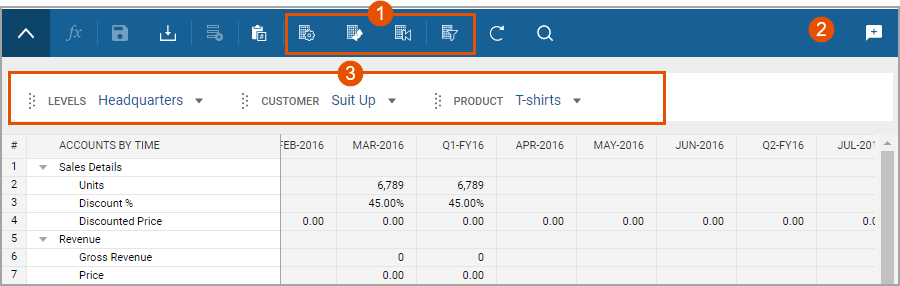
Option | Description |
|---|---|
1 | More display options exist in the toolbar. You can pivot the sheet to view data in multiple ways. |
2 | No level drop-down list exists in the toolbar. Levels are a dimension to use as filters, columns, or rows. |
3 | Alternative dimensions enable you to filter data, drag and drop into the columns and rows, and nest up to 5 dimensions in the rows. |
Merged cube sheets are entirely read-only. These sheets combine the data presence of other sheets to display calculated data.
Although the use case for cube sheets is modeling complex, multidimensional sales forecasting, you can use them for planning almost any multidimensional model.