
Connect to Adaptive Planning or Work Offline
Connect to Adaptive Planning
Adaptive Planning
When you connect to
Adaptive Planning
, you can access online sheets to open in Excel, refresh your Excel data with changes others may have submitted since your last connection, and submit changes you've made in Excel to the cloud.- Launch Excel.
- Click the Planning tab andLog In
 .
. - Enter your username and password and clickSubmit. Once you are connected, you'll see the Planning pane.Log Inchanges toLog Out.
The data from  .
.
Adaptive Planning
will load into your Excel sheet. Updates you make through Excel are not uploaded to the server until you click Submit
.Connect to Multi-Instances
Watch the video
(1m 19s):If you have access to multiple instances:
- Launch Excel.
- Click the Planning tab andLog In.
- Choose an instance from the Instances drop-down:
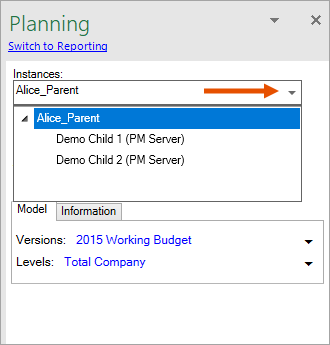
- When you select a sheet, the instance locks for that worksheet. To access another instance, add a new tab to open a new worksheet. Then, choose a different instance from the instance drop-down.
Connect to Adaptive Planning through OfficeConnect
Adaptive Planning
through OfficeConnect
If you have logged in to
OfficeConnect
, you aren't automatically logged in to
Excel Interface for Planning
. Open a case in the Workday Customer Center to request
access to Excel Interface for Planning
. After the add-in is enabled for your instance,
use the Planning
tab to log in to Excel Interface for Planning
.You now have access to both Planning and Reporting and you can switch between the two of them by clicking
Switch to Planning
or Switch to Reporting
from the Reporting and Planning panes respectively.Switch Between Planning and Reporting
To use Reporting and Planning at the same time within the same workbook, you must load the data on separate sheets:
- Connect toAdaptive PlanningthroughOfficeConnect.
- From the worksheet, click theSwitch to Planninglink on the Planning pane and load planning data into the sheet.
- Add a new sheet to the workbook. On the new sheet, the link appears again in the Planning pane
- Click theSwitch to Reportinglink and start building reports on the second sheet.
Now you can find and enter data on the first sheet for planning and build reports on the second sheet.
Work Offline
Work offline within an Excel sheet on your local computer:
- Launch Excel.
- Connect toAdaptive Planning.
- From the Planning pane, find the sheet to view or update and select the appropriate level and version. If all the cells are gray and uneditable, check that you selected a version and level that you have permission to edit.
- Save the sheet to your computer.
- ClickLog Out to disconnect fromAdaptive Planning.
You can enter data and save your work offline. Once you are logged out, the Planning pane and the tools in the Planning tab ribbon are unavailable. You can't access other
Adaptive Planning
sheets, change levels or versions, or refresh and submit your work until you log in again.