
Example: Link Accounts for Expenses
Audience: Administrators who manage the model.
This example walks you through how linked accounts work.
Example
In your Personnel Planning modeled sheet, you track information about personnel, including salaries, headcount, roles, and type of employee.
One of the things that this modeled sheet drives is salaries. The salary account isn't an account that displays on the modeled sheet. The salary is calculated based on information in other accounts, such as the Hr/Week, the Health Benefits plan, the Raise Date, Pay Raise %, and Pay Rate. The sheet has a location dimension that tags the data by each employee with values, such as West Coast Region, and East Coast Region.
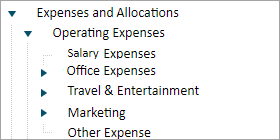
In your general ledger accounts, you have Operating Expenses broken down into several child accounts:
Use the Personnel Model's Salary in General Ledger Expenses
To get the salary expenses from your personnel modeled sheet to contribute to the overall expense account in your general ledger, you could have a salary account in your general ledger that you link to the salary account in your personnel sheet. Alternative Solutions
- Use a default formula or shared formula. See Concept: Linked Accounts for pros and cons of formulas versus links.
- Add both the general ledger salary account and the modeled salary account to the same expense sheet. Your team can then copy the data from the modeled account line-by-line from from one account to the other.
Pivot the View of Modeled or Cube Data
If you link the salary account in your modeled sheet to a general ledger account, you see the salary breakdown of each employee, just as it is tracked in your modeled sheet. To make remove this from the sheet or to break the data down by a more relevant dimension, you can pivot the data by linking to a cube account.
To pivot a modeled or cube sheet, you must create a standard cube account in a cube sheet.
Example: If you want to see a pivoted view of the salary expense that totals the salary per location, rather than per employee:
- Create a standard cube account
- Enable the link setting
- Link it to the Personnel Planning model and the modeled Salary account.
- Then add the Location dimension to the cube sheet.
When you look at the cube sheet, you see the totals of all the modeled sheet's rows for the salary without having to deal with the long list of employees. You can then use the location dimensions to slice the data.
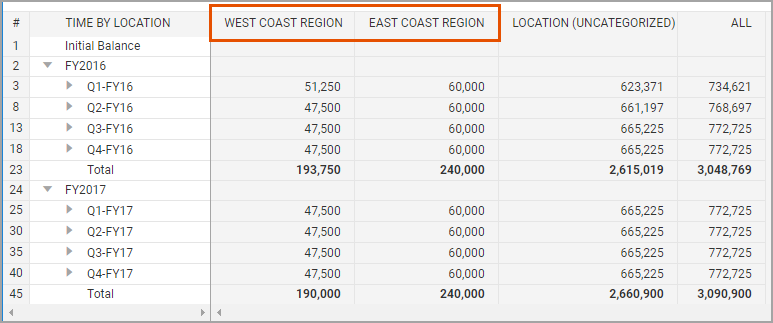
When you explore the cell, you see the salaries per employee (if you have the salary detail permission).