
Example: Set Up Access for Store Manager
Use permission sets and access rules to set up access common for a store manager.
The store manager manages a store in the Northeast region that sells winter clothes. The store manager must: :
- Edit sheets from the main menu.
- View reports and dashboards.
- Edit Revenue, Inventory, and salary details, at the Northeast level only.
- Edit only the winter products sold in their stores.
Your model includes:
Levels | General Ledger Accounts | Personnel Modeled Sheet | Product Custom Dimension |
|---|---|---|---|
HQ
| Expenses
Revenue
| Information about the sheet:
| T-shirts Tank Tops Sweaters Jackets Hats Gloves Scarves (prospect product for planning only) |
- Save your access rules in a spreadsheet calledNew Access Rules. You have already created access rules for admin, the CEO, the Financial Analyst, the VP of Sales, and the Regional Manager.
- Security:
- Userspermission.
- Permission Setspermission.
- SelectAdministrationfrom the main menu.
- ClickPermission Sets.
- As you complete the form, consider:
Opción Descripción Permission Set NameEnterData Entry.Set Using TemplateSelectView Only.Editable Sheet AccessClick the box.This permission set enables users to edit data in sheets and view reports and dashboards that others have shared with them. - ClickSubmit.
- Use the breadcrumbs to selectAdministration.
- ClickUsers.
- ClickNew User.
- As you complete the form, consider:
Opción Descripción NameEnterStore.UsernameEnter store@company.com.Password and Re-enter PasswordEnter anything.Permission SetSelectData Entry. - ClickSubmit.
- Open theNew Access Rulespreadsheet from your computer folder.
- As you complete the columns of the first blank row, consider:
Opción Descripción Access TypeEnterEdit.UsernameEnterstore@company.com.Level (Grant)EnterSales NEto grant only access to this specific level.Account (Grant)EnterPersonnelto grant edit access to all accounts on thePersonnelsheet at theSales NElevel.In the cell below, enterInventoryto grant edit access to theInventoryaccount at theSales NElevel.In the cell belowInventory, enterRevenueto grant edit access toRevenueat theSales NElevel.Product (Grant)In the cell on the same row asPersonnel, enterSweaters.In cell belowSweaters, enterJackets.In the cell belowJackets, enterHats.In the cell belowHats, enterGloves.These entries grant edit access to these products only at the accounts and levels listed in the same rule.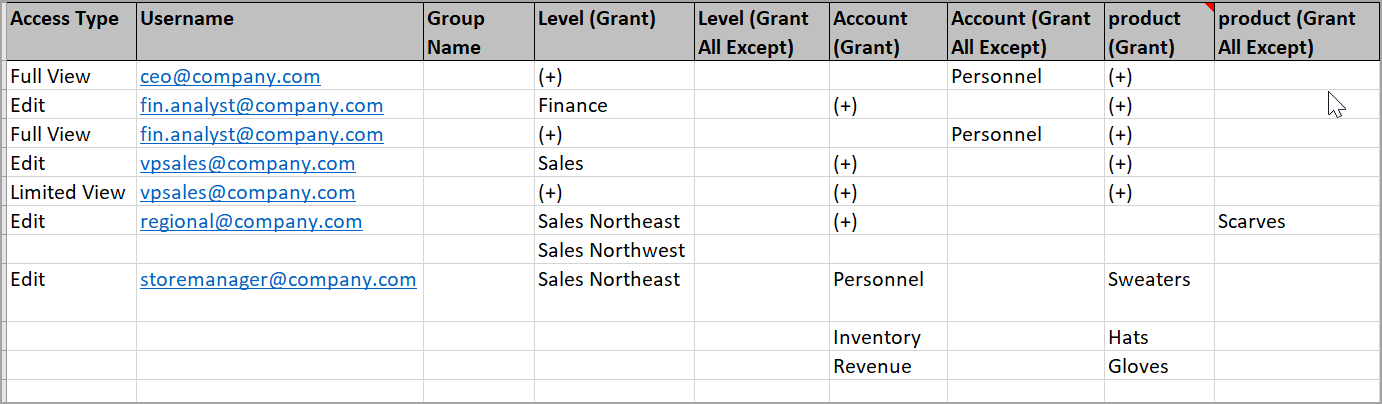
- Save the sheet.
- Return to .
- From the toolbar, clickImport.
- SelectUpdate and Append.
- Click the cloud to upload theNew Access Rulesspreadsheet from your computer.
- ClickDone.