Creating A PowerPoint That Updates Dynamically In A Report Book
This article includes suggestions and workarounds. Content may not be accurate for all use cases or represent best practices for the latest release.
Question
How do I create a PowerPoint that updates dynamically in a Report Book?
Answer
- Createa Matrix report that has an Excel template attached (a sample template is included in the article for you to view).
- Helpful Hint:Use a prompting report parameter so that you can choose the month that should be output when the report is run.
- Runthe report andSavethe Excel file to your desktop.
- OpenPowerPoint.
- ClickObjectfrom theInsertribbon.

- Make sureCreate newis selected, then chooseMicrosoft Office Excel 97-2003 Worksheet
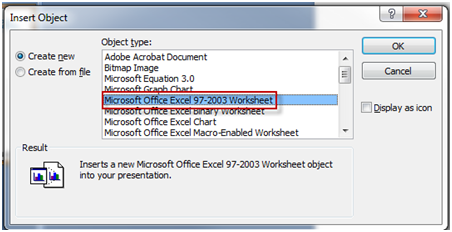
- ClickOK.
- Click theReport Datatab on your Excel template and highlight the range of cells you wish to include on the PowerPoint.Copythe selection.
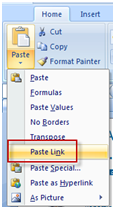
- Highlight a cell in the table that you just inserted in the PowerPoint. From theHomeribbon, choosePaste Link.
- Repeat steps 9 and 10 for the range of cells that you wish to include on the PowerPoint.
- Once you have finished copying and pasting the links from the Excel template to the table in PowerPoint,savethe PowerPoint.
- ClickUpload Filefrom theNew Reportdrop-down menu.
- Give the file aNameand browse for the PowerPoint.
- Savethe PowerPoint.
- From theNew Reportdrop-down, chooseReport Book.
- Give the book aName.
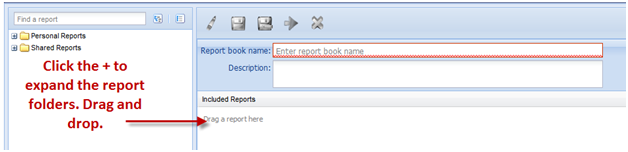
- Drag and drop the Excel template report and the PowerPoint Upload file to the report builder.
- Savethe report book.
- Click theReportstab and locate the book you just created. Click to run the report book for any month that you wish.
- A zip file should open. Open both the Excel template and the PowerPoint.
- Save the Excel template to your desktop (that is fine if you replace the template you saved earlier in step 2).
- Save the PowerPoint to your desktop (that is fine if you replace the template you saved earlier in step 4).
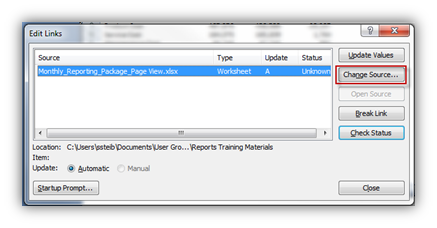
- Double-click the Excel table in the PowerPoint. ClickEdit Linksfrom theDataribbon.
- ClickChange Sourceand update to look at the Excel template that you just created in step 21.Helpful Hint:If you save the report output to the same location each time you run the Report book, you should not need to update the links each time. You can just clickRefresh All.