
Add Time Contexts
In
OfficeConnect
, a context is a beginning balance or time period to date that you apply to a report data. Period to date shows the running totals up to the time element selected and beginning balances shows the total of the prior period. You can:
- Add contexts to any report that has both account and time elements.
- Add context and time elements to the same column, row, or cell.
If you're using OfficeConnect with the Financials data source, you can use time contexts with Average Daily Balance (ADB) calculations to:
- Review a breakdown of daily ADB to date.
- Expand a summary schedule to days.
Basic Steps to Add Contexts
To add contexts to a report:
- StartOfficeConnectand open a new or existing report.
- In theReportingpane,Elementstab, click Time to expand it.
- Click Context to see the options available to you.The contexts available to your report depend on how your administrator set up your instance's calendar. A common calendar might have the following context options:
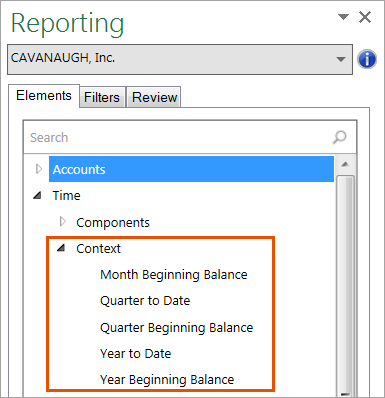
- Drag and drop a context element in one of the following ways:
- In the same column, row, or cell as the time element.
- In any column, row, or cell when time is a workbook or worksheet filter.
- In any row when time is a column or in any cell of that column.
- In any column when time is a row or in any cell of that row.
- Refresh the report.
How Contexts Work
Beginning Balance
Beginning balance is the balance at beginning of the time period, instead of the end. Example: The beginning balance of May 2017 is the balance at the end of April 2017.
In
OfficeConnect
, the beginning balance is based on the default planning period of your the GL accounts in your instance. If your GL accounts are planned monthly, the Quarter Beginning Balance is the last month of the prior quarter. Example: May 2016 with the Quarter Beginning Balance context shows the data for March 2016.In the example, see how the data in online sheet at the top is displayed in the
OfficeConnect
report below it. The report at the bottom has May 2016 as a time element in all
the columns and contexts, as labeled, in columns C-E: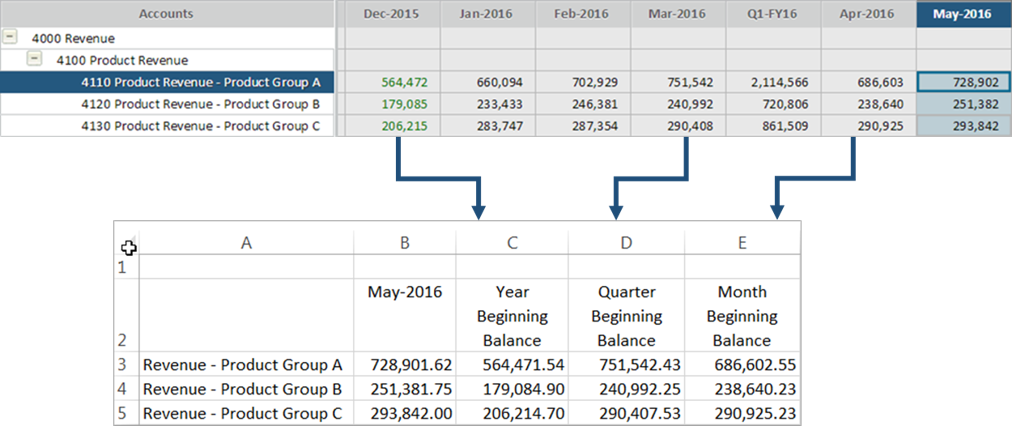
Period to Date
Period to date calculates running totals as of a specific date. YTD as of May 2017 calculates the total of January through May of 2017. Period to date works best with periodic accounts, rather than cumulative (monthly delta) accounts because the values in a cumulative account are already showing period to date data.
In
OfficeConnect
, period to date calculates from the beginning of the context period (week, month, and so on) to the end of the last time element. In the example, January, February and March have a Quarter to Date context, so the report displays the sum of months from the beginning of Q1 through each month: 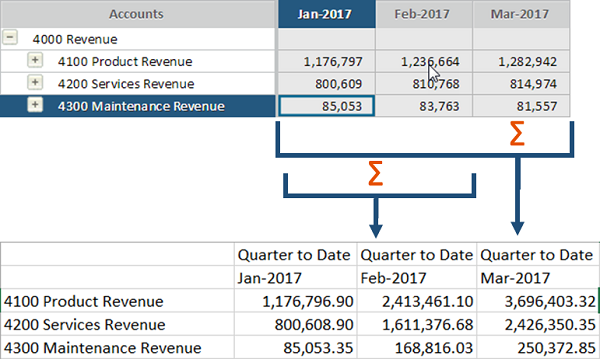
Best Practice: For period to date contexts, use time elements that are smaller than the period to date context period. Example: Use Quarter to Date or Year to Date for month time elements. If you use Month to Date for a quarter time element,
OfficeConnect
corrects it for you: see Contexts for Equal or Larger Duration. Context with Multiple Time Elements
When you add a context to a location with multiple time elements, the report shows data based on the latest time element.
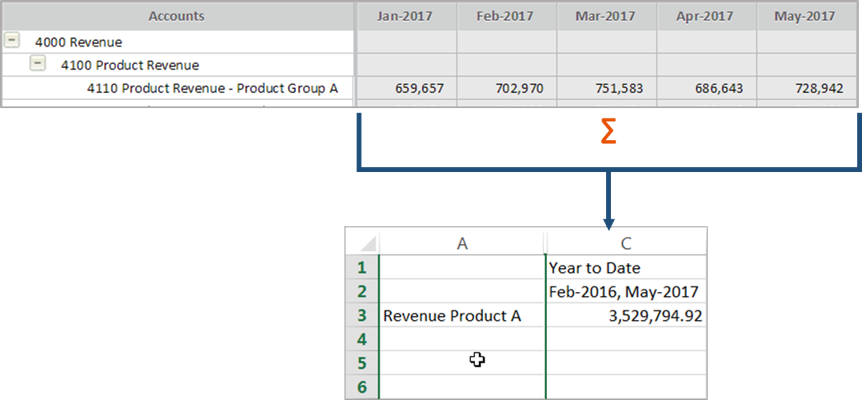
In the example, February 2016 and May 2017 are in column C with a YTD context. The report applies the context to the latest time, May 2017, and shows the running total of January through May of 2017.
February 2016 and May 2017 are in Column D with a Quarter Beginning Balance context. The report finds the beginning balance based on the latest time, May 2017. The beginning balance of May's quarter, Q2, is the last month of Q1, March 2017.
Context with Time of Equal or Larger Duration
When you add context to a time element of an equal or larger duration,
OfficeConnect
converts the time element to logically work in the report.Example: Period to Date
Scenario
: A report with FY2016 time element and a Quarter to Date context element,Report Logic
:- Splits 2016 by Quarter according to the context.
- Selects the latest period of the context within the time element: Q4.
- Totals the next smallest period: months within Q4.
Report Shows
: the total of October, November and December as the QTD of 2016.Example: Beginning Balance
Scenario
: An instance with Months as the GL default and a report with FY2016 time element and a Quarter Beginning Balance context element.Report Logic
:- Splits 2016 by Quarter according to the context.
- Selects the latest period of the context within the time element: Q4.
- Finds the previous quarter's beginning balance: 2016 Q3.
Report Shows
: the ending balance of September 2016. Available Period to Date Contexts
- Period to date options include all time periods on your calendar, except the smallest.
- Beginning balance options include the time period set up for your instance's GL accounts and anything larger.
Examples:
Calendar | GL Accounts | Beginning Balance Options | Time Period to Date Options |
|---|---|---|---|
months > quarters > years | month | months, quarters, years | quarters, year |
days > weeks > months > semi-year > year | semi-year | semi-year, year | weeks, months, semi-year, year |
Remove a Context
- Select the row, column, or cell that contains the context element you want to delete.
- Go to the Reporting pane and click theReviewtab.
- Right-click on the context element and clickDelete.
- Refresh the report.