
Example: Use Element Groups to Update Reports
As manager of US Operations, you want to see all operating expenses for specific US regions for FY 2020.
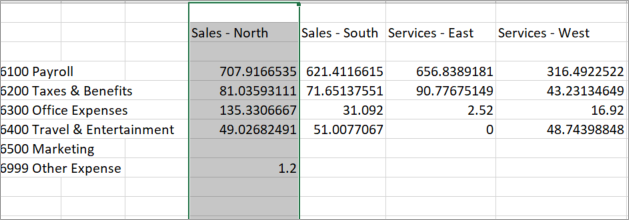
Do the following. See Create and Manage Element Groups for detailed steps.
- UseApply Selection as a Groupto apply the following levels to the columns:
- Sales - North
- Sales - South
- Services - East
- Services - West
- Use Apply Immediate Children as a Group to apply all operating expense types to the rows.
- Apply FY 2020 as a secondary element to all the levels
- Refresh report.
A request comes in to add the Sales - Midwest level under US operations. Also, there's a need to create a new Miscellaneous group of expenses to account for un-categorized operating expenses.
Do the following. See Managing the Model for detailed steps.
- Under Modeling > Model Management, add a Sales - Midwest level that rolls up to US under Operations.
- Under Modeling > Model Management, add a Miscellaneous GL account that rolls up to Operating Expenses.
Back in
OfficeConnect
, you update the element group to dynamically reflect the latest element changes in the report.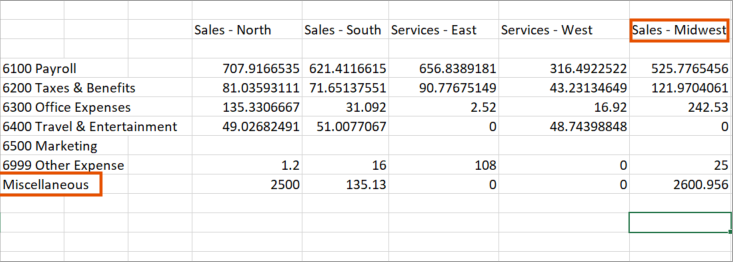
Do the following:
- InOfficeConnect, locate theConnectiongroup in the ribbon.
- SelectUpdate Elementsto bring in the latest changes to the model.
- In the task pane, verify:
- Miscellaneous displays as an operating expense.
- Sales - Midwest displays under Operations > United States.
- In the ribbon, selectUpdate Groups. Note the following updates:
- Miscellaneous displays as a new expense row.
- Sales - Midwest appears as a new level column.
- SelectRefresh. Note the data updates to now display FY 2020 values for the additional level and expense account.