
Steps: Link OfficeConnect Information in Word Narratives
Link OfficeConnect Values in a Paragraph
OfficeConnect
Values in a ParagraphIn addition to linking full tables or other sets of multiple cells from Excel to Word, you can link individual values and phrases within your narrative.
Example: You can link report dates and specific dollar values in selected sentences or paragraphs.
You can even link and update words that correspond with your numbers.
Example: Link increased and decreased, or favorable or unfavorable.
When you update your report for the next period, not only are the table values refreshed, but also the individual dates, values, and key words. You must have the dates, values, and key words already set up as named ranges in the
OfficeConnect
for Excel workbook. Before You Begin
- Read through your report in Word and determine the dates and numbers you want to link to data in yourOfficeConnectfor Excel workbook.
- Make sure you have named ranges in Excel for those dates and numbers. If necessary, go back to your Excel workbook and create them, and then save the file.
- In your Word file, in thepane, select theOfficeConnectWorkbook Linkstab. Right-click the Excel filename, and selectRefreshSource. Any newly created named ranges appear on the tab. Now you're ready to start linking values in your narrative.
Link Values in a Narrative Paragraph
- In yourOfficeConnectfor Word document, select the values you want to link withOfficeConnectdata. You can select just a few words or multiple paragraphs. Select a few words on either side of the value you want to link, so you can see the context later.
- Right-click the selected text and from the context menu, selectView Paragraph Links. Or, on thetab, in theOfficeConnectConnectiongroup, selectParagraph Links. The Paragraph Links dialog box appears. Any values included in the selected text are listed separately in the Value column, while the text surrounding the value appears in the Value Context column.
- In theOfficeConnectlinks pane, selectWorkbookLinks. Find the named range you want to link to the value in the selected text showing in the Paragraph Links dialog box.
- Drag the named range to the heading of the row showing the value and associated text you want to link. The current value of the named range replaces the value in the selected text.
- To link additional values in the Paragraph Links dialog box, repeat the steps for those values. As you drag the named ranges, the values change in the Paragraph Links dialog box and in your selected text in the document. If your selected text contains multiple values (dates, currency, or other numbers), the Paragraph Links dialog box shows a separate row for each value. You do not have to link every value shown. Just apply links where you want them.
- SelectOK. The selected values are now linked with the selected named ranges from yourOfficeConnectfor Excel workbook. Whenever the values in the Excel workbook change and you refresh the Word document, the linked values update.
Link OfficeConnect Words in a Paragraph
You can link and update qualitative words that help describe or interpret your numeric performance and that can change across reporting periods as do the numbers themselves.
Example: Link positive, negative, increase, and decline.
To return a qualitative word value of something like increase or decrease, set up a logical test formula in your linked
OfficeConnect
for Excel workbook. The following is an example of such a formula: 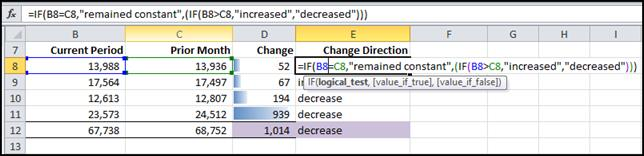
OfficeConnect
for Word document.
To link words or phrases:
- Replace the words you want to change with a temporary placeholder number.OfficeConnecttreats the word or phrase as a value.
- Link a named range word from yourOfficeConnectfor Excel workbook that's associated with numeric performance.
To link words that reflect numeric performance in a narrative:
- In yourOfficeConnectfor Word document, replace the words you want to change to anOfficeConnectlink with any number of your choice, such as 111 or 1234. The number is a temporary placeholder that the linked text will replace.Use a number you can recognize as the placeholder when you see it listed in the Paragraph Links dialog box.
- Select the text you want to link, including a few words on either side of your placeholder values so you can see the context later when you're linking.Select just a few words or multiple paragraphs. OfficeConnect identifies any values in the selected area, including your placeholder values.
- Right-click the selected text and from the context menu, selectView Paragraph Links.The Paragraph Links dialog box shows a row for any values in the selected text, including your placeholder values.
- FromWorkbook Links, select the named range that represents the word or phrase you want. Drag it to the heading of the row showing the placeholder value and associated text to be linked.The current word or phrase for the named range replaces the placeholder value in the selected text.
- SelectOK. The words or phrases you specified for linking are updated in your document.