
Steps: Update Data for Periodic Reports
If you routinely create monthly or quarterly reports, you can use
OfficeConnect
to help you automate the process and save you a great deal of time. As you've already learned, anytime you update the source data in OfficeConnect
for Excel and then refresh your OfficeConnect
for Word document, the corresponding linked data also updates. Use the same
OfficeConnect
for Excel workbook for each succeeding period, using relative report dates.Before updating data for the new period, you might find it helpful to turn on
Track Changes
in your OfficeConnect
for Word document. To do this, on the Review
tab, click Track Changes
. Then update the data for the new period and refresh your document with the new information. With Track Changes
on, you can see the changes that were made. When you're ready, you can accept all the changes to remove the markup for a clean document. To do this, on the Review
tab, click Accept
, and then click Accept All Changes
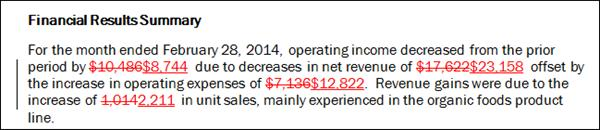
in Document. The following is an example of a document with track changes on:
To update Word from an Excel file with a changed relative date:
- Set up yourOfficeConnectfor Excel report to use relative (rather than absolute) dates. For more information, see Using Absolute and Relative Dates.
- Change the Excel report date and refresh the grid. Information from your connected instance updates your report for the new month, quarter, or other period.
- Save theOfficeConnectfor Excel workbook, keeping the same file name. Maintaining the same file name for the Excel workbook keeps intact your links between the Excel workbook and the Word document.
- In yourOfficeConnectfor Word document, refresh the document. On theOfficeConnecttab, in theConnectiongroup, click the arrow underRefresh, and then clickRefresh TablesorRefresh Paragraphs(or both) as appropriate. The updated information for the new period is updated in your Word document.
- Save yourOfficeConnectfor Word document with the new data, either under the same name or a new name. Changing the filename for the connected Word document does not break any links. This means you can save the original file FinancialReport_Sep2014.docx as FinancialReport_Oct2014.docx without needing to make any further adjustments.
Another update method is to save a new OfficeConnect for Excel workbook based on the existing one, and refresh the data for the new reporting period. Although it's a new file, it's a copy of the existing one, so your named ranges are retained. Those named ranges will therefore continue to work after you point the Word document to the renamed Excel file.
To update Word from a copied Excel file with a changed name:
- Open the sourceOfficeConnectfor Excel workbook that's connected to yourOfficeConnectfor Word document.
- Save theOfficeConnectfor Excel workbook with a new name. Example: You might change FinancialReport_Sep2014.xlsx to FinancialReport_Oct2014.xlsx.
- Change the Excel report date and refresh the grid. Information from your connected instance updates your report for the new month, quarter, or other period.
- Save the Excel workbook to reflect the recent updates.
- In yourOfficeConnectfor Word document, use the Manage Links dialog box to change the name of the source file to the new Excel filename. For more information, see Managing Links and Their Sources, "Changing the Source File" section.
- With the Manage Links dialog box still open, select the check box next to all the links that use the new source file. Or, select the check box in the table heading to select all links. ClickRefresh. The updated information for the new period is updated in your Word document.
- ClickClose.
- Save your Word document with the new data, either under the same name or a new name. Changing the filename for the connected Word document does not break any links.