Suppress or Hide Zeros and Blanks for a Workbook
Question
How can I suppress or hide zero rows for my entire OfficeConnect workbook?
Answer
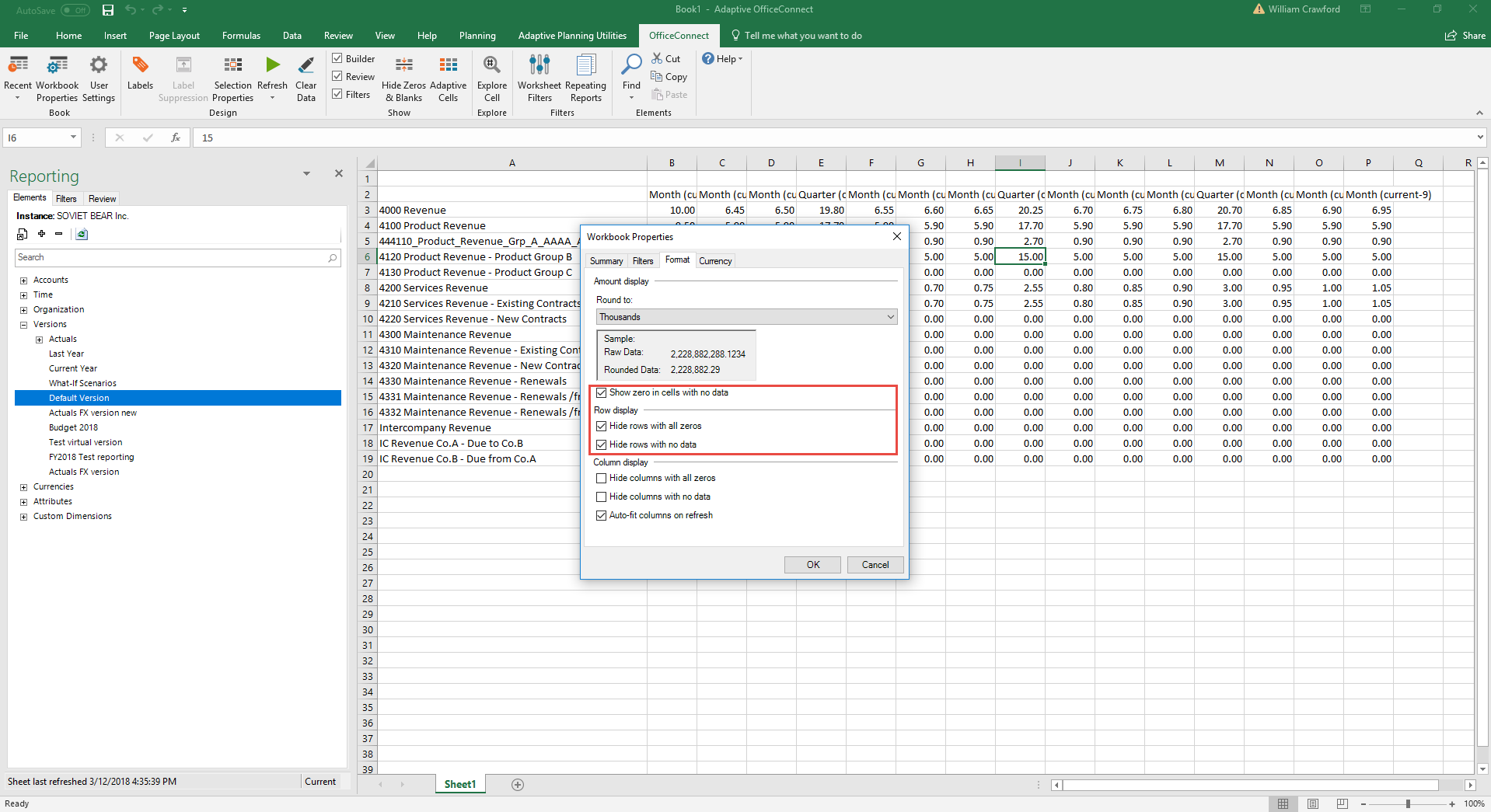
- Row Display and Column Display in Workbook Properties
- The "Hide rows with all zeroes" option in theworkbook propertiesthat is referenced in the screenshot defines the default state of zero suppression workbook-wide. If that option is checked, then you can refresh the data in the workbook and click on the "Hide Zeroes & Blanks" button on the OfficeConnect ribbon and the suppression will work.If the "Hide rows with all zeroes" option in the workbook properties is unchecked, then the "Hide Zeroes & Blanks" button on the OfficeConnect ribbon will not work after the data refresh because the default state of the workbook has been changed. This also allows for selecting a different suppression setting to be set on individual rows so you can have parts of your workbook behave according to the workbook properties and then any select rows where you wish zeroes to be suppressed anyway.In the simplest terms, the “Hide rows with all zeros” in Workbook properties ensures that suppression function is enabled.
- Hide Zeros & Blanks
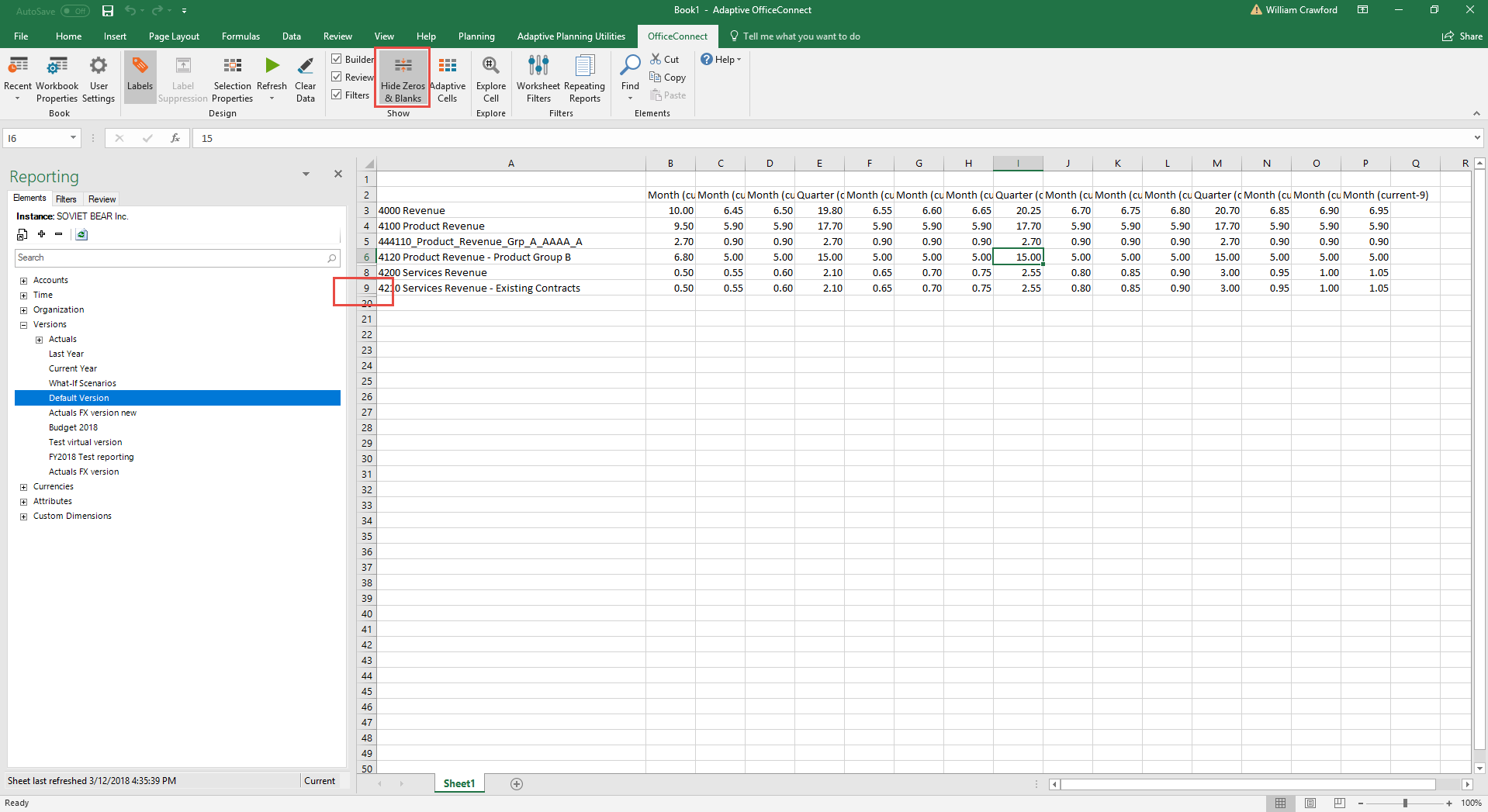
- The Hide Zeros & Blanks button on the ribbon is only a toggle to hide or show these rows.Within the range of data linked toAdaptive Planning, you can manually hide rows or columns using the Excel, Hide capability. These rows and columns are impacted by the Hide Zeros & Blanks capabilityonlyif they contain all zeros.
- Example: Hide rows with all zeroes - On
- Example: Hide Zeros & Blanks - On