Change Rounding Settings
This article includes suggestions and workarounds. Content may not be accurate for all use cases or represent best practices for the latest release.
Question
How do I change the rounding settings in OfficeConnect and do they apply to the entire workbook?
Answer
OfficeConnect allows you to apply universal rounding for the entire workbook and there is also selective rounding for columns and rows.
- Universal Rounding
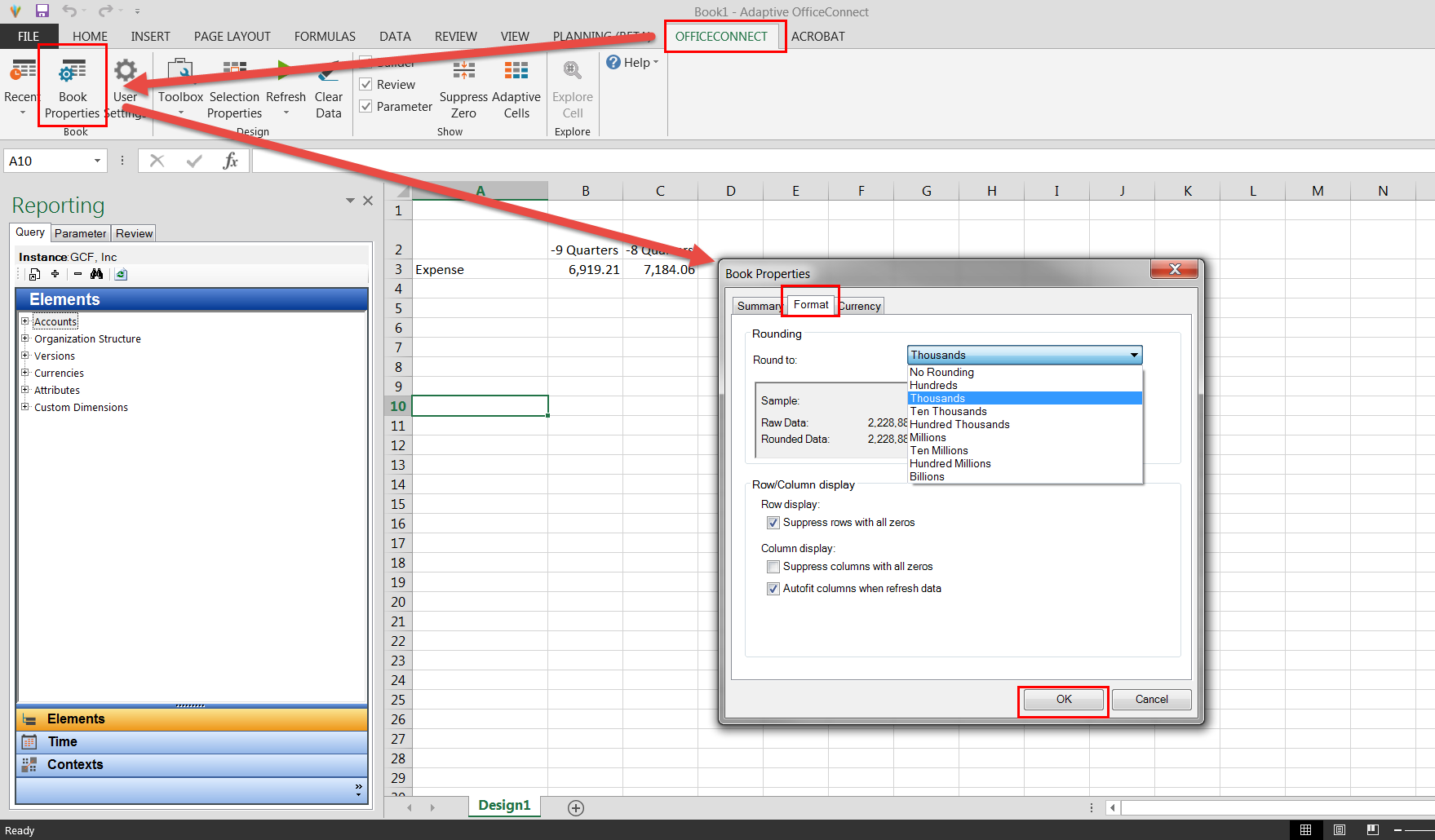
- To update the rounding that is applied to an entire OC Excel workbook, please see the steps below.
- Login to OC for Excel and open up your workbook.
- Click on the OfficeConnect tab.
- Click on theBook Propertiesbutton in the top toolbar.
- Choose theFormattab.
- From the Round to drop-down select your preferred format (ex: millions).
- Click OK.
- Refresh the workbook.
- Selective Rounding
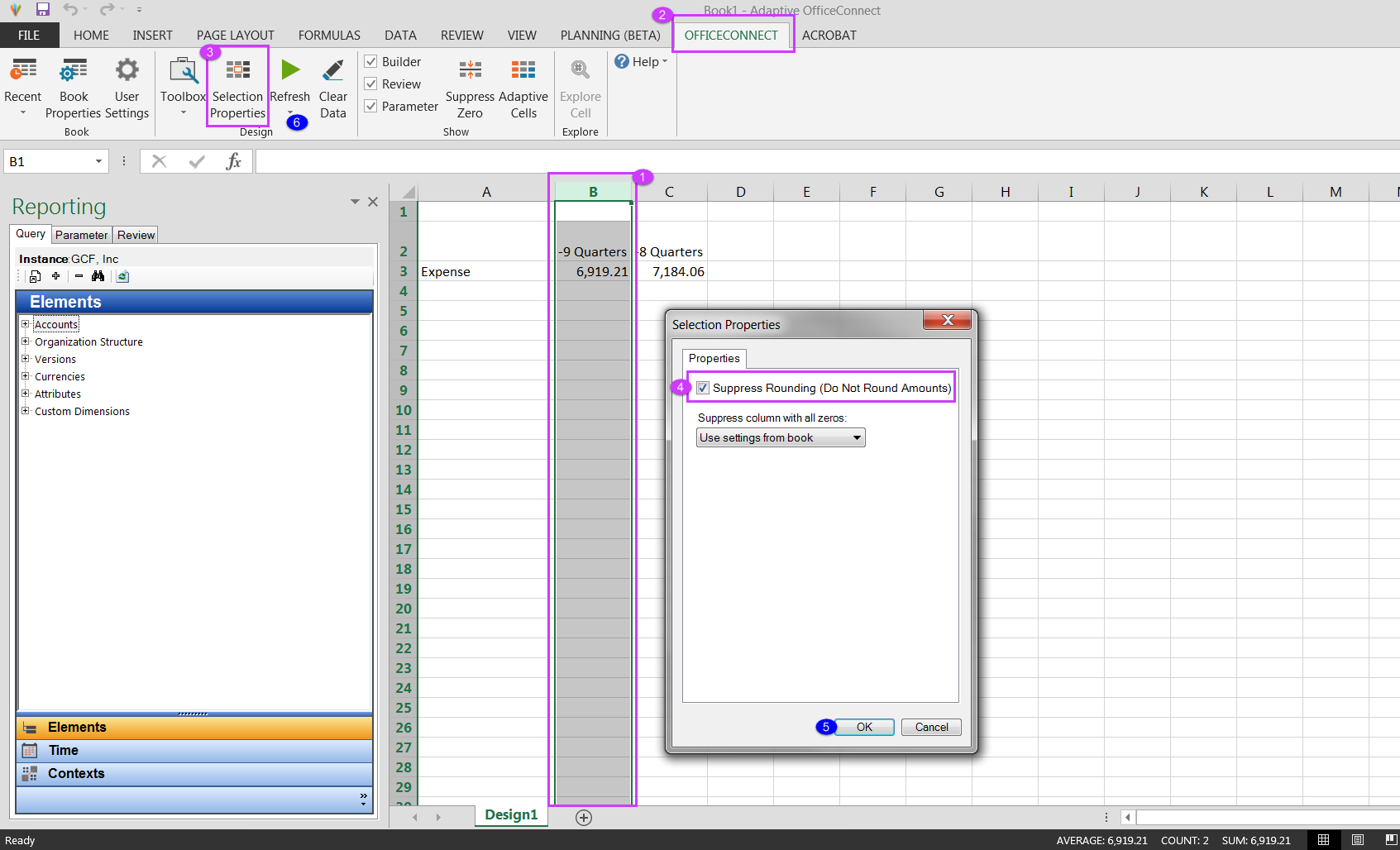
- If you would like to suppress the book rounding for specific columns or rows in the workbook, please see the steps below.
- Login to OC for Excel and open up your workbook.
- Highlight the entire row/column that you do not want the global rounding to apply to.
- Click on the OfficeConnect tab.
- Click on theSelection Propertiesbutton in the top toolbar.
- Check the Suppress Rounding (Do Not Round Amounts) box.
- Click OK.
- Refresh the workbook.