
Example: Link Accounts for Dimensions and Revenue
Audience: Administrators who manage the model.
Dimensions and attributes categorize data with tags to help you analyze, plan, and record slices of data. When an account is linked to a cube or modeled sheet, it links to all the dimensions and dimension attributes in that sheet as well. The link makes those dimensions and attributes available to explore in the cells, as filters, and as tags in formulas.
This example walks you through how dimensions in linked accounts work.
Model with Dimensions and Dimension Attributes
Your business is a store that sells clothes. "Products" is a dimension in your model. The dimension values for products are: Tank tops, T-shirts, Blouses, Sweaters, Leggings, Jeans, Skirts, Shorts, Belts, Hats, Purses, Gloves. The revenue for each item is tracked in the Revenue Sheet cube sheet, to support the multiple dimensions.
Products has a dimension attribute, called Product Group, with these values: Tops, Bottoms, and Accessories. You tag each product dimension with the appropriate attribute. The products are organized like this:
Product Attribute Values | Tops | Bottoms | Accessories |
Product Dimension Values |
|
|
|
On the Product Revenue cube sheet, team members enter data per dimension, customer, and product in two accounts: Units and Discounts.
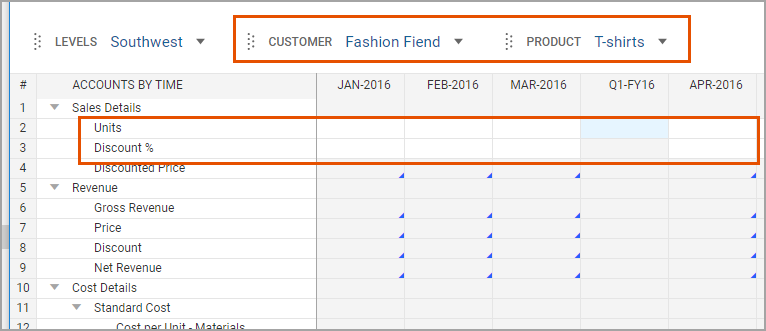
The rest of the accounts in the sheet use formulas and assumption drivers to calculate values based on those two entries.
Use the Complex Revenue Data in a Simple P&L Sheet
The cube sheet saves your team time when it comes to data entry, and it provides data for analyzing customers and products. To use the data in a profit and loss sheets without the distractions, like each customer and each product, use linked accounts. First, create a general ledger Product Revenue account that rolls up to Revenue. Then, link the Product Revenue account to Net Revenue in the cube.
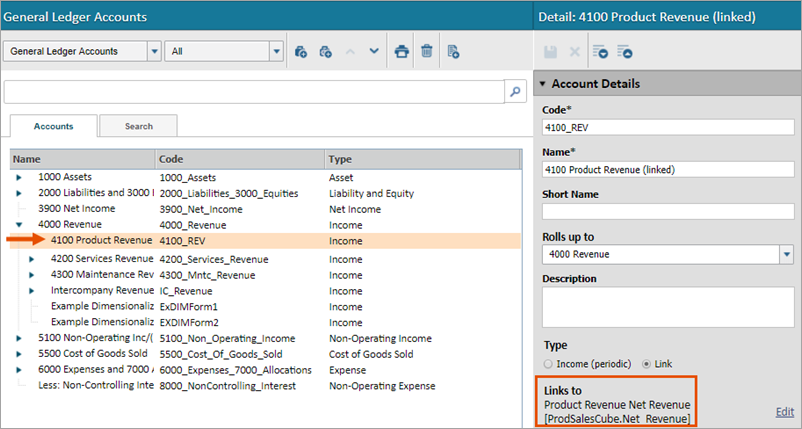
When you add Product Revenue to your P&L sheet, the account:
- Displays none of the details
- Rolls up to Revenue
- Contributes to the total
- Has no confusing and irrelevant dimensions and attributes
"Dimensionalize" the Data in the General Ledger
To pull in some of the dimensions from the cube sheet in your general ledger, but not all of them, filter the link account by dimension.
- Create child general ledger accounts within Product Revenue for each product category. (If your general ledger account is linked, you'll have to unlink first).
- For each child account, link to the Net Revenue account in the cube.
- Then use theLinked filtersdrop-down to filter by the product group dimension. Dimensions are available as soon as you link to a sheet that has them.
Now the Profit and Loss sheet breaks down the Product Revenue by product group. When your team explores the cells, they can see more dimensional breakdowns by selecting through Cell Explorer. This is because the link preserves all the dimensions in the cube sheet.
Reference "Dimensionalized" General Ledger Accounts in Formulas
Let's reverse our work to show an important difference between using a formula to pull data (which does not "hold" dimensions) and using a link (which does "hold" dimensions).Formulas Instead of Links for General Ledger Accounts
Product Revenue is a general ledger account with three child accounts. In the three child accounts, the instance uses formulas to show the product group dimensions in the general ledger account.
Product Revenue - Tops uses the formula
=ACCT.ProdSalesCube.Net_Revenue[Group=Tops]:
The calculator follows the formula's "instructions" and populates the cell with data:
- Find the Product Revenue cube sheet: (ProdSalesCube).
- Get this account (Net_Revenue).
- Use only data tagged with this dimension:[Group=Tops].
Conduct Dimension-Tagged Calculations with General Ledger Accounts
Suppose another account uses some portion of the general ledger account 4110 Product Revenue-Tops. You want to take that total and "dimensionalize" it by product in your formula.
You enter the account in a formula and add a product dimension:
=ACCT.4110_Product_Revenue_GrpTops[Product=Tank Tops].
The calculator follows your instructions:
- Find the general ledger account:=ACCT.4110_Product_Revenue...
- Use only data tagged with this dimension:[Product=Tank Tops]
The calculator looks for the dimension in the general ledger model and in the general ledger account, but neither is tagged with dimensions. The account uses a formula, and formulas don't bring in related dimensions from the cube sheet. So, the result is blank.
If you're familiar with the model, you might know to look at the formula for the general ledger to find the source data. You might also explore the cell of the general ledger account. First you would have to find a sheet with the general ledger account (it might not be in the same sheet, as in this example). Only then could you know to use the source account with the source dimension in your formula
=ACCT.ProdSalesCube.NET_Revenue[Product=Tank Tops]
to get the correct data. If you were reviewing or auditing the data in this sheet, these formula references may be confusing... especially if you're familiar with your general ledger codes and are looking for them, but you're not familiar with the model.
It's more intuitive for both data entry and reviewing when the formula references the general ledger and the general ledger code.
Solution
- Link each of the child Product Revenue accounts to the cube sheet account and filter by product category:
- The dimension filtered in each account is the Product Group, you can reference any other dimension or attribute that exists in the cube sheet source, such as color, customer, product...
- Now when you reference the general ledger account in a formula, you can tag it with any dimension that has been added to the source cube sheet.
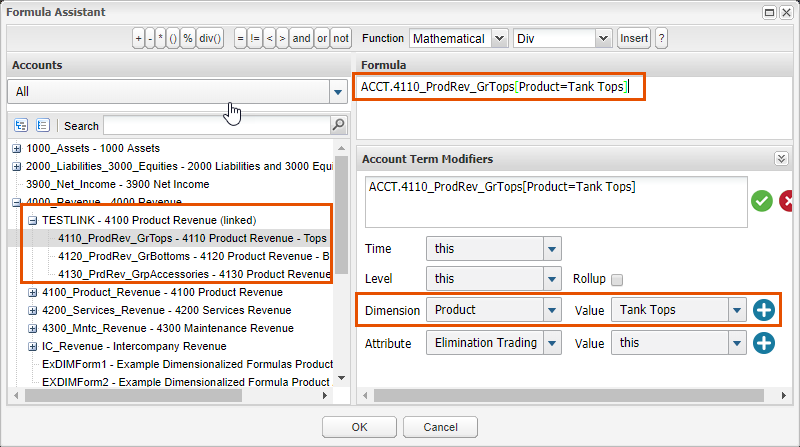
On the sheet, the cell calculates appropriately and other members of your team can understand the calculation because it references the general ledger code:
=Acct.4110_ProdRev_GrTops[Product=Tank Tops].
In fact, in formulas throughout the instance, referring to this general ledger account allows you to also pull any dimension or attribute in the source account without ever having to know or understand the source account, the source account code, or the sheets that use the source account.
Recap Formulas
Intuitive but Incorrect The general ledger uses a formula, so formulas that reference the general ledger and an attribute or dimension don't work. | Clear Formula: =ACCT.4110_Product_Revenue_GrpTops[Product=Tank Tops]. Returns: Blank data in the cell. |
Correct but Unintuitive The formula must reference the source account in the cube sheet creating a formula string that isn't intuitive to team members who aren't familiar with the model. | Confusing formula: = ACCT.ProductSalesCube.Net_Revenue[Product=Tank Tops] Returns: Correct data in cells |
Intuitive and Correct The formula references a general ledger code and because the general ledger account is linked to the cube sheet, the dimension in the formula works! | Clear formula with clear account code: =ACCT.4110_Product_Revenue_Grptops[Product=Tank Tops]. Returns: Correct data in cells |