
Create Planning Account Loaders
Metadata loaders synchronize hierarchical information from source systems into the hierarchies of your planning model. Your hierarchies should already exist in your source system before you attempt to synchronize.
The Planning Account Loader lets you map metadata about general ledger accounts from the staging area into
Adaptive Planning
.Use the account loader to import accounts in bulk from an external system and synchronize them, instead of creating accounts one at a time in the accounts admin. Once you create a loader, you can run it manually or schedule it to run as part of an Integration
task.Watch the video:
1m 36sBasic Steps
- Enter data source settings
- Configure column mapping
- Create business rules
- Preview the loader output
- Run or schedule the loader
Prerequisites
Prerequisites
The Planning Account Loader requires staging data from an import of an existing Data Source. Make a note of what data source you want to use.
Required Permissions: Model, Integration Operator, Data Designer
Navigation
 From the nav menu, go to
 Enter Data Source Settings
The Data Source Settings let you choose the source table you want to use from integration staging data, and indicate whether to create new accounts automatically.
Best Practice: Save frequently as you create and update your loader. Click
Save
in the Actions panel. To discard any unsaved changes click Close
, then click No
. - SelectCreate New LoaderIn the Loaders section of the Component Library.
- SelectPlanning Account Loaderas the loader type. Enter a name for the loader.
- SelectCreate.
- Enter the Account Loader general properties information:
- Source Table: Select the source table from the dropdown list. The list contains all of the tables available in the staging area you can access.
- Planning Account: Select the GL account you want to load child accounts into. To load an entire GL accounts tree, select GL Accounts in the Accounts dropdown. Loading the entire GL account tree requires that the data source contain all of the GL root nodes defined inAdaptive Planning.
- Publish pending admin publishing changes: If Concept: Admin Publishing has pending workflow changes, select to publish those changes when running the loader.
- Create account if not found in Planning: Select to automatically create new accounts found in the source system, but not found in Modeling > Model Management > Accounts. Deselecting this updates only existing GL accounts in your model.
- Maintain order in Planning:Select to keep the existing account sort order already used in Adaptive Planning.
- Proceed with warnings: Select to re-parent accounts and make attribute values compatible with their parent account's attribute. If not selected, the loader errors out when the payload contains child account attribute values not compatible with the parent account's attribute.
- Log Level: Choose the type of details to capture when running the loader.
- Off: No errors logged.
- Error: Log serious errors only.
- Info: Log basic information, such as when the loader was updated.
- Verbose: Detailed information about all phases and actions. Used primarily for debugging or auditing.
Configure Column Mapping
Column Mapping lets you map columns from the data source to accounts properties available in
Modeling
> Model Management
> Accounts
. You can unmap columns to ignore the staging data you don't want to load. You can also unmap columns one at a time following loader runs to troubleshoot which columns generate errors in the logs. If there are several columns to map, use the
Show
filter to select:
- All: Shows all Planning columns.
- Required: Shows all required Planning columns, like Parent ID and Account.
- Unmapped: Shows all unmapped Planning columns.
- Mapped: Shows all mapped Planning columns.
Use
Category
to select:
- Account Details:Shows columns that relate to account details:
- Account Code
- Short Name
- Rolls up to
- Description
- Type
- Weighted By
- Display Text
- Planned by
- Actuals by
- Actuals Overlay
- Balance Type
- In WorkflowIn Workflow must be a boolean value of 1 for true or 0 for false.
- All: Shows all columns. You can only viewData Entry Typein theAllcategory:
- Valid values forData Entry Typeare STANDARD, CUBE, or 'blank'.
- If blank,Data Entry Typeinherits the type from the parent account.
- If the parentData Entry Typeis CUBE, then a new account will default to CUBE. Otherwise, new accounts default to STANDARD.
- Data Entry Typechanges to non-leaf accounts are ignored. The system automatically calculates newData Entry Typefor all non-leaf accounts.
- Data Type: Shows columns that relate to account data type settings, including Account Time Stratum, Display As, Default Formula, Weighted-Average Translation, Reset Balance, Transfer Balance on Reset, Decimal Places, and Exchange Rates.
- Sheets: Shows columns that relate to how accounts appear on sheets, including Suppress on sheets, and Start expanded.
- Account Attributes: Shows columns that relate to account attributes, including listing all of the account attributes associated with the account.
- Data Privacy: Shows columns that relate to how public or private the data for an account is, including Contains Salary Detail.
- Consolidation: Shows columns that relate to consolidation settings, including Intercompany, Elimination Trading Partner, and Subsidiary settings. Only available for instances with Consolidation enabled.
You can use the
Search
field to find columns. Enter a complete or partial name to search for and click the magnifying glass. Any staging columns matching the search appear in the results.- Map Columns
- ClickColumn Mapping.
- Select an unmapped column from the drop-down. Columns available for mapping display in the list. As you map the columns, the status indicator changes from an exclamation point
 to a check mark
  .
.
TheColumn Mappingtab has these columns:- Status:A checkmark
 indicates a mapped column. An exclamation point
  indicates an unmapped column.
 - Planning Column:Displays all of the Planning columns available for mapping. The list of Planning columns include a set of mandatory Planning columns, followed by all other Planning columns. Mandatory Planning columns are indicated by bold text with an asterisk and include a value column. Non-mandatory columns include the Short Name and Description.
- Source Id Column:Displays the columns within the staging table chosen from the Data Source Settings.
- Source Account Code Column:Indicates the account code column to simplify the mapping process. Every account inAdaptive Planningrequires an account code.
WhenData import automatically creates dimension valuesis enabled, you can map attributes by code. The attribute name automatically becomes the code.- Map Parents of Accounts
- The Parent Id column indicates the id of an account's parent. To load to the highest account in a hierarchy, the Parent Id value in source data must be empty. Parent Id must also be empty If you want to create a child account underneath the top level.
- Unmap Columns
- To unmap columns, clickUnmapand choose:
- Unmap All: Unmaps all of the the columns.
- Unmap Selected: Unmaps only the columns that are selected.
Unmapping a column changes the status icon to an en exclamation point.Best Practice: Along with unmapping to troubleshoot errors and ignoring columns you can use unmap to help with change management. When new columns get introduced in a data source, you can unmap the older columns to map the new ones.
Download and Upload Mappings
You can download, modify, then upload mappings for loaders to quickly resolve mapping errors. Uploads perform an all or nothing, replace-all action. Only 1 sheet of mappings from the file processes on upload. Additional sheets of mappings will error out and cancel the upload.
- ClickDownload Member Mappingsin theActionspane.
- Download the .XLSX file. You'll also receive an email or a Workday notification with a download link for the mappings file.
- Open the file and look up the staging table values in the mappings sheet causing errors.Any cells marked (INVALID) in thePlanning CodeorPlanning Namecolumns indicate this code no longer exists in Workday Adaptive Planning.
- Correct the errors and clickUpload Member Mappingsto load the file. TheRead Onlycolumn doesn't upload.
- Run the loader again.
Don't click
Clear Member Mappings
unless instructed by your implementation partner or Workday Adaptive Planning Support.Create Business Rules
You can use Business Rules to create SQL expressions that limit the staging data that is available for loading. Only records that meet your filter criteria will load.
The
Business Rules
tab contains a text area for entering SQL.To create an SQL filter:
- In theBusiness Rulestab, selectSQL Filter. ClickEdit.
- Enter an SQL expression.You can click an item in theAvailable Columnslist to bring that column into the SQL expression instead of typing it.
- ClickApplyto check your SQL syntax. Errors in your syntax turn the border around the expression red. Hover your cursor over the SQL editor to see syntax error information.For detailed SQL syntax help, clickonline helpin the Notes section of the Edit SQL Filter. See the SQL Expression Reference for more.
- Correct any errors in your syntax and clickApply.Only staging rows that match the SQL expression will import when you run the loader.
Preview the Loader Output
You can preview the loader output to check the mappings and fix validation errors before running the loader.
When the preview loader output or manual load runs, the source data is validated for errors. Examples of the validations include checks if:
- A sub account is created without indicating its parent account.
- An account attribute is assigned an attribute value it can't find.
- The source ID value for the account is missing (empty) in the data.
- There are duplicate Source IDs or account names in the data. Source IDs must be unique.
- A ParentId is the same as the Source ID in the data. If so, the column is referring to itself as its parent.
- When importing sub accounts, the root of the sub account maps to an existing node inAdaptive Planning. The parentID is not in the source data for a new node introduced toAdaptive Planning.
- An existing node moved under a new node and the Create New flag is disabled. An existing account is moving into a new node when the loader was set to not make new accounts.
- The data has a cyclic reference in its hierarchy. A ParentId is referring to its own child as its parent.
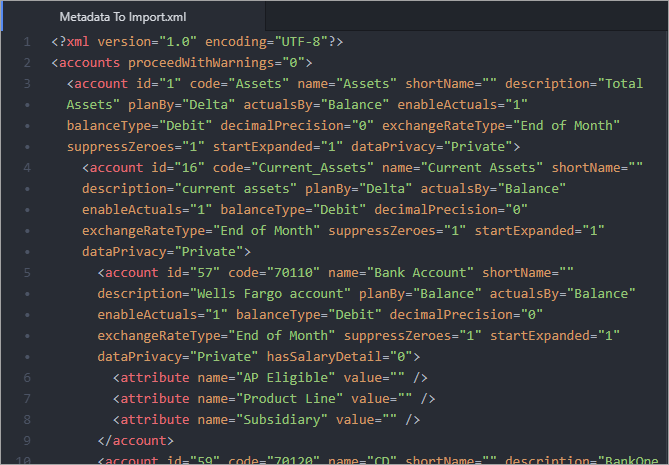
You can also download the preview output as an XML file to manually verify the accounts from your data source against your requirements before loading them.
- ClickPreview loader outputin theActionspanel.
- (Optional) Enter Preview Loader Output settings. The information you can enter varies depending on the data source you chose for this Planning Account Loader. Changing the settings here imports new data into Staging tables and columns.
- ClickPreview loader output.
The loader runs, including all transformations and business rules. A status popup displays the steps as the loader executes. If accounts are available to load, the loader creates an XML file and sends an email notification with the output as a zipped XML attachment. If no accounts load, the zip will contain a message indicating none loaded.
An additional popup lets you download the preview loader output as a zipped XML file after the loader succeeds. The download popup may take a moment to appear depending on the number of accounts and the size of the file.
This is an example of a downloaded unzipped output XML file:
Run the Loader
After saving a Planning Account Loader with the required settings, run the loader manually or run it as a scheduled integration task.
Wait about 15 - 30 minutes between each Planning Account Loader run so that
Adaptive Planning
has time to synchronize with your import. Larger imports take longer to synchronize. Wait time depends on model size and other factors.To run the loader manually, click
Run Manually
in the Actions
panel.You can load accounts directly from the source system or you can run the loader using staging values that were already imported. When the loader runs, select which of these behaviors you want. Choose
Bypass data import
to use the existing staging table for loading. Bypassing data import is not available when using spreadsheets as data sources.As part of the run process, the loader checks that the data in the staging table has been mapped correctly. Multiple validations are applied during the load. Any errors that occur during the load indicate what needs to be resolved for a successful import.
- Include the Planning Account Loader in an Integration Task
- Any integration task can have one or more loaders. A task can contain other integration tasks, like a Planning Data Loader, or a Scripted Loader.Best Practice: Have separate Integration tasks for each loader.If a task contains multiple loaders, parameters from each loader display in a prompt when the task runs. If there is a common or shared parameter in the loaders within a task, the task prompts for the parameter only once. You can choose to override parameter prompts.For scheduled runs of the task, default values of the parameters for the loaders get used.