
Example: Load Dimension Values From Spreadsheet Data Sources
This example illustrates loading a CRM Customer list from a spreadsheet data source into
Adaptive Planning
using the Planning Dimension Loader. It assumes a hierarchical dimension called Customer already exists.The end goal is to add several dimension values directly under the hierarchical Customer dimension as a collection of CRM Customers, so that the tree looks like:
Customer
|__Customer 1
|__Customer 2
|__CRM Customers
   |__R.G. Barry Corporation
   |__Sierra Bancorp
   |__SkullCandy, Inc.
   ...
|__StoneMore Partners L.P.
|__ScanSource, Inc.
...
Format the CRM Customer Spreadsheet
Spreadsheets used to import into the Planning Dimension Loader require specific formatting to indicate which dimension values are parents and which are children.
Three columns are required:
- Id: The unique identifier for the dimension value in the source system.
- ParentId: The Id for the parent of the dimension value in the source system if it has a parent.
- Name: The name of the dimension in the source system that ideally should match the Planning dimension value if it exists in Planning for the first run of the loader.
The Id column uniquely identifies each dimension value. The ParentId column indicates the Id the dimension values point to as their parent. To load at the root, ParentID should be null.
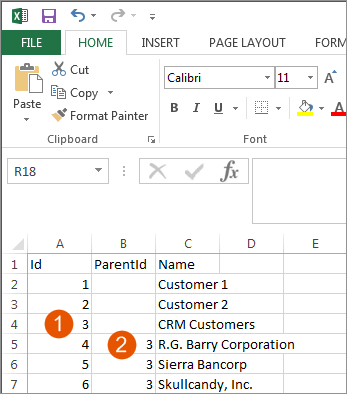
Option | Description |
|---|---|
1 | ID column |
2 | ParentId column |
If you have duplicate names for values, you need an additional column in the data source XSLX file for Code. Code uniquely identifies dimension values when duplicate dimension value names exist.
Notice that CRM Customers has an Id of 3. This Id of 3 is referenced in the ParentId column to flag all of the dimension values that will become its children.
The dimension Customer does not need to be included in the spreadsheet because it will be selected in the Data Source Settings of the loader.
Create a CRM Sheet Data Source for the Planning Dimension Loader
Using the spreadsheet shown above, create a spreadsheet data source called CRM Sheet.
Import the sheet contents for the data source to populate the staging area.
Configure Planning Dimension Loader Settings
After the spreadsheet data source is created and its data populates into the staging table, the loader can be configured.
- Data Source Settings
- The Source Table is the CRM Sheet data source's Sheet1. This example only uses the CRM Sheet data source, but you can see the other data sources in the list. Planning Dimension Loaders can access any staging data, regardless of the data source.SelectCustomeras thePlanning Dimension.EnableCreate dimension value if not found in Planning.
- Column Mapping
- Because of the data source spreadsheet's format and columns, the column mappings for this loader should be:Planning ColumnSource ColumnParent IdParentIdCustomer IdIdCustomer NameNameThis example does not need any business rules.Save the loader by clickingSavein the Actions Panel.
Preview the Loader Output
Once the loader is saved, click Preview Loader Output
in the Actions Panel.
Review the
Preview Loader Output Status
to verify that no errors occur.Run the Loader
With a successful preview of the loader output, this loader is ready to load. Click Run manually
in the Actions Panel to run it.
The loader is also ready to be included in a scheduled integration task that could run automatically.
View the Loaded Dimension Values
The screenshot below illustrates the results of loading the Customer dimension values. The left side pane shows the expanded tree within . The drop-down value C8
shows the spreadsheet formatted for import. If the ParentId column is left blank, the planning dimension you choose in the Planning Dimension Loader Data Source Settings dropdown becomes its parent.
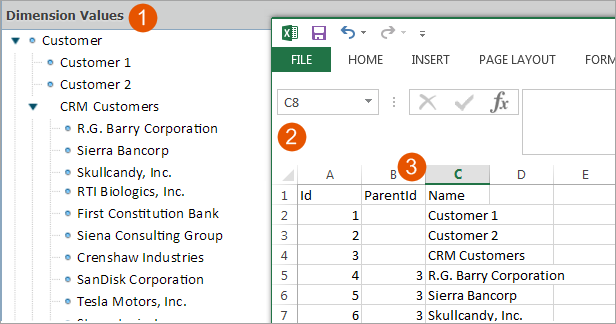
Option | Description |
|---|---|
1 | Dimension Values Pane: Customer and CRM Customers hierarchy |
2 | Spreadsheet formatted for import |
3 | Parent Id column |
Customer
, at the top of the Dimension Values list on the left, was selected as the Planning Dimension in the Data Source Settings dropdown within the loader.Reparent Dimension Values
To reparent existing dimension values with the loader, provide the Id of the new parent in the ParentId column of the dimension value you need to move. Example: Using the result of the example above, if you wanted CRM Customers to become a child of Customer 1 so that the tree looks like:
Customer
|__Customer 1
   |__CRM Customers
      |__R.G. Barry Corporation
      |__Sierra Bancorp
      |__SkullCandy, Inc.
      ...
|__Customer 2
|__StoneMore Partners L.P.
|__ScanSource, Inc.
...
The data source spreadsheet would look like:
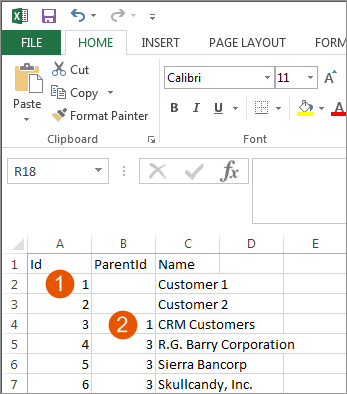
Option | Description |
|---|---|
1 | ID column |
2 | ParentId column |
Customer 1 has an Id of 1. It will become the parent of CRM Customers as indicated in the parentId column for CRM Customers.
The result of loading this spreadsheet would be:
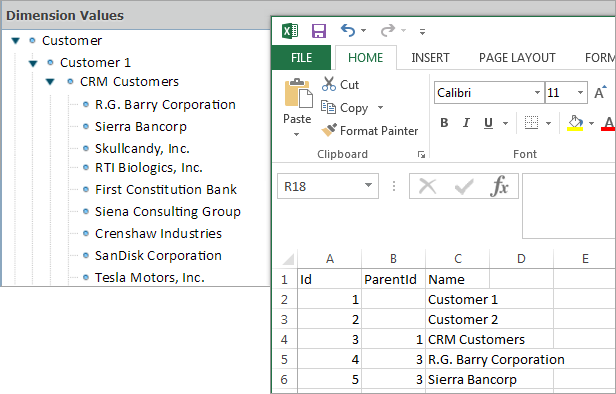
Notice that Customer 1 is the parent of CRM Customers as indicated by the parentId column in the spreadsheet.
Associate Attributes with List Dimensions
You can associate attributes with list dimensions by mapping them without indicating a parentId.
A
list dimension
is a dimension that is entirely non-hierarchical. It has no sub-dimensions and no hierarchy of dimension values, only a flat list of values.A spreadsheet data source for the list dimension Product would have columns for each of its dimension attributes such as Group, Color, and Size.
The columns for Group, Color, and Size contain the attributes for the product dimension.
Select a list dimension in the loader
Data Source Settings
.The attributes for Product become available as columns within Column Mapping because this dimension is a list dimension.
These additional columns would not be available for column mapping if this were a hierarchical dimension.