
Concept: Integration Quick Tour
When you have Integration, the navigation menu shows three options under
Integration Management
:- Run Tasks
- Design Integrations
- Notification logs
You must have the Integration Tasks and Data Designer permissions to see these links.
Select
Run Tasks
to navigate to the Task Overview page for all integration tasks.Select
Design Integrations
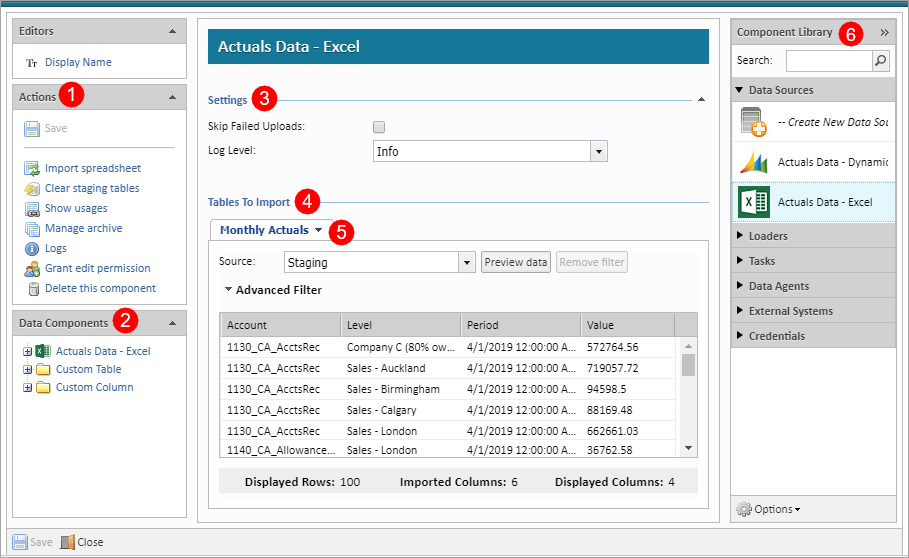
to view the Data Designer. Use the Data Designer to create, manage, and edit data sources, loaders, integration tasks, data agents, external systems, and data source credentials. What you see in the Data Designer varies depending on what you select in the Component Library
.
Option | Description |
|---|---|
1 | Actions Pane: Save settings, import structure and data from sources or loaders, view logs, grant edit permissions, manage data source objects or reports, and more. |
2 | Data Components Pane: View data source table columns and drag them into the staging area for importing or creating custom columns. |
3 | Settings: Select and edit settings for data sources, loaders, tasks, external systems, and credentials. |
4 | Tables to Import (Staging Tables): View a preview of the data coming from a data source, drag in columns from the Data Components pane. For Loaders, manage how columns and tables map to Adaptive Planning levels, accounts, dimensions, attributes and more. |
5 | Staging Data: After importing from a data source, view and filter it before bringing it into a loader. |
6 | Component Library: Manage or create data sources, loaders, integration tasks, data agents, external systems, and data source credentials. |