
Compare Data with Other Versions in Sheets
You can compare versions in standard sheets. To compare data while you plan:
- ClickDisplay Options
 from the Planning tab and click the Version Comparisontab.
 - Select a year from the dropdown.
- Choose the version of actuals or planning. For example, you might want to see last year's actuals and last year's approved budget as you plan this year's budget.
- You can enter an offset for the year: enter a negative numbers for years prior and a positive number for years after the year you selected from the dropdown.
- ClickOK.
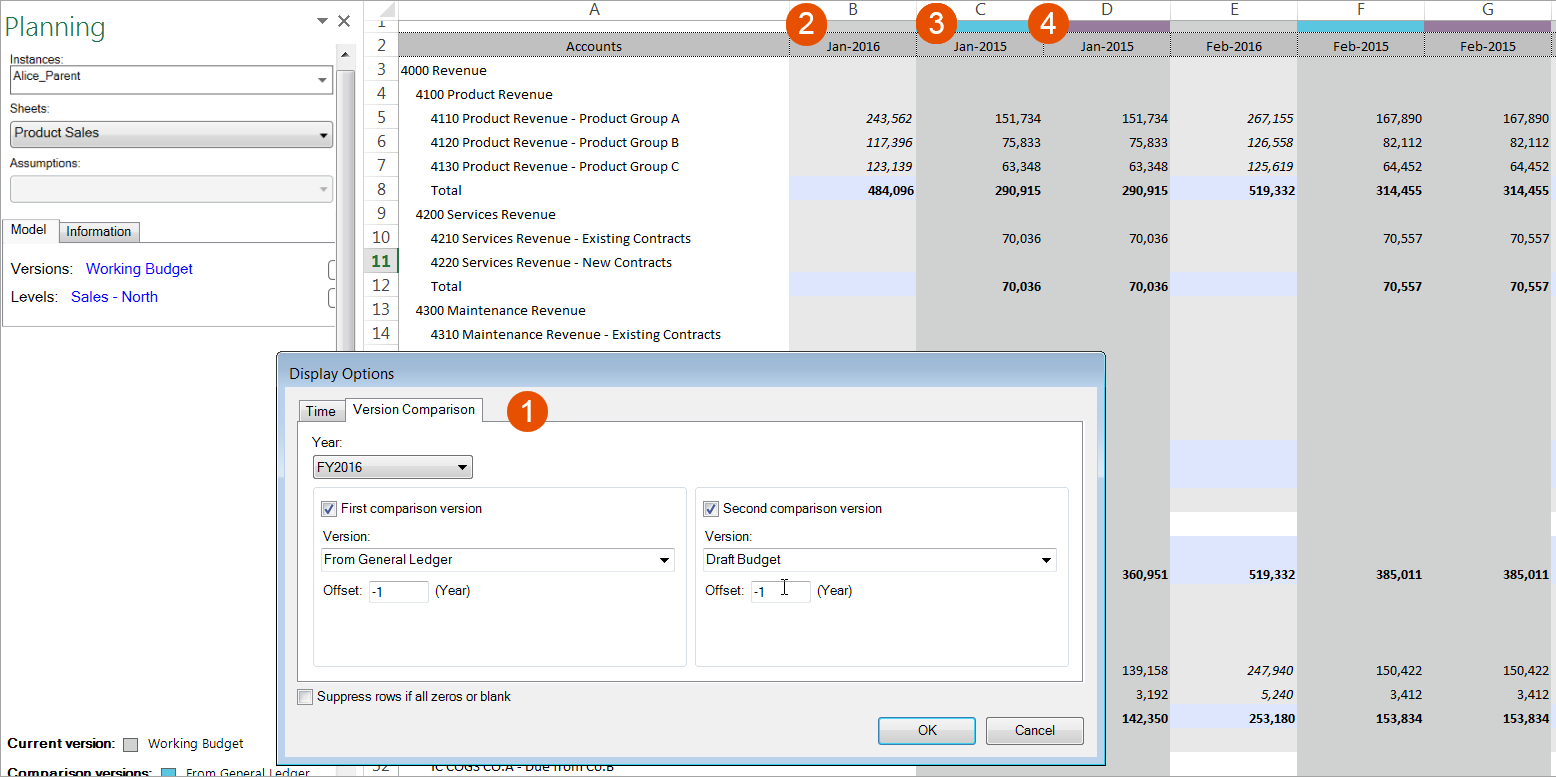
See how the settings change the display in the example below:
Option | Description |
|---|---|
1 | The Version Comparison options selected. |
2 | Columns without color coding are the current sheet that you're working. In this example, monthly data from 2016. |
3 | In this example, this column is showing General Ledger Actuals data from the prior year (-1 offset). |
4 | In this example, this column is showing Draft Budget Data from prior year (-1 offset). |