
Create Weighted-Average Translation Accounts
Audience: Administrators who manage the model.
Weighted-Average Translation
(WAT) is an account setting for cumulative accounts. A default formula pulls the data from a periodic account into the cumulative account. Weighted-Average Translation then converts the currencies on the delta at the average periodic exchange rate. This provides a weighted-average conversion. Additional settings: Balance Reset and Balance Transfer at Reset provide automated data flows.In general, use the Weighted-Average Translation setting for cumulative accounts that use periodic account data. See Example: Set Up Data Flow with Weighted-Average Translation.
Prerequisites
Prerequisites
- New to weighted-Average translation? See Concept: Accounts, Concept: Multiple Currency Tools, and Concept: Weighted-Average Translation.
- Required permission: Model Management Access > Model.
- Weighted-Average Translation is only available forgeneral ledger and custom accounts. See Concept: Type Setting for Accounts.cumulative by delta
Navigation
 From the nav menu, select
 Modeling
.
From the Accounts menu, choose, General Ledger Accounts
or Custom
Accounts
. Required Settings for Weighted-Average Translation
If the Weighted-Average
Translation setting is inactive or unavailable, check the following:- The account must have no child accounts.
- Type: Cumulative.
- Plan By and Actuals By: Delta.
- Actuals Overlay: Enable actuals.
- Display As: Currency for custom accounts. This is not editable for general ledger accounts.
- Default Formula: reference a source account (generally a periodic account with an average exchange rate).
- Data Entry Type: Standard.
If the account that receives the balance, isn't available in the
drop-down, check that it has all the settings and requirements
outlined above and these additions:
- Default Formula: Enter 0 (zero).
- Time rollup (for custom accounts only): Value in last time period.
- Level/Dimension rollup (for custom accounts only): Sum of rolled up values.
- Weighted-Average Translation: Selected.
- Reset Balance: Not selected.
- Transfer Balance on Reset: Not selected.
Create Weighted-Average Translation Accounts
Watch the video
(2 m 56 s): From the accounts page:
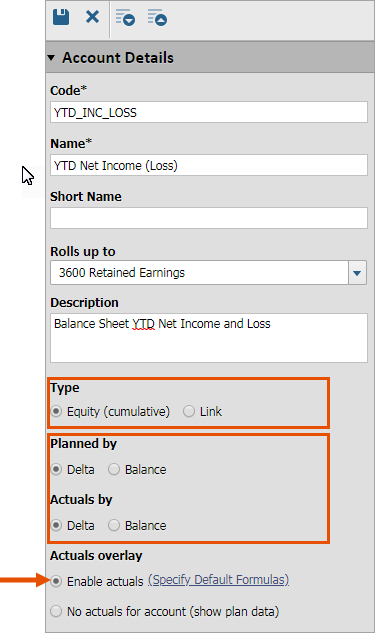
- Select a cumulative account that has no child accounts. Or select the cumulative parent account of the new account and clickCreate New. Cumulative automatically sets for Type. Don't change it.
- In the Account Details section:
- Planned byandActuals by: SelectDeltafor both. IfActuals byis locked, scroll to the Actuals Overlay setting and selectEnable actualsto unlock it. This setting applies the exchange rate to the delta, rather than the accumulated, or the periodic total.
- Time Rollup: For custom accounts only. If it's a recipient account, chooseValue in last time period.
- Level/Dimension Rollup: For custom accounts only. If it's a recipient account, chooseSum of rolled-up values.
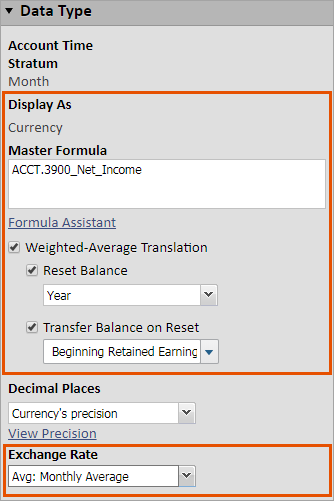
- In the Data Type section:
- Display As: For custom accounts, chooseCurrency. For general ledger accounts, this is a read-only setting. This displays the value as a number in each rollup level's currency.
- Default Formula: Enter a formula that references the periodic account. The formula populates the account values with the other accounts' data, rather than data entry. If it's a recipient account for weighted-average balance transfers, enter zero. The formula adds zero to the initial balances entered on the related sheet and accumulates the transfers received.
- Weighted-Average Translation: Select the checkbox. This setting converts the delta by the selected exchange rate before accumulating it. This method keeps the exchange rate affect aligned with the periodic account's data.
- Reset Balance(optional and available if you selectWeighted-Average Translation): Select the checkbox and select the time interval. Available intervals are based on your model's calendar setup. Options generally include Month, Quarter, Year. Don't select this checkbox for recipient accounts. This setting lets the account accumulate and reset to zero.
- Transfer Balance at Reset(optional and available if you selectReset Balance): Select the checkbox and choose the account that receives the balance. This setting transfers the account balance to the selected account.
- Exchange Rate Type: To avoid currency conversion errors, choose the same exchange rate type of the account you reference in the Default Formula field. If this is a recipient account, choose the same exchange rate as the account that is transferring the balance. In general, chooseAvg: Average Monthlyor any custom rate that is a periodic average.
- Select
 Save.
Save.