
Set up PGP Encryption
You can upload and download encrypted files from
Adaptive Planning
using Pretty Good Privacy (PGP) to a secure server. This article explains how to create PGP credentials from Design Integrations, how to add PGP encryption to your CCDS and how to encrypt and decrypt files using PGP. With PGP you can share your Public key with partners and retrieve partner keys.
Before you Begin
- Required Permissions:Integration DeveloperwithinAdministration > Permission Set
- Request the partner key to be communicated to you as an .ascfile.
Basic Steps
- Create a PGP Encryption credential.
- Input the partner key.
- Download your public key.
- Add the PGP Encryption to your CCDS.
- Include PGP encryption or decryption in your script.
How you get There
 From the nav menu, go to
 Create a PGP Encryption credential
A new PGP encryption includes a 2048 bit key pair. Public key is visible in the form and available as a download in the
Actions
pane. The private key is hidden and can not be exported.- Create aPGP Encryptioncredential fromCredentialspane in Design Integrations.
- Enter a name for the PGP encryption credential.
Input the Partner Key
A partner key is required to encrypt files or text for the partner. Your partner key comes from the .
asc
file you received. - Copy all of the text from your .asc file, including-----BEGIN PGP PUBLIC KEY BLOCK-----and-----END PGP PUBLIC KEY BLOCK-----
- Paste the key in thePartner keyfield and save the form.
Download the Public Key
Select
Download public key
from the Actions
pane. This generates your public key in an .asc
file and downloads it to your local file manager. 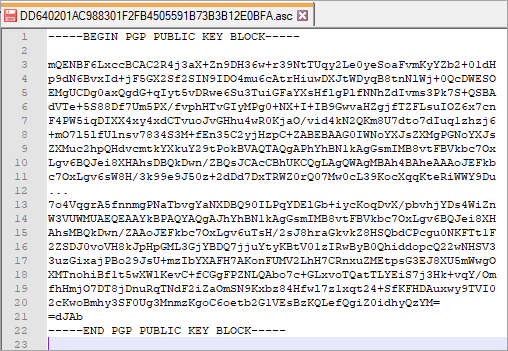
Add PGP Encryption to your CCDS
- Select your CCDS fromData Sources.
- Select theDesigner Settingstab for your CCDS.
- Drag and drop thePGP Encryptionparameter fromAdditional Settingsin theSettings Componentpane. The setting name is the handle you will use inside your script. Example: 'myPgp'
Example to Encrypt/ Decrypt text string with PGP.
Encrypt/ Decrypt text string with PGP.
- Example to encrypt text into a PGP message
- function testConnection(context) { var text = "Text to encrypt"; var encrypedPgpMessage = ai.util.encrypt(text,'myPgp'); ai.log.logInfo("encrypted message", encrypedPgpMessage ); return true; }
- Example to decrypt a PGP message
- function testConnection(context) { var message = "-----BEGIN PGP MESSAGE-----" +"Version: GnuPG v2.0.14 (GNU/Linux)" +"Your Message" +"-----END PGP MESSAGE-----"; var text = ai.util.decrypt(message,'myPgp'); ai.log.logInfo("text message", text); return true; }