
Create Calculations for Charts
Prerequisites
- Build your calculation:
- What is purpose or end result?
- What accounts are needed in the expression? Make note of the account codes that you want to reference in the expression before opening the Metric Editor.
- Will the calculation be applied to a chart or reused in another calculation?
- Create a subfolder for your calculation. Folders are useful if your instance has many calculations and can help with browsing. Once you create a calculation, you cannot move it.
- Edit access to a personal or shared perspective.
- Security:
- Access Dashboardspermission.
- Edit Dashboardspermission.
- Model Management Accesspermission.
- Model includes: sheets, accounts, dimensions, and formulaspermission.
Create a Calculation
You can create a calculation and add it to a chart as a data series.
- Navigate to the perspective and dashboard.
- ClickEditfrom the toolbar to switch to edit mode.
- In the left panel, clickAccountsto view a list of accounts and metrics.
- Hover over any folder in<your instance> Metric. Click
 to open the more menu and choose Add Calculated Metric. The Metric Editor displays with the Settings tab open.
Name the Calculation
Use the Settings tab to name the calculation. Each calculation must have a display name and code. Charts and other calculations use the code to uniquely identify the calculation. The code must be unique. Spaces and special characters are not allowed:
- QuickRatio (valid)
- quick_Ratio (valid)
- quick_ratio_1 (valid)
- quick-ratio (not valid)
- quick ratio (not valid)
- On the Settings tab, provide a name. Spaces and special characters are allowed.
- Provide a unique code for the calculation.
- Optional. Provide an short name.
- Choose a formatfrom the Display As drop-down:
- Currency (default)
- Number
- Percent
- Change the Decimal Place. The default is 0.
- Optional. ClickSave.
Save after completing each major step (name, build expression, restrict dimensions) to save time in case you need to cancel before completing the calculation.
- If you saved at this point, reopen the calculation to continue editing the calculation. From the left panel, click on the calculation and choose Edit.
Build the Expression
From the
Expression
tab, enter an expression using the list of operators and functions.Restrict Dimensions and Attributes
You can restrict dimensions and attributes on the calculation for restricting filtering and breakdown in charts and drilldowns in view mode. For example, you can restrict the dimensions available from a calculation to the
Product
and Location
dimensions: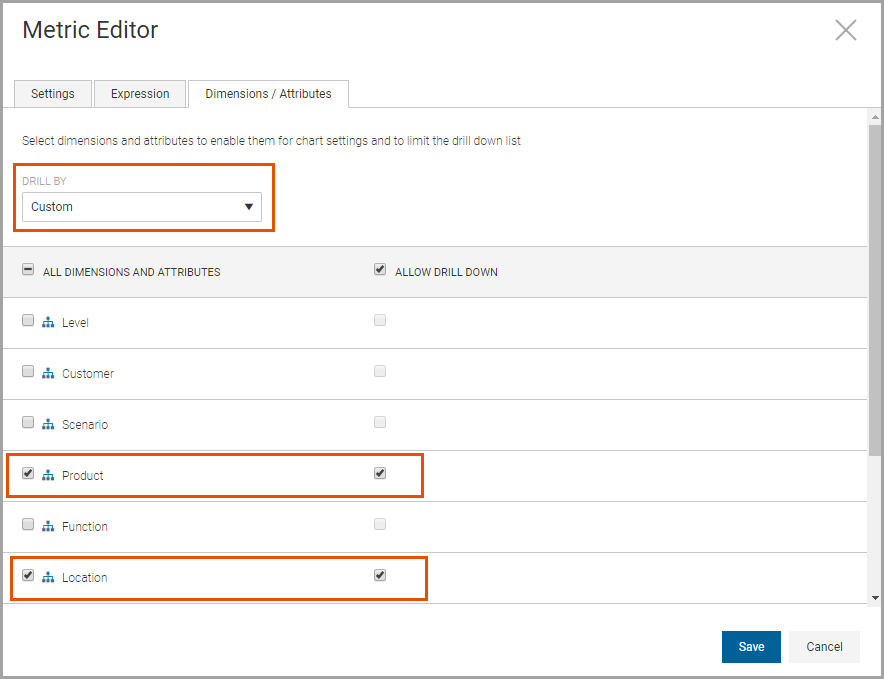
Choose an option for restricting dimensions and attributes available for the chart filters and breakdown in edit mode and for drilldowns in view mode. Options include:
- Auto: Default. Level dimension only.
- Custom: All dimensions and attributes are selected. You can choose a mix of dimensions and attributes that are available selection on chart settings and for the drilldown.
- All: All dimensions and attributes are selected. You can choose dimensions and attributes that are available for selection on chart settings. All dimensions and attributes are available for the drilldown and cannot be changed.
When you add the calculation to a chart and edit the data settings, your selections for filtering are restricted to the dimensions and attributes you chose from the Metric Editor.
If you chose to restrict by
Product
and Location
, only these dimensions are available for filtering or for selection when choosing a breakdown by dimension on data series. Edit a Calculation
You can edit any calculation in on the calculation and choose
<your instance> Metric
folder. Hover over the calculation and click on the calculation and choose Edit
. You can edit any setting, change the expression, or change dimensions.Before you make any change, keep in mind that others may be using this calculation in other charts.
Delete a Calculation
Use care when deleting a calculation, they may be used in other charts. Deleting calculations can cause errors or change the analysis on charts that reference the calculation.
You can delete any calculation in on the calculation and choose
<your instance> Metric
folder. Hover over the calculation and click on the calculation and choose Delete
. A confirmation message displays. Click OK
to delete.