
Example: Find Account Usage from Model Overview
This example illustrates how to find a sheet that uses an account by searching the Model
Overview.
You're new to Adaptive Planning and need to manage an account called
Service Revenue
. You
want to find:- Where to locate the account in sheets.
- Where to locate the account in theAccountsadmin so you can change its settings.
- How this account connects to other accounts by formula or link.
Security:
- Model includes: sheets, accounts, dimensions, and formulaspermission.
- Select from the main menu.
- From the toolbar prompts, select a version and the highest level you can access.
- In the search field, enterService Revenue.
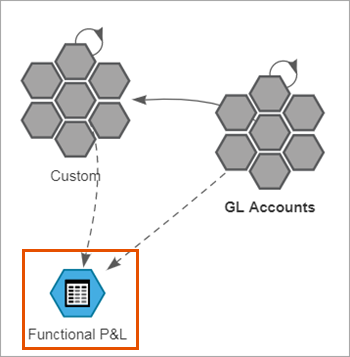
- From the search results, selectService Revenueto filter the model overview.The overview displays theFunctional P&Lsheet. You can now go to Sheets >Functional P&Land review the data for the account. Only these graphics related to theService Revenueaccount display:
- To view the account path, hover theLocationcolumn forService Revenuein the search results.The path indicates thatService Revenueis a custom account. Take note of the path:
- Double-click theCustomaccounts cluster graphic.
- Select theCustom Administrationlink.The Custom Accounts Admin opens in a new tab.
- Following the path, expand the account list until you findServices Revenue.
- SelectService Revenueto view or edit the account settings.
- Return to theModel Overviewbrowser tab.
- Double-click the solid arrows.Solid arrows between the account clusters indicate connections through links or formulas. A table displays all references between the clusters.
- FindService Revenuein the table.The table indicates thatService Revenueuses a formula that refers to a general ledger account called4200-Services Revenue. This reference means that the data entered in the general ledger calculates the data in the custom account.The formula could be an account default formula or a shared formula.
- ClickService Revenueto open theAccountadmin and check theDefault Formulafield.If the account doesn't have a default formula, selectFormulasfrom the main menu, and selectService Revenuefrom the drop-down prompt to find the shared formula.